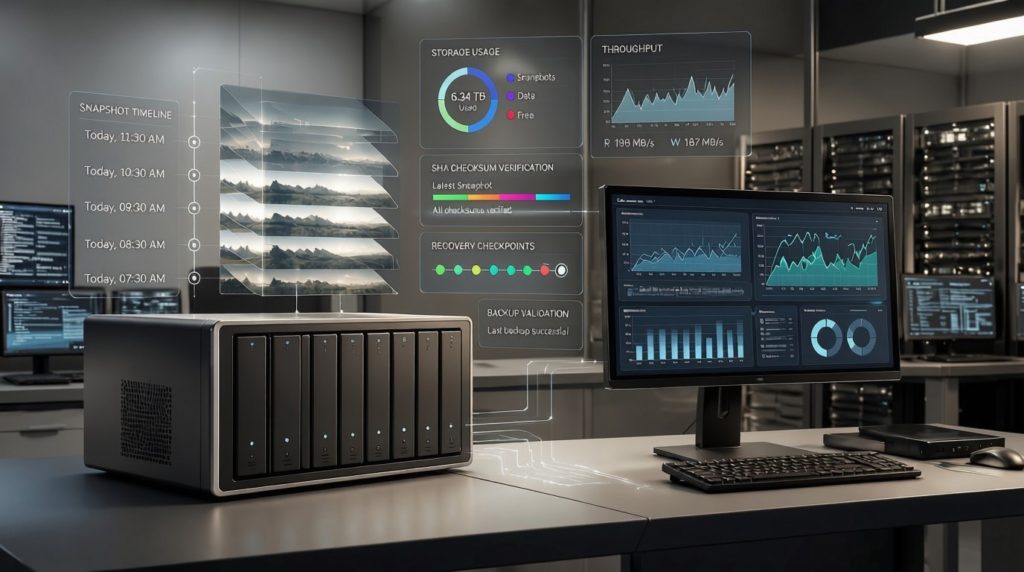
Companion document to the Snapshots for ransomware resilience – research report. It documents the full experimental procedure and screenshot evidence behind that report’s scorecard, in enough detail to reproduce the tests. Device under test: Ubiquiti UNAS (“NAS 8TB”), UniFi Drive. Filesystem: Btrfs on MDADM, RAID1, 7.99 TB pool. Test client: Windows 10. Test tool: nas_snaptest.py.
All tests were run with the test tool (nas_snaptest.py) executing on the Windows client, against the mapped SMB share, using the share-only account. The tool never logs into the NAS. Snapshots are taken, and pool/drive space is read, from the NAS admin interface at the checkpoints where the tool pauses. This separation is deliberate: the modelled “attacker” holds the backup share’s credentials and nothing else.
Test group 1 — Device capability exploration & setup
Test 1.1 — Test share and baseline configuration
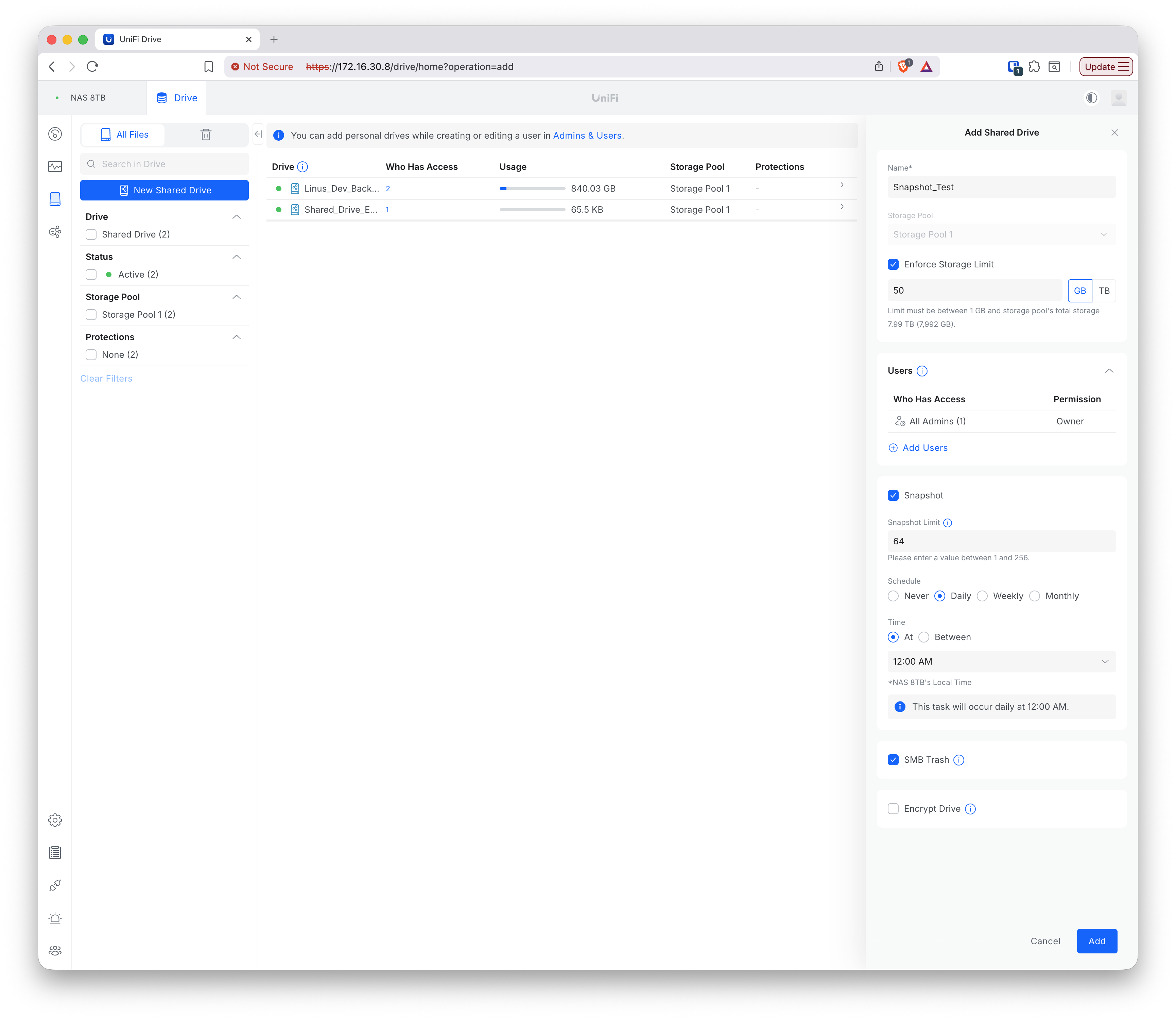
The test drive Snapshot_Test was created in UniFi Drive with the following configuration:
- Storage pool: Pool 1 (8 TB, RAID1).
- Enforced storage limit: 50 GB. (This becomes the quota used to reach “full” quickly.)
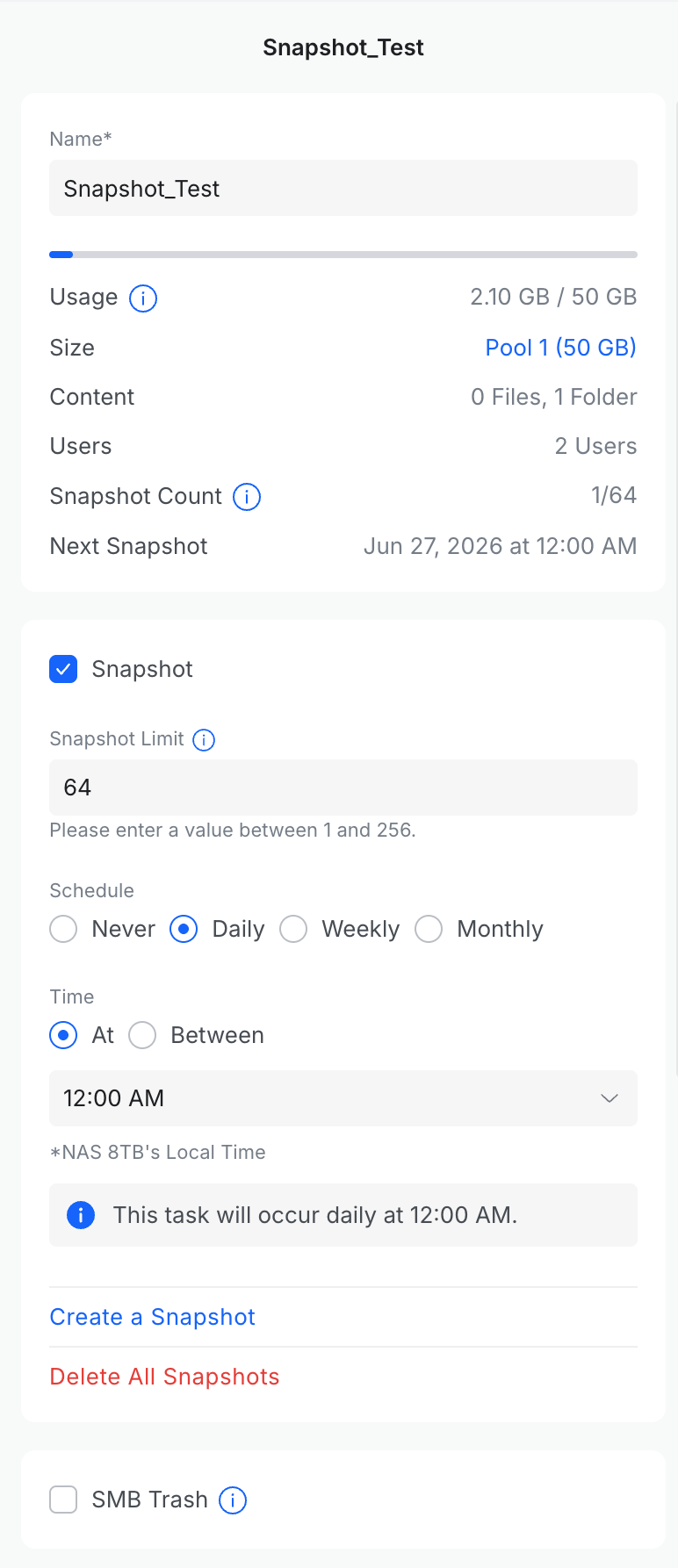
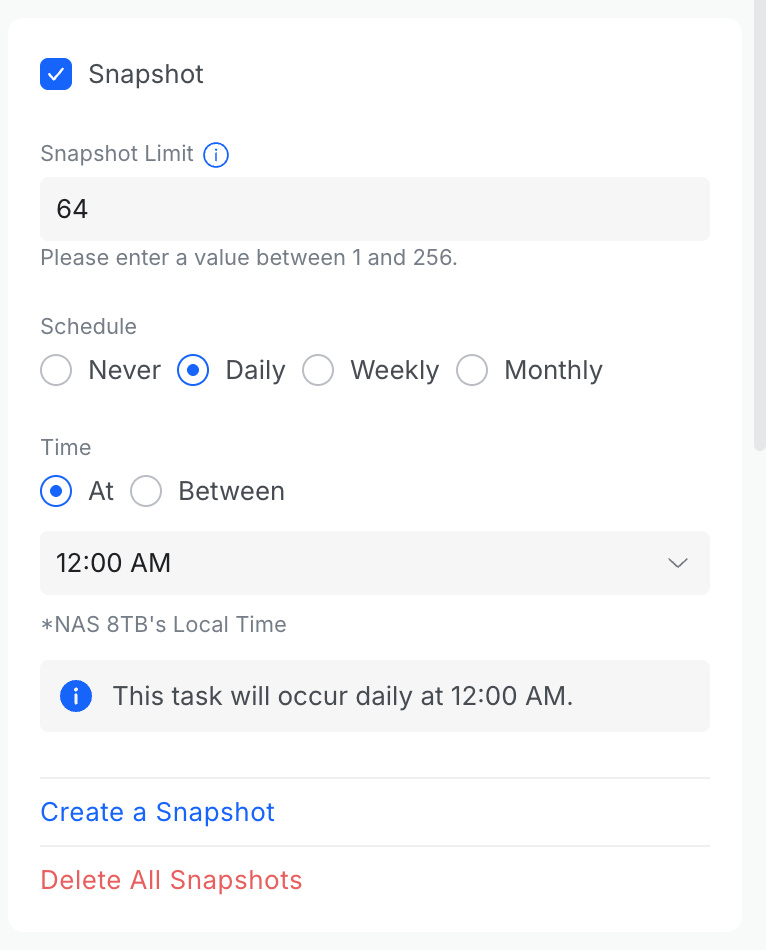
- Snapshot limit: 64 (the platform default; the field accepts 1–256).
- Snapshot schedule: Daily at 12:00 AM for this test (the platform’s scheduling is finer-grained than “daily” suggests — see the note below).
- SMB Trash: initially enabled at creation, later disabled for the test. This was a deliberate configuration change so that deletes free blocks immediately rather than routing to a recycle area.
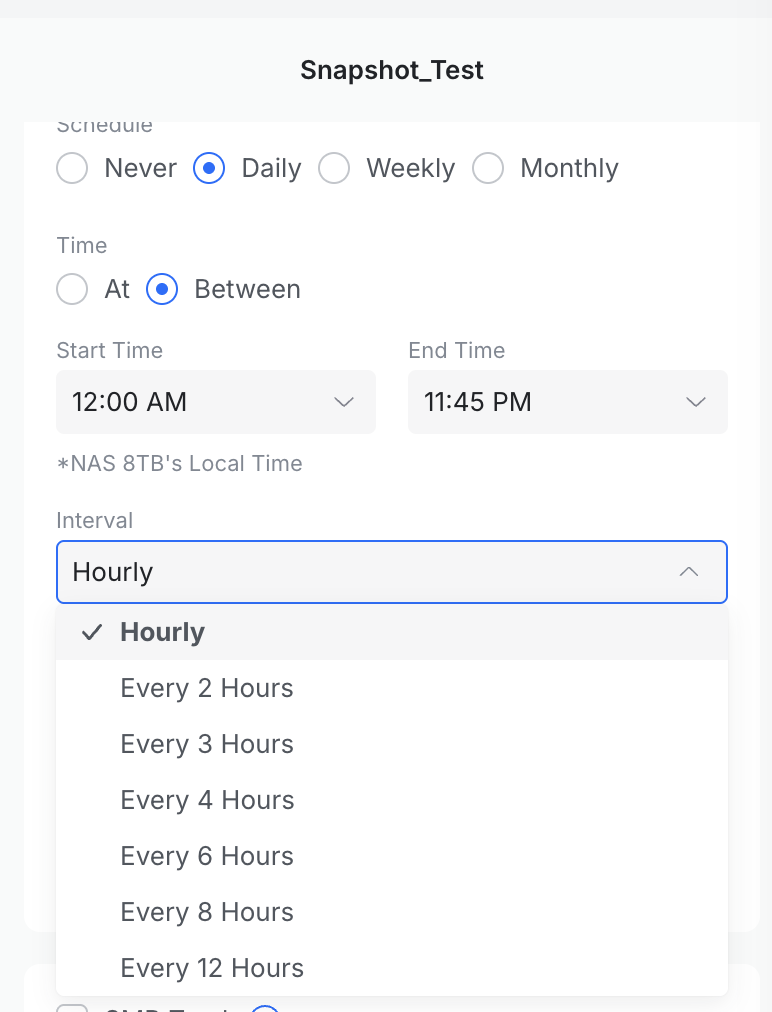
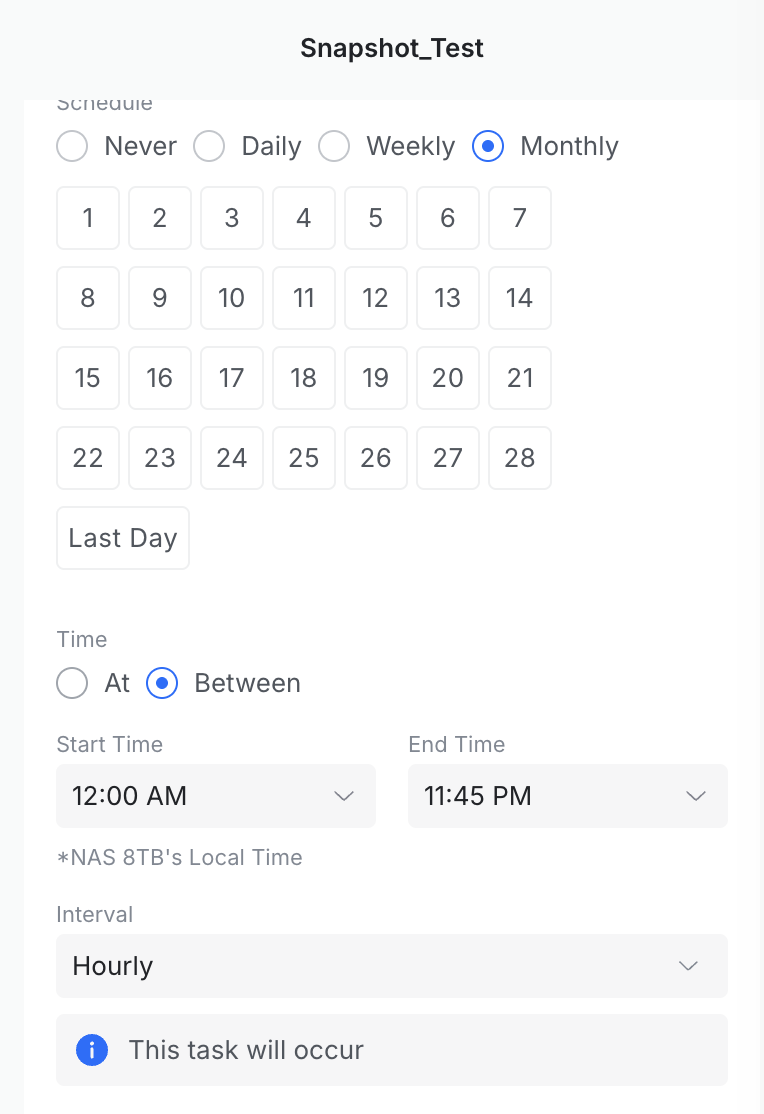
Although “Daily” is the finest option shown, the platform’s scheduling is finer-grained still than the label suggests. With Daily, Weekly or Monthly selected, a snapshot can be taken At a fixed time or Between a start and end time, and when a window is used an Interval can be chosen down to hourly (or every 2, 3, 4, 6, 8 or 12 hours). Snapshots can therefore be scheduled as frequently as once an hour, not merely once a day.
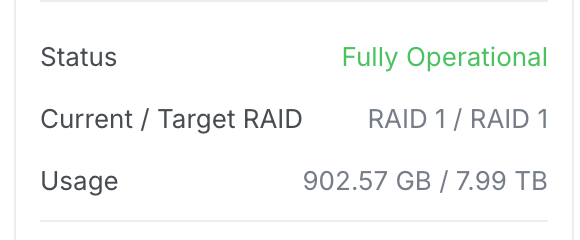
The pool was nearly empty of our test data at the start (~902 GB used of 7.99 TB, from unrelated existing shares such as Linus_Dev_Backup). Note: partway through the test campaign, additional unrelated data was added to other shares on the same NAS. From that point on the pool usage figure is contaminated for our purposes, so later tests rely on the drive’s own / 50 GB usage figure and on the snapshot list, both of which are scoped to Snapshot_Test.
Test 1.2 — Creating the share-only account
UniFi Drive separates two distinct secrets, which is central to the credential-separation question:
- The UniFi account identity (email + UniFi/SSO login), which grants access to the console and the Drive admin UI, including snapshot controls.
- The File Services & Time Machine credentials — a separate local username/password used only for SMB/Time Machine access to shares.
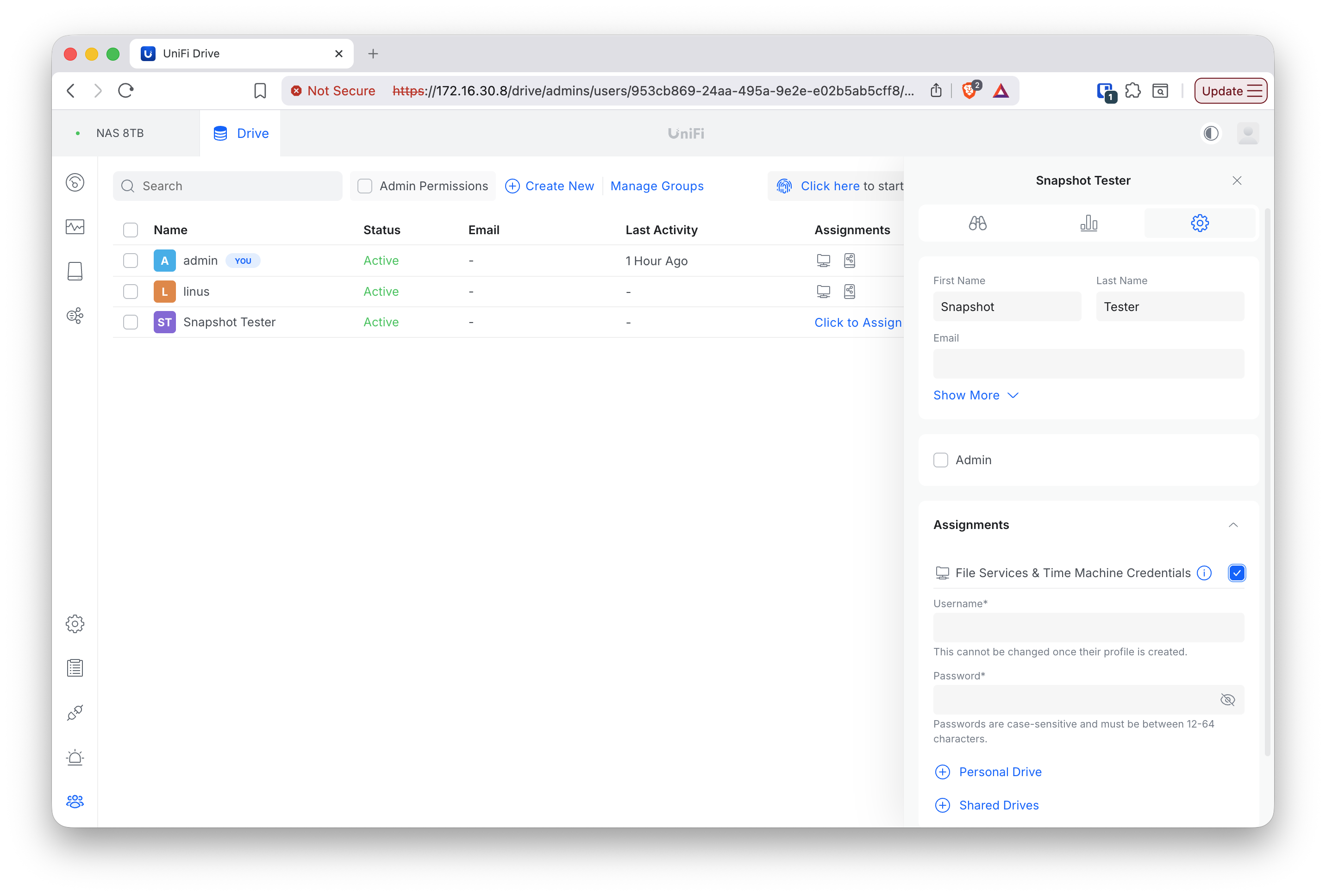
Creating the share-only account is a specific six-step sequence. The password field does not appear on the initial “Create New User” form; it is exposed only after enabling File Services & Time Machine Credentials on the user’s settings (gear) tab.
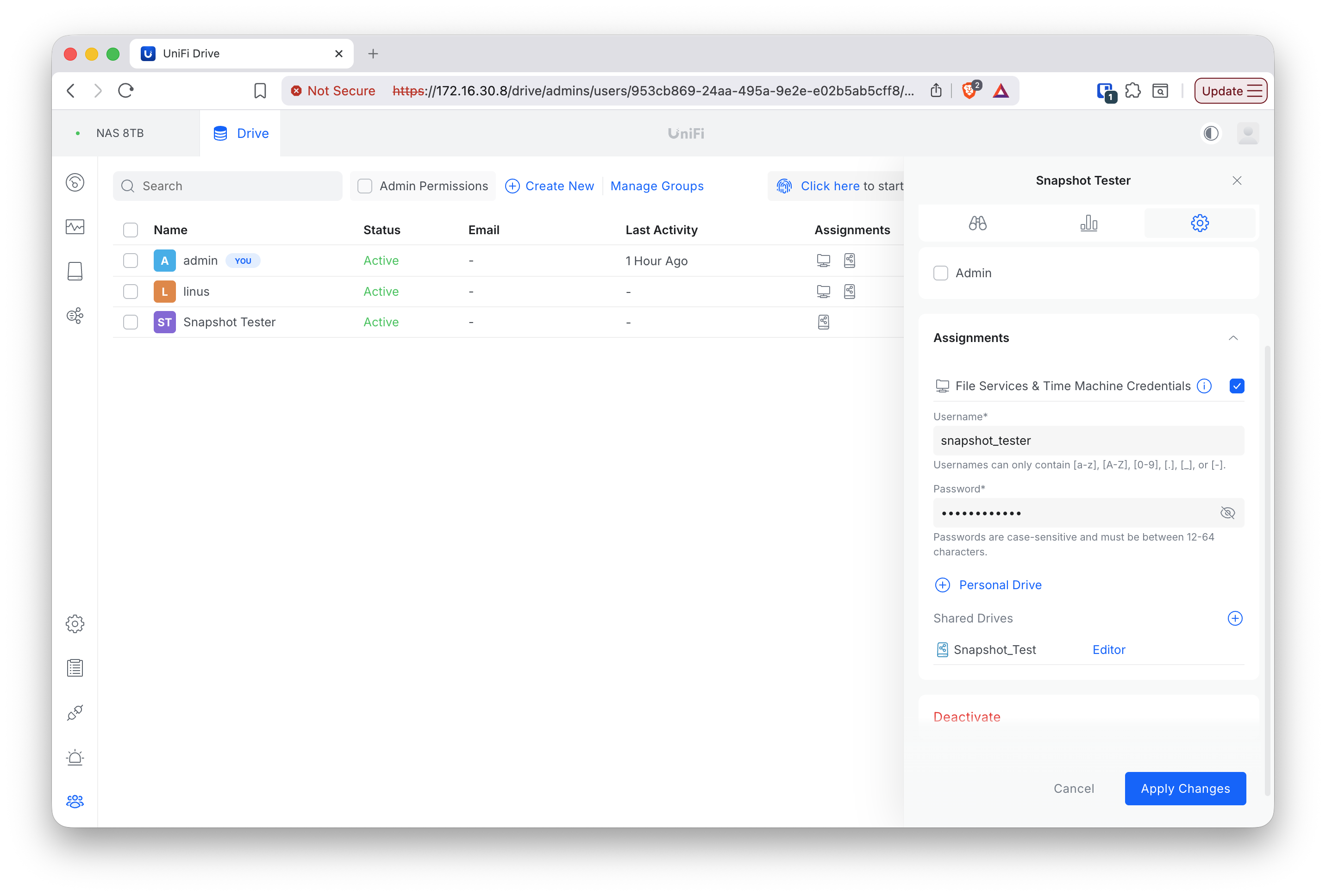
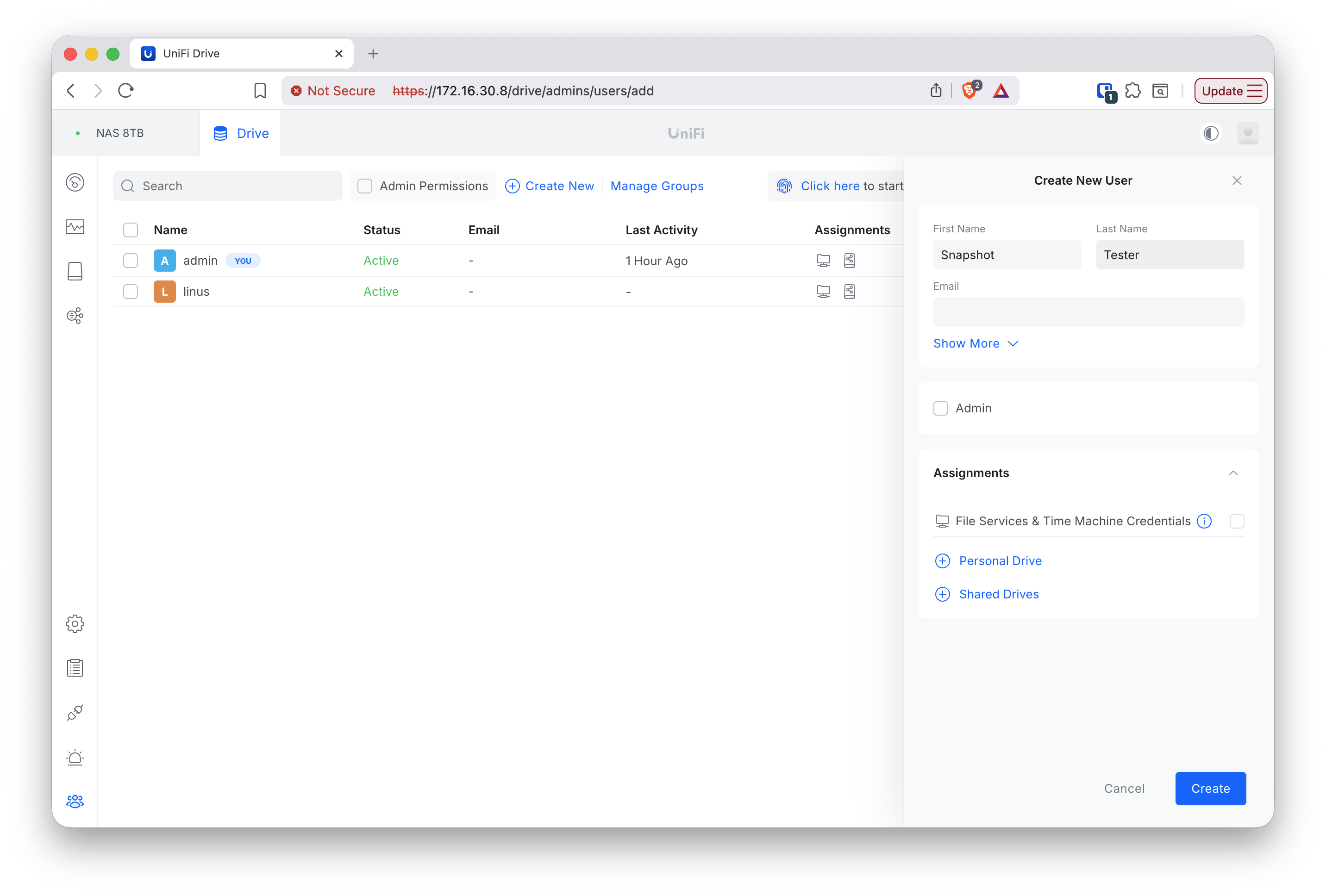
- Open the Users screen and click Create New.

User list before creating the test user - Fill in the user details and click Create. Note the File Services & Time Machine Credentials checkbox is not yet enabled at this stage, so there is no password field.
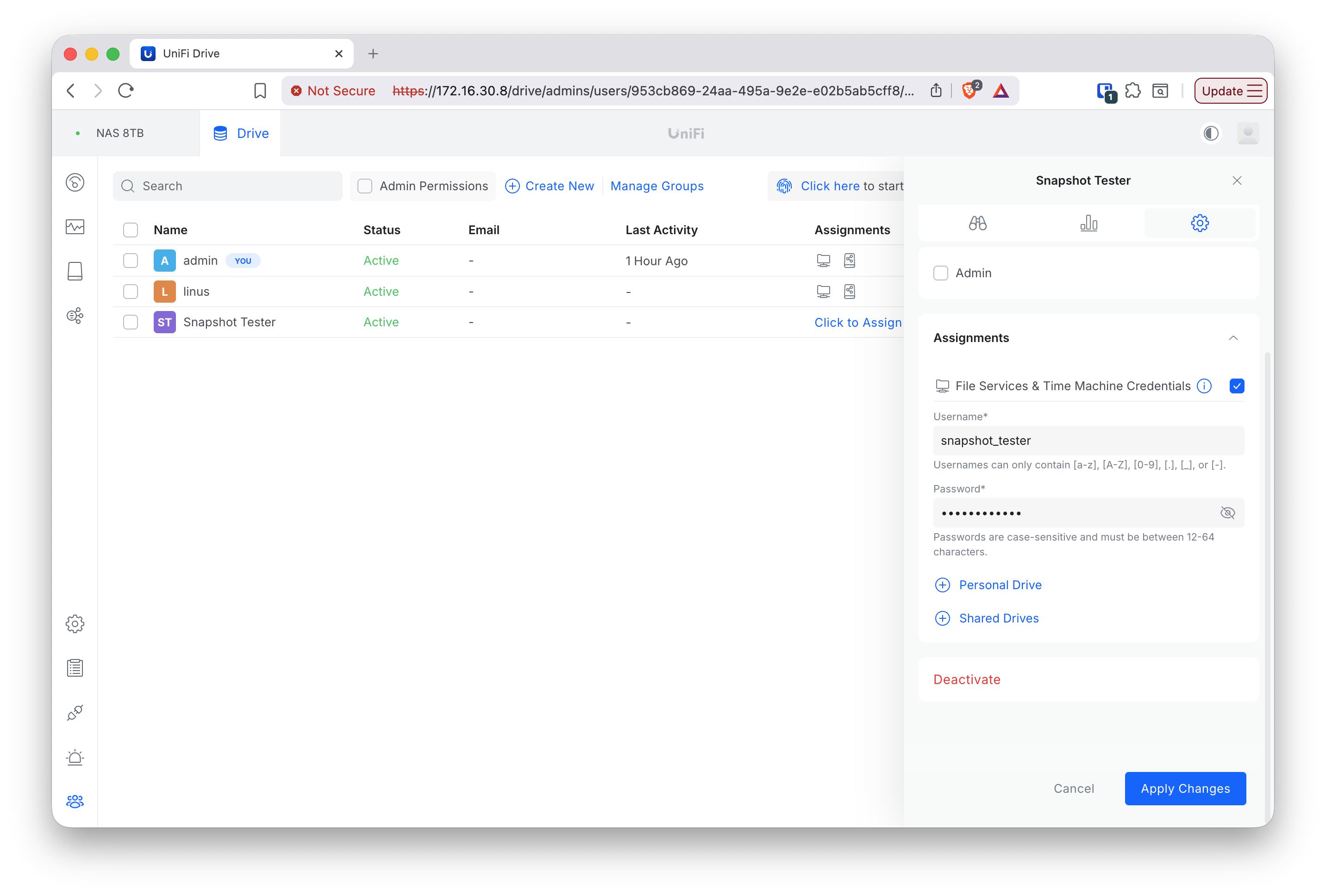
Create New User form — no password field yet - Click the newly created user, then the gear icon, then enable File Services & Time Machine Credentials.
Enabling File Services & Time Machine Credentials reveals the username/password fields - Enter a fresh username and password. (Username can only contain
[a-z] [A-Z] [0-9] . _ -, cannot be changed once the profile is created; password is case-sensitive, 12–64 characters.)
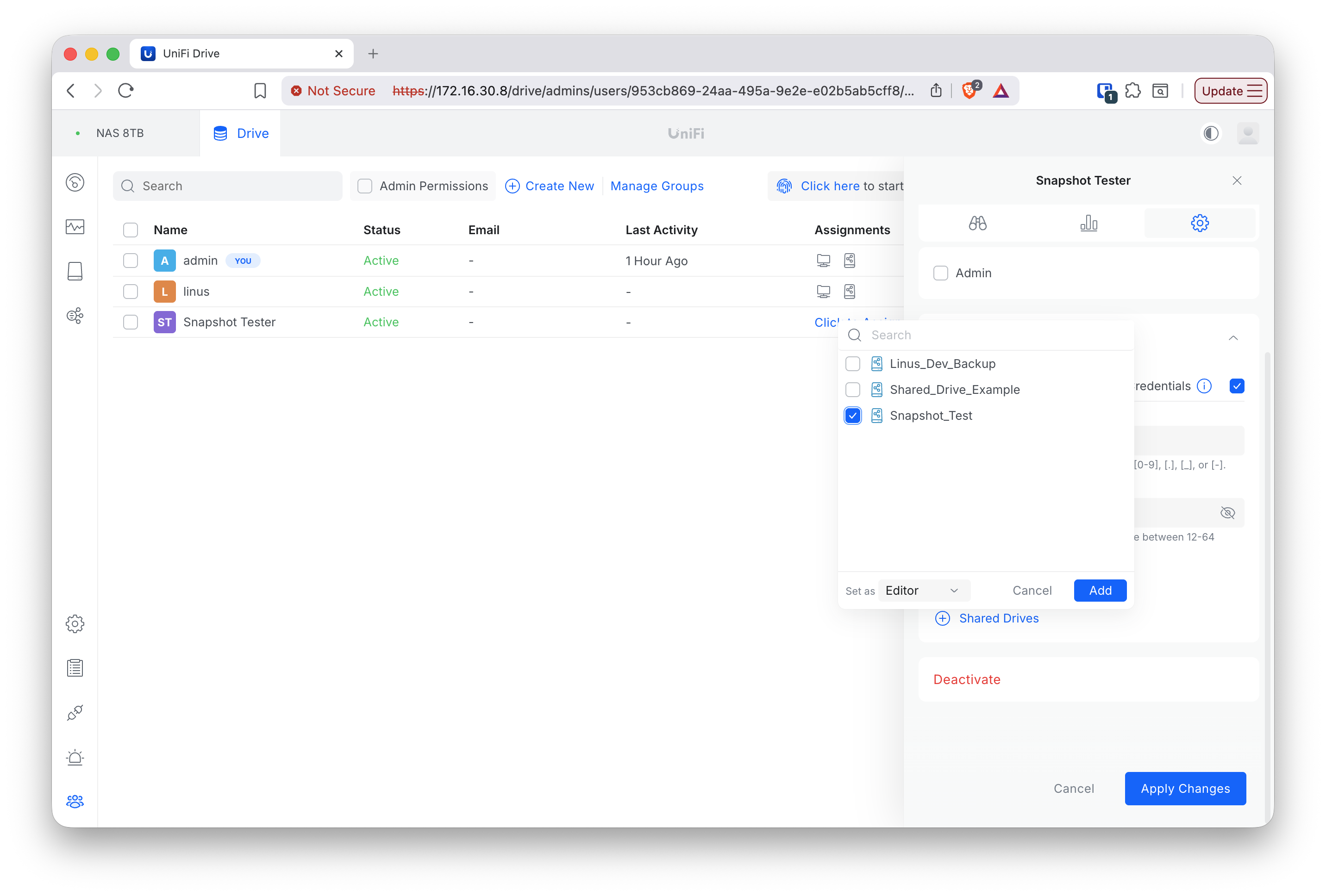
Username snapshot_tester and password set - Click Shared Drives and check the drive just created (
Snapshot_Test), set as Editor.
Assigning the Snapshot_Test shared drive as Editor - Click Apply Changes.
Final state — snapshot_tester, Admin unchecked, Editor on Snapshot_Test only
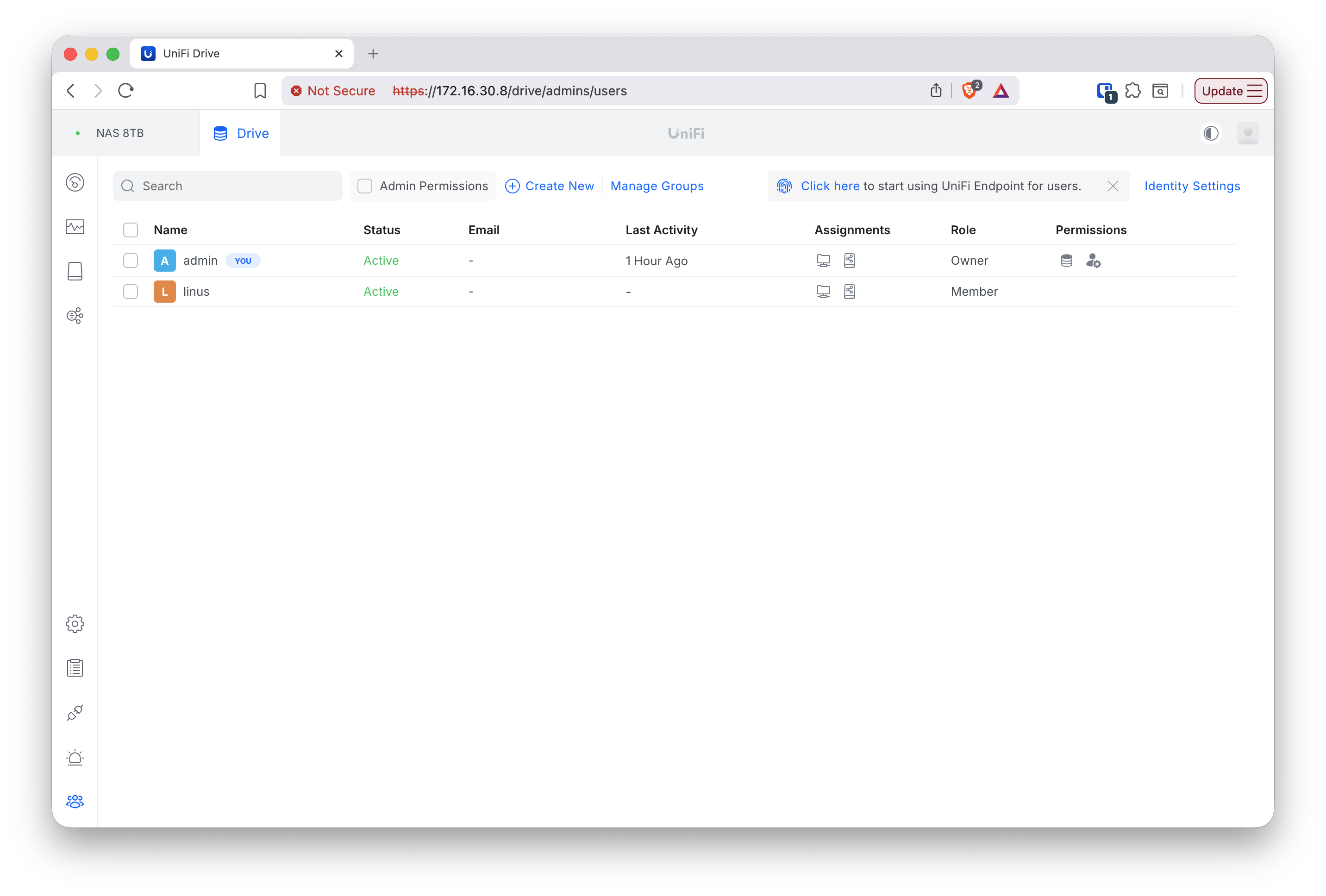
Result — criterion #2 (separate credentials): Yes. The File Services SMB credential (snapshot_tester) is a genuinely distinct secret from the UniFi admin login — not the same identity with different permissions. The account was created with Admin unchecked and only Editor rights on the single Snapshot_Test drive, matching the threat model of “the credentials the backup software holds, and nothing more.”
The share was then mapped from the Windows client to drive letter S::
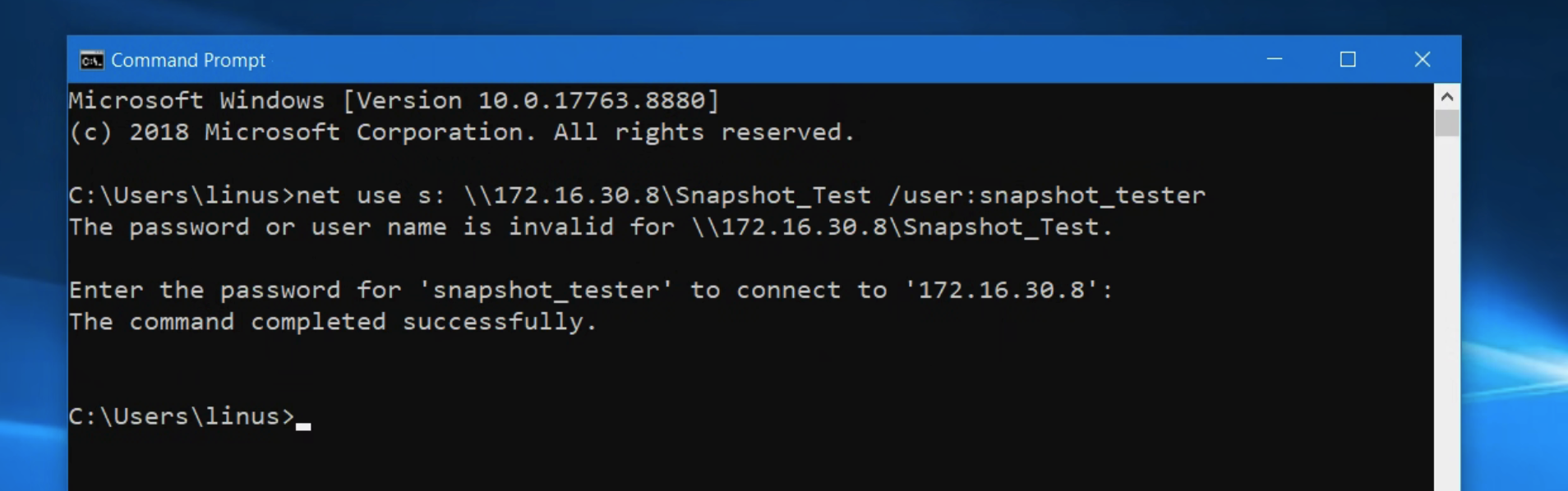
The mapping used the interactive password prompt rather than placing the password on the command line, so the credential is not persisted in shell history — consistent with the threat model’s requirement not to store the share credential persistently.
Test group 2 — Attack & recovery: does the snapshot survive a share-credentials attack?
This is the central test: it simulates ransomware that has compromised the workstation and reached the mapped backup drive, but does not hold NAS admin credentials.
Step 1 — Build the clean dataset and take the clean recovery point.
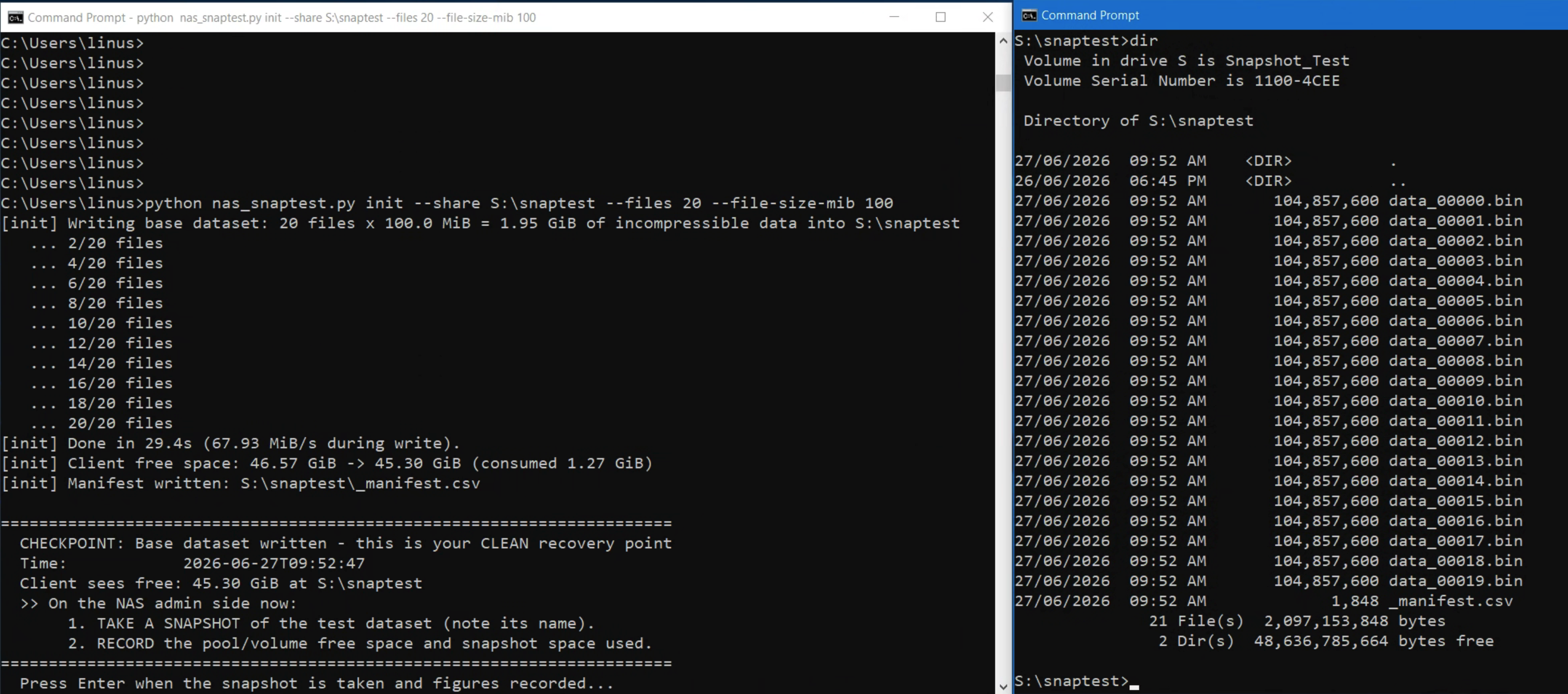
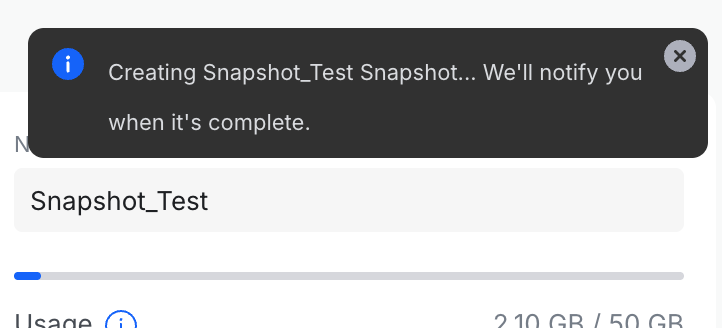
python nas_snaptest.py init --share S:\snaptest --files 20 --file-size-mib 100The tool wrote 20 × 100 MiB = 1.95 GiB of incompressible data and built a SHA-256 manifest, then paused at a checkpoint. A manual snapshot was taken on the NAS admin side as the clean recovery point.
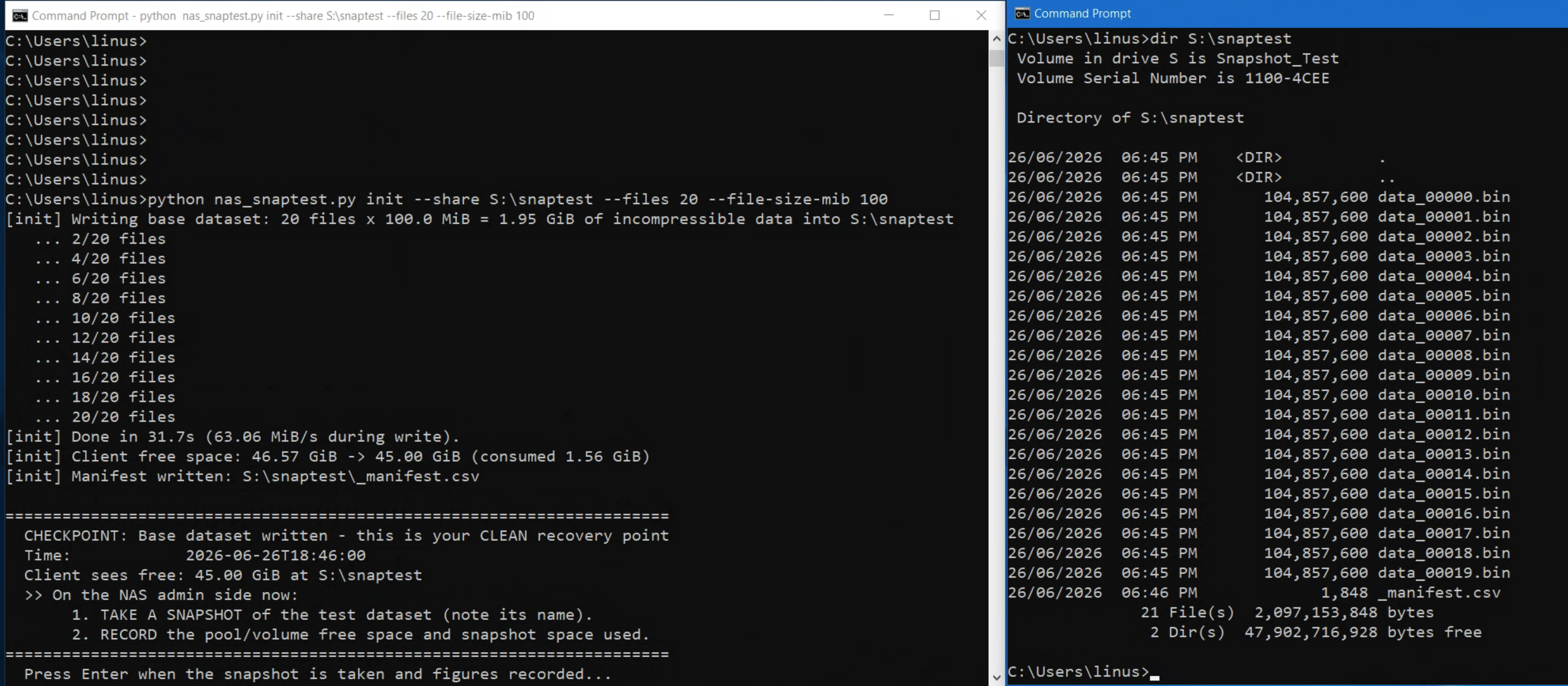
Baseline figures recorded from the drive panel: usage 2.10 GB / 50 GB (the NAS’s decimal 2.10 GB equals the 1.95 GiB written), Snapshot Count 1/64, with no snapshot-exclusive space pinned yet (nothing had changed since the snapshot).
Step 2 — The attack: overwrite all files over the share.
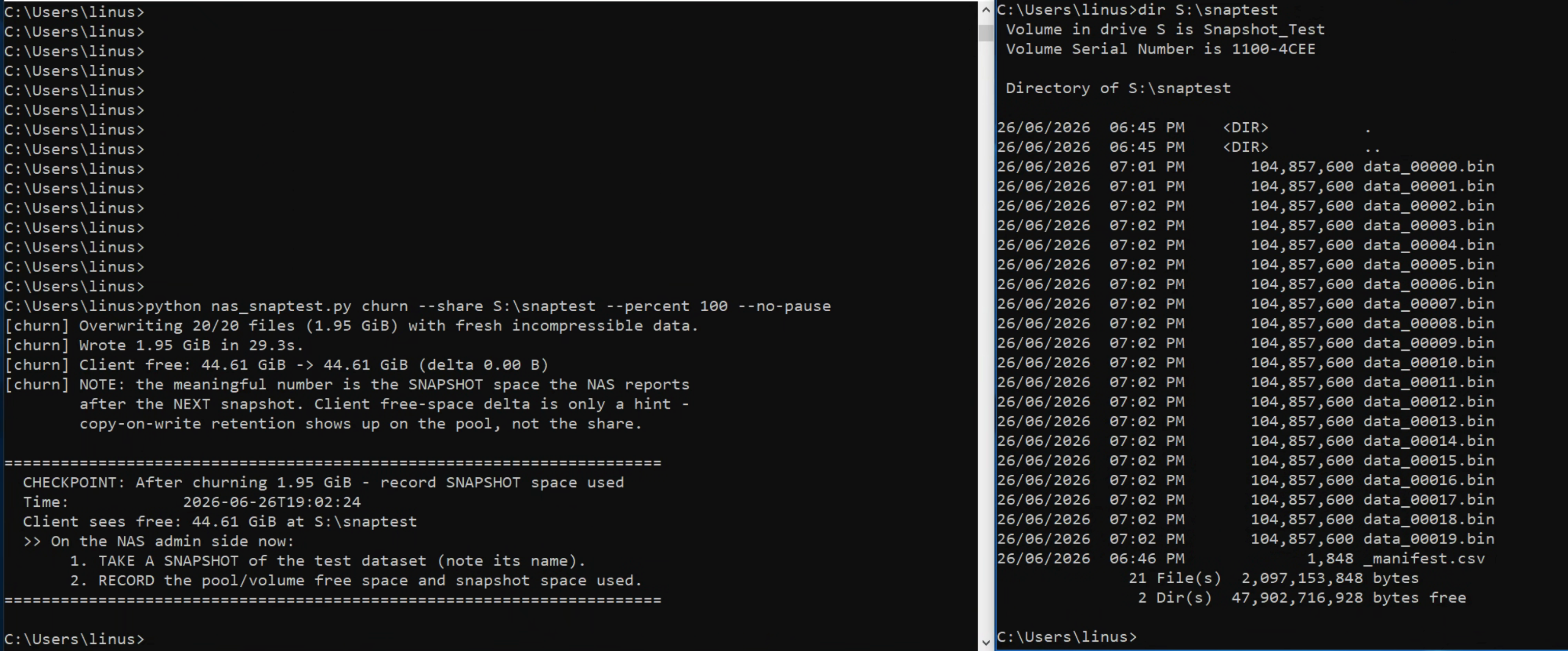
python nas_snaptest.py churn --share S:\snaptest --percent 100 --no-pauseActing as snapshot_tester (share access only), all 20 data_*.bin files were overwritten in place with fresh junk — what ransomware does to a backup set. The client free-space delta was 0.00 B, as expected for in-place overwrite of same-size files; the live backup set is now destroyed.
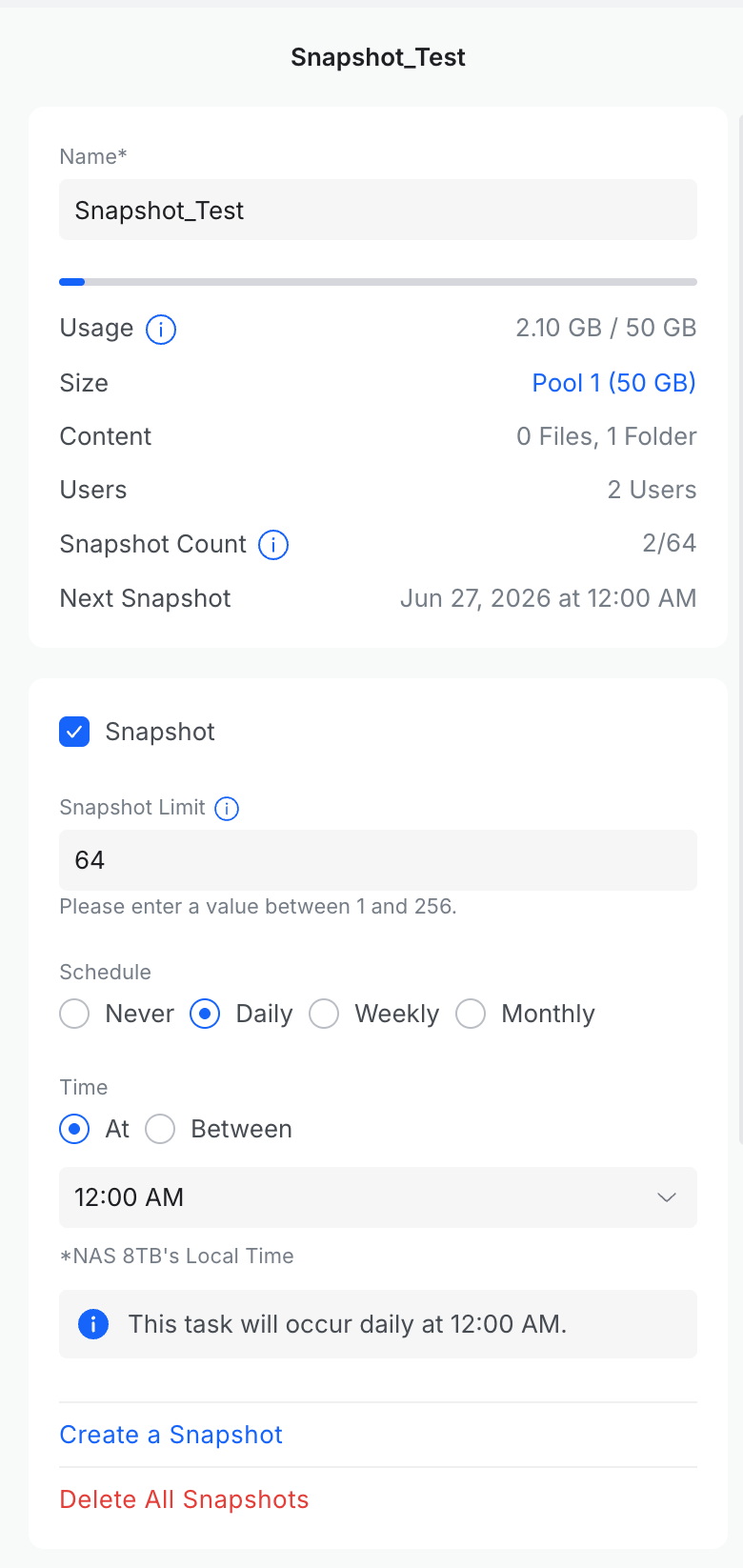
The drive usage panel still showed 2.10 GB / 50 GB with the snapshot intact. This is consistent with Btrfs copy-on-write: the overwritten blocks now exist only inside the snapshot (pinned), and that retention is accounted for on the pool rather than against the 50 GB live-data figure.
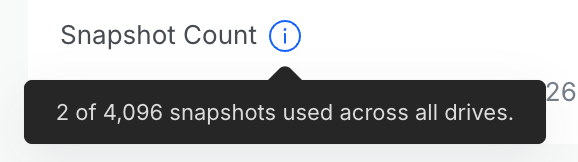
The drive’s snapshot-count tooltip clarifies the count is a global figure (“2 of 4,096 snapshots used across all drives”):
Step 3 — Attacker visibility checks (share side only).
- Previous Versions: right-clicking a file → Properties → Previous Versions showed no versions. UniFi Drive does not expose snapshots to SMB clients via the Windows Previous Versions / VSS shadow-copy interface, so the client-side “restore previous version” path some ransomware targets does not exist here.
Previous Versions tab — “There are no previous versions available” - Hidden snapshot directory:
dir /a(which lists hidden and system entries) onS:\snaptestshowed only the 20data_*.binfiles and_manifest.csv— no~snapshot/#snapshotdirectory exposed over SMB.
dir /a on the share — no hidden snapshot folder present
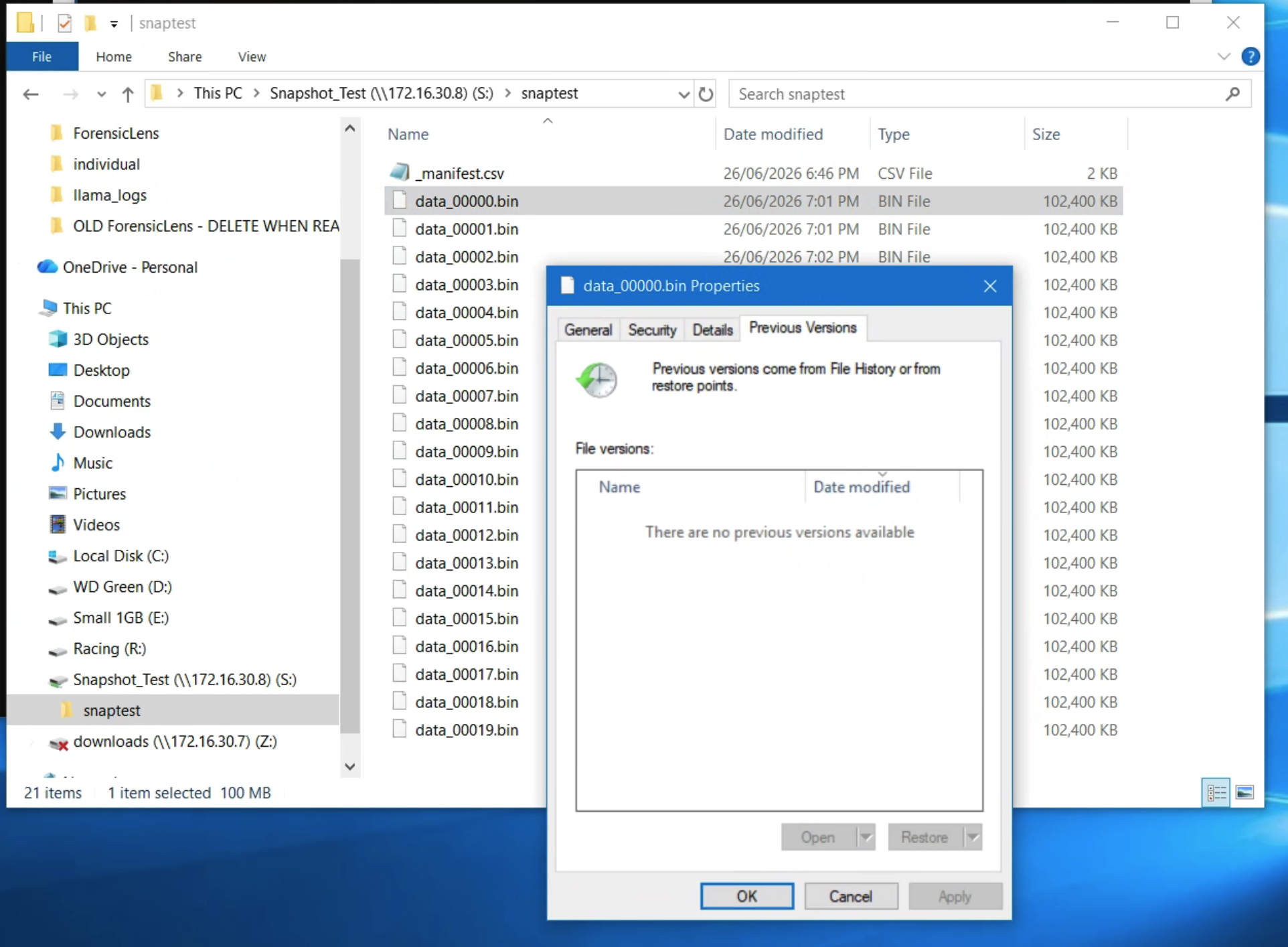
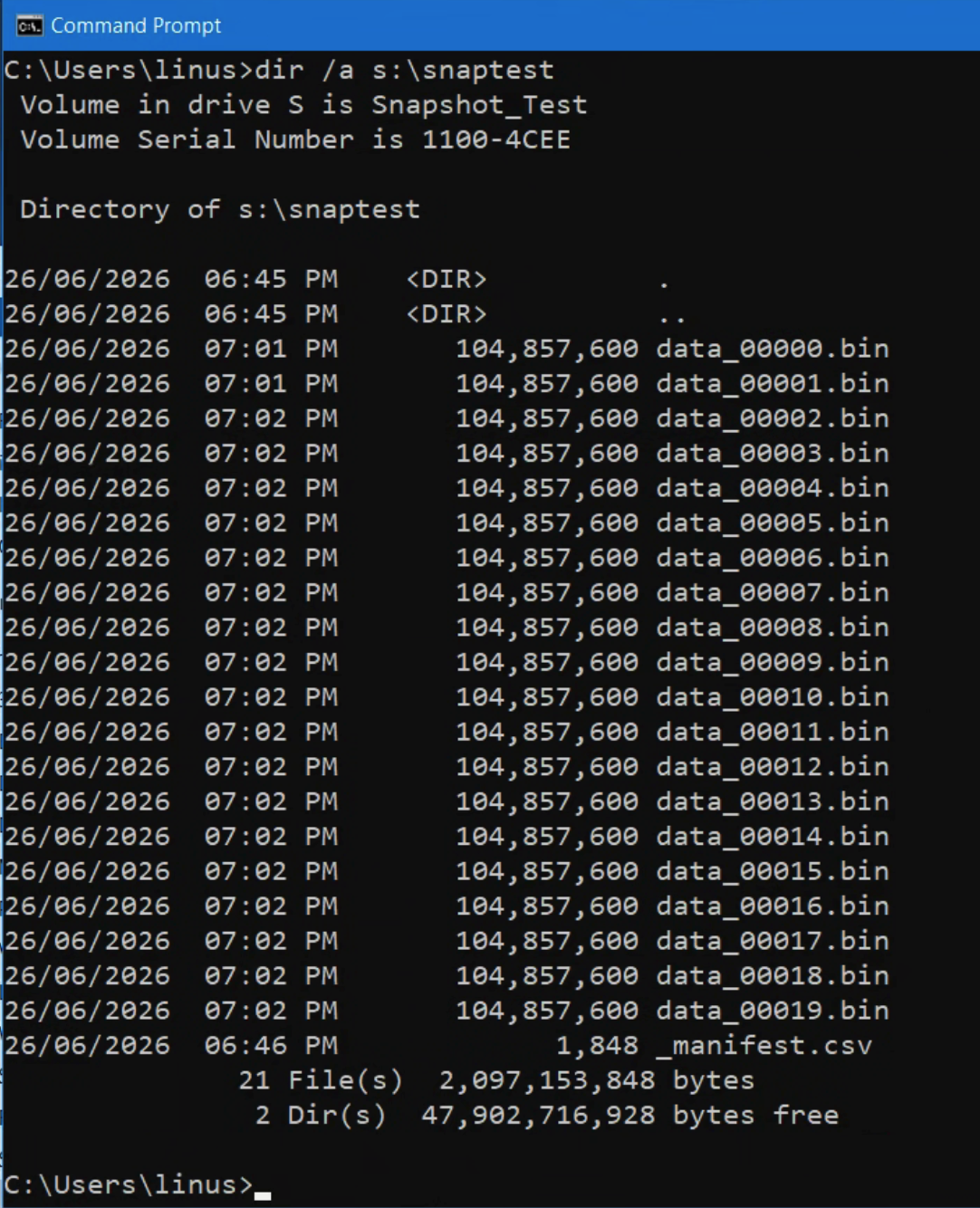
The attacker, holding only the share credential, could neither see nor enumerate nor reach the snapshots.
Step 4 — Restore from the NAS admin side.
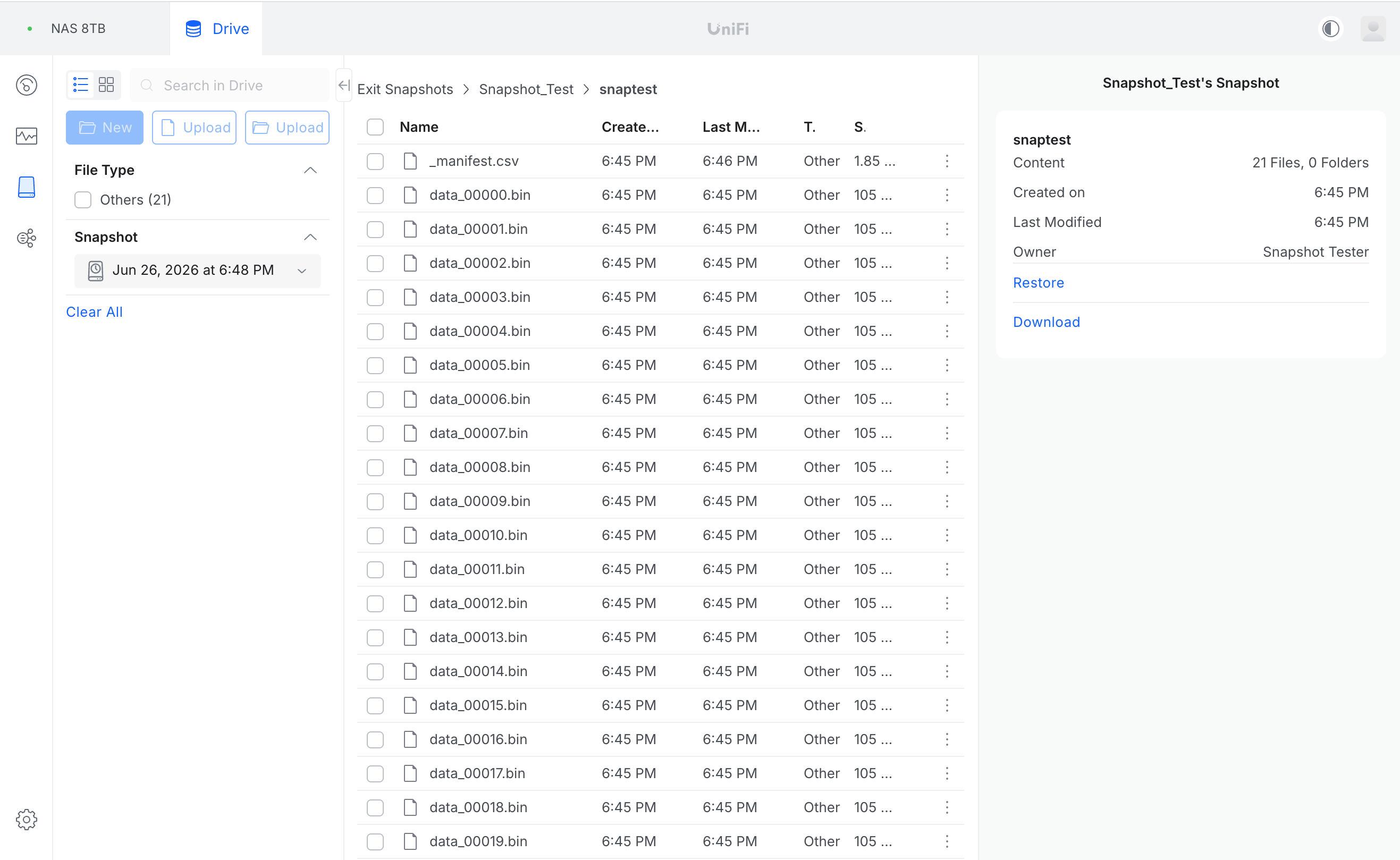
From the admin snapshot browser, the snapshot can be navigated into and inspected. The options offered are Lock, Restore, and (for individual files) Download / Delete.
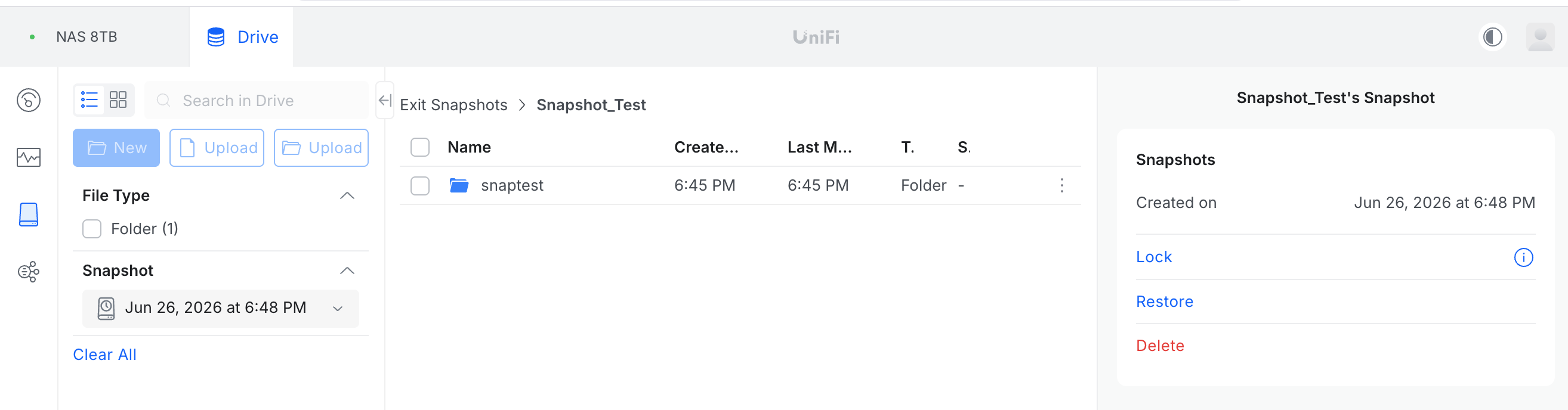
Navigating into the snapshot confirmed it held the clean dataset: 21 files (20 data + manifest), each with the original pre-attack modified time, owner shown as “Snapshot Tester”.
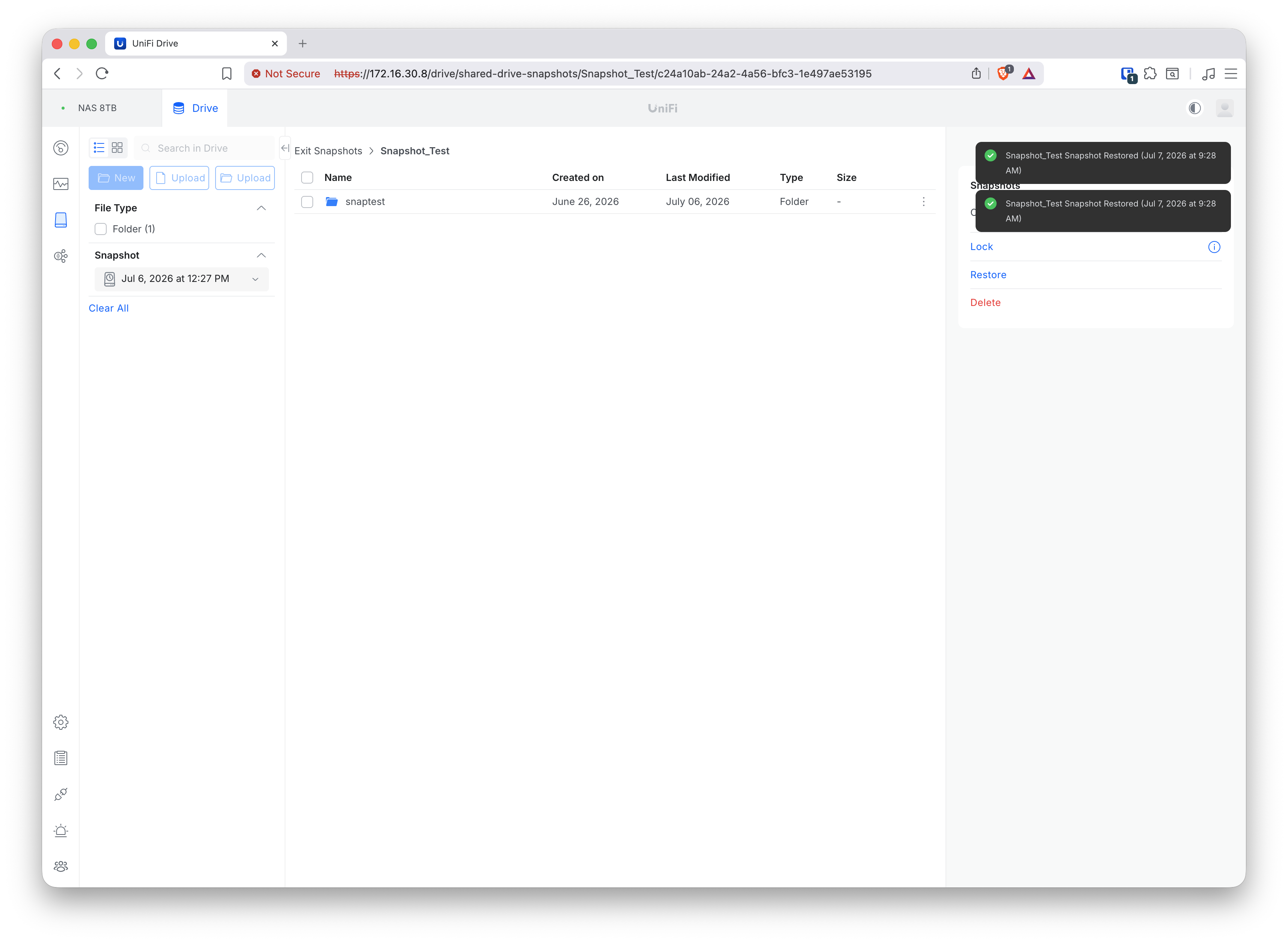
Clicking Restore produced a clear, descriptive confirmation dialog: “This past version of the data will replace the current version in UniFi Drive. To restore a specific file, please select individual files and restore them.” The dialog also offers an optional “Create a current snapshot of the drive before restoration” safety net, and warns that file operations may fail while the drive is being restored.
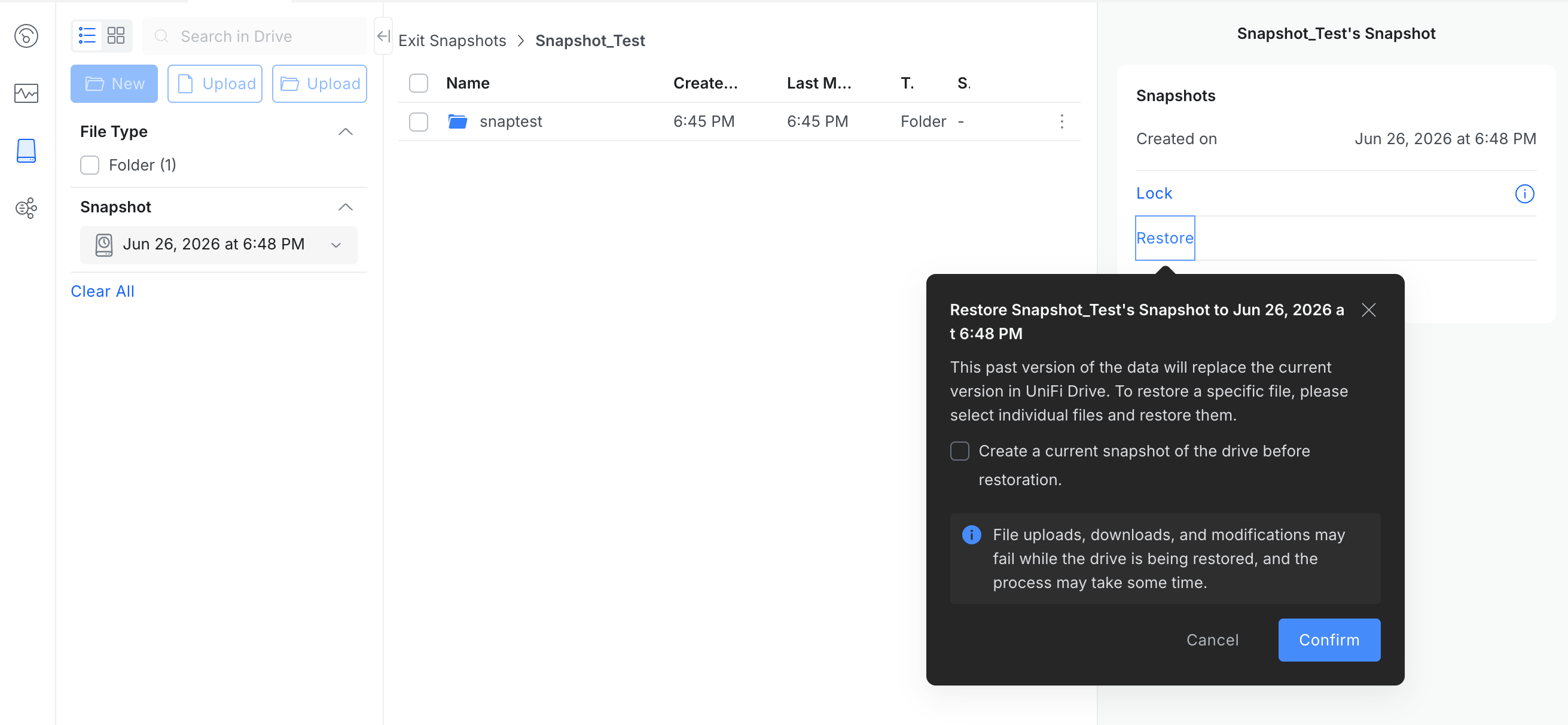
This establishes the UNAS restore model:
- Restore = whole-drive rollback (destructive to the current/live state).
- Download = non-destructive per-file pull through the browser. Practical for a few small files, but impractical for backup-scale image files (e.g. multi-hundred-GB VHDX), where pulling data back through a browser tab is not viable. For real backup recovery, whole-drive Restore is the realistic path. (This is distinct from criterion #6, which asks specifically whether a snapshot can be mounted as a share for a backup product to recover against — which the UNAS does not offer.)
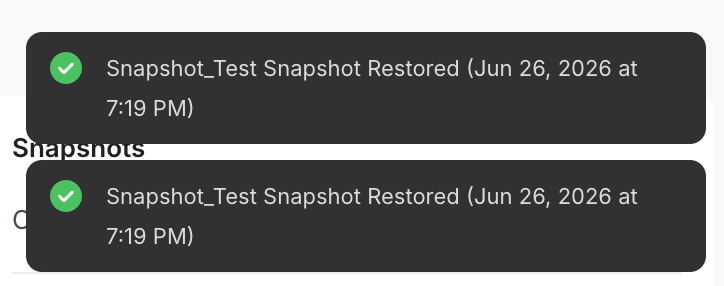
The restore completed and reported success:
Step 5 — Verify the recovery is byte-perfect.
python nas_snaptest.py verify --share S:\snaptest[verify] matched=20 changed=0 missing=0
[verify] PASS - restored dataset is identical to the clean original.All 20 files matched their original SHA-256 hashes, and an independent dir /a showed every file back at its clean pre-attack timestamp.
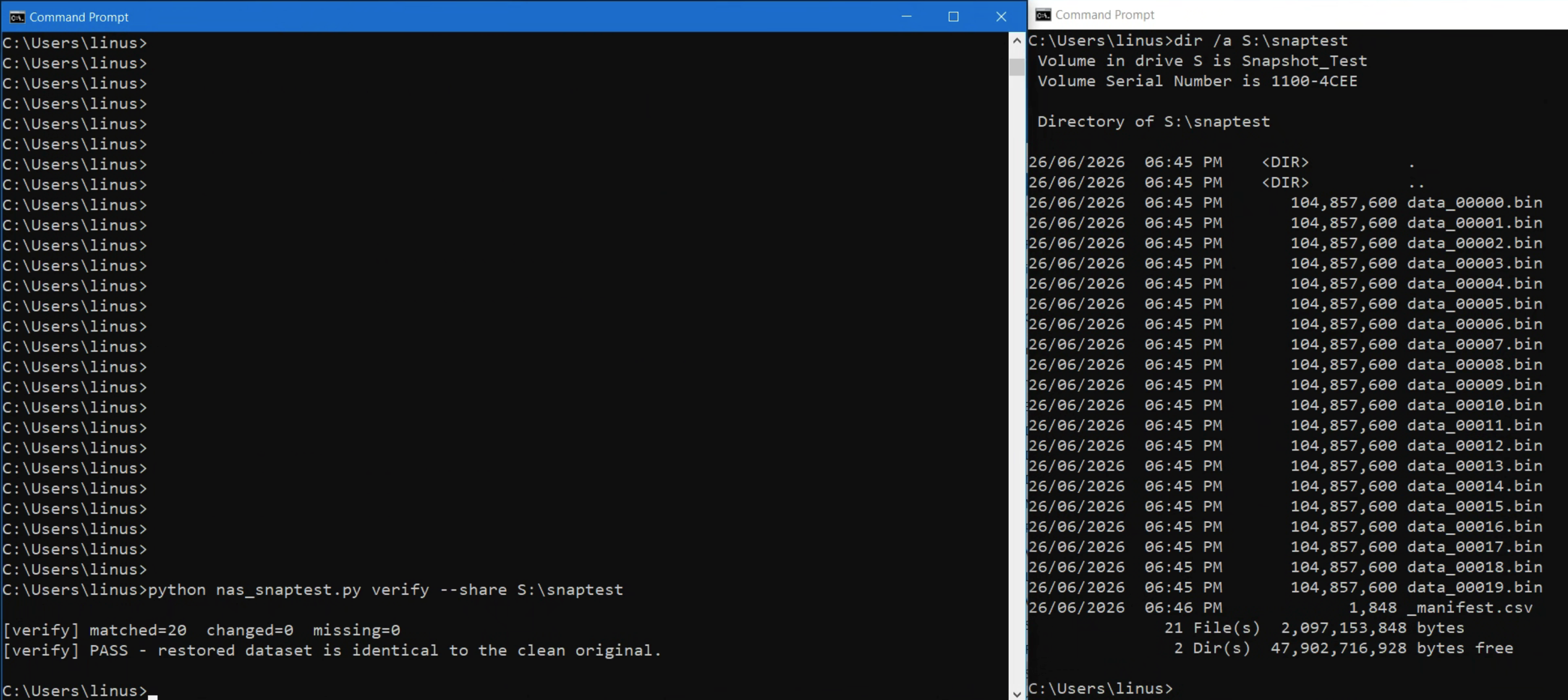
Result — Test group 2: PASS (criterion #3: Yes). A share-only attacker destroyed the live backup set, could not see or touch the snapshot, and the snapshot fully recovered the clean data byte-for-byte from the admin side.
Test group 3 — Snapshot lock behaviour
Having confirmed snapshots survive a share-only attacker, the next question is whether they can be protected from automatic deletion and from an administrator. UniFi Drive offers a per-snapshot Lock.
No scheduled / policy lock. The drive’s snapshot settings panel exposes Snapshot Limit, Schedule, Time, Create a Snapshot, and Delete All Snapshots — but no option to lock new snapshots automatically or apply a retention-lock policy.
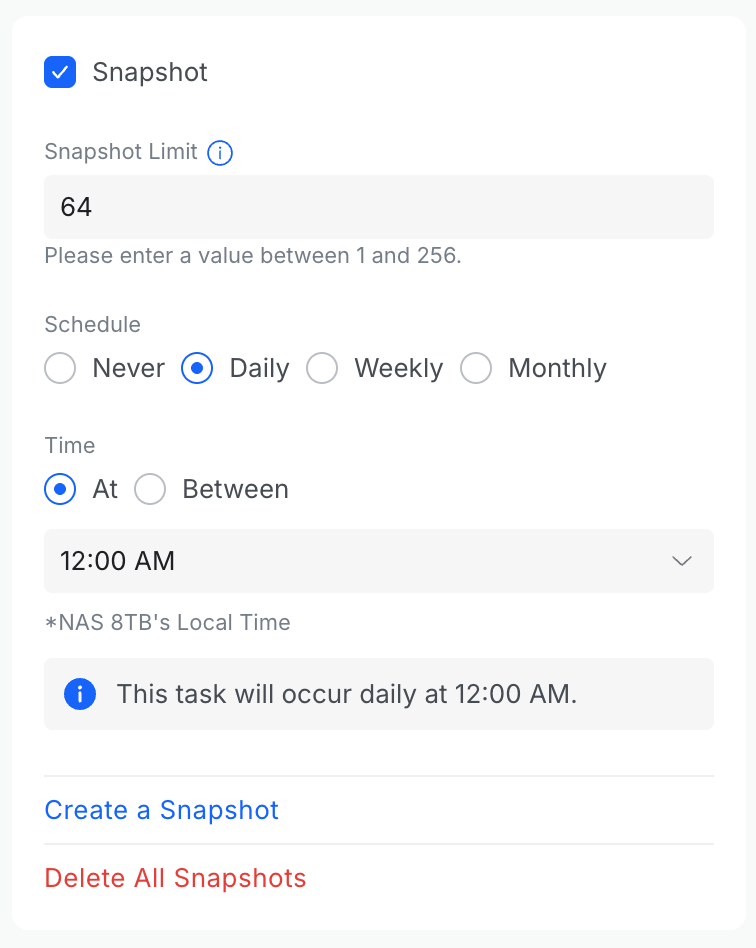
Lock is manual and per-snapshot, applied via the Lock link in the snapshot browser.
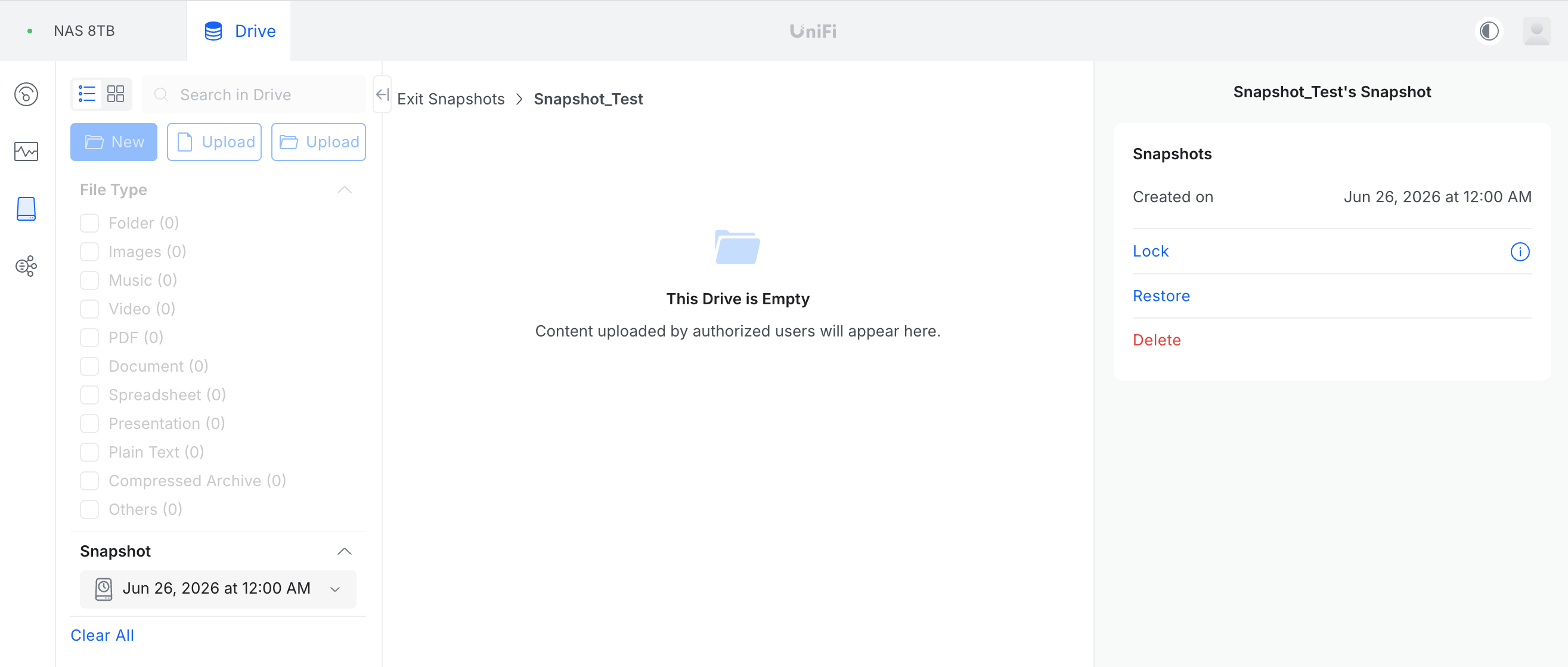
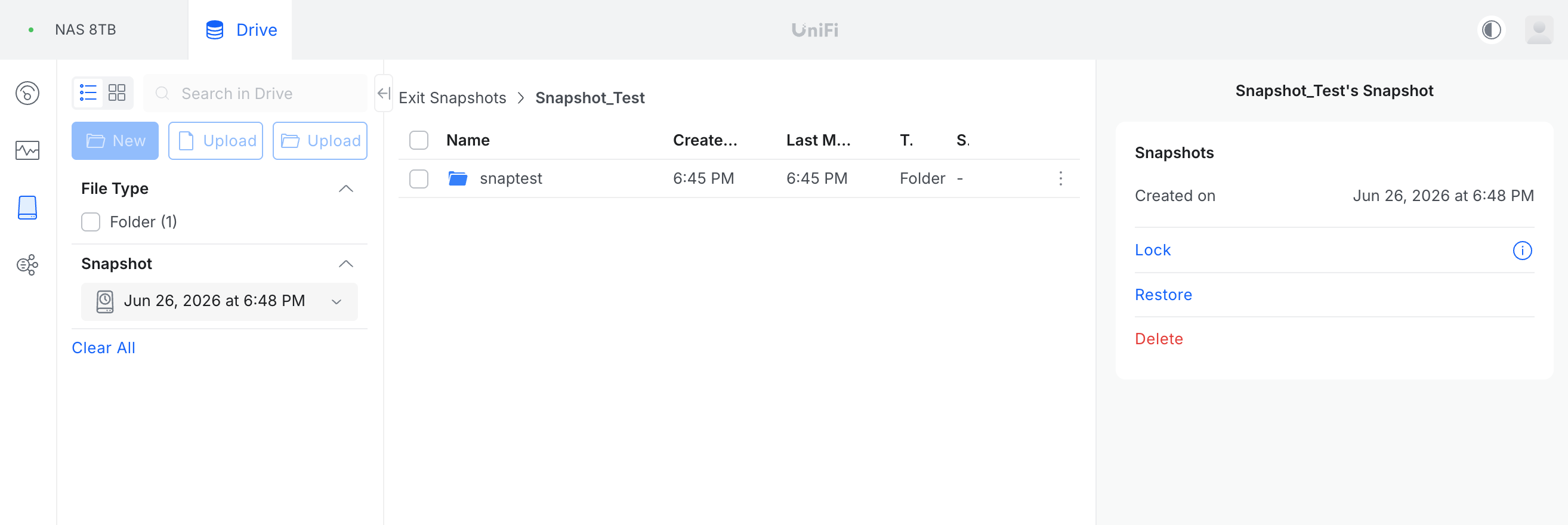
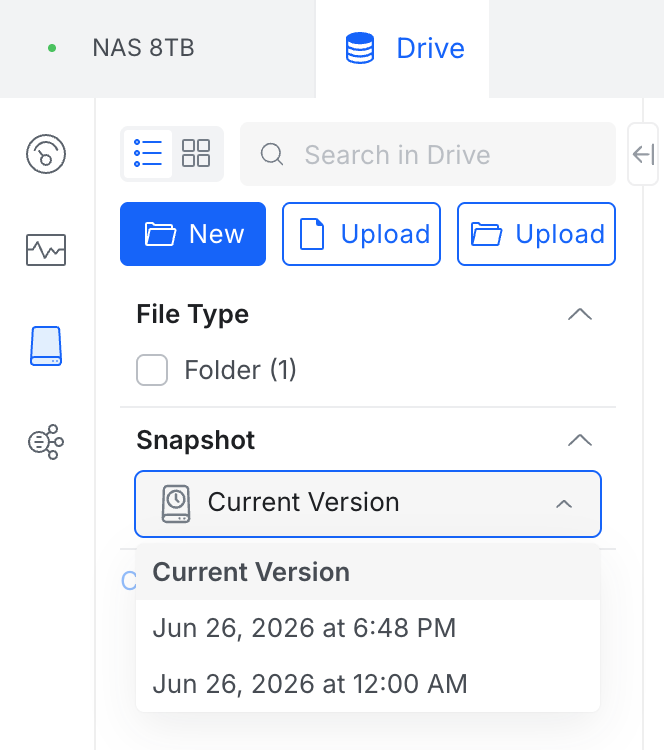
Lock is one-click reversible. A locked snapshot offers an immediate Unlock action, so an administrator can remove the lock instantly.
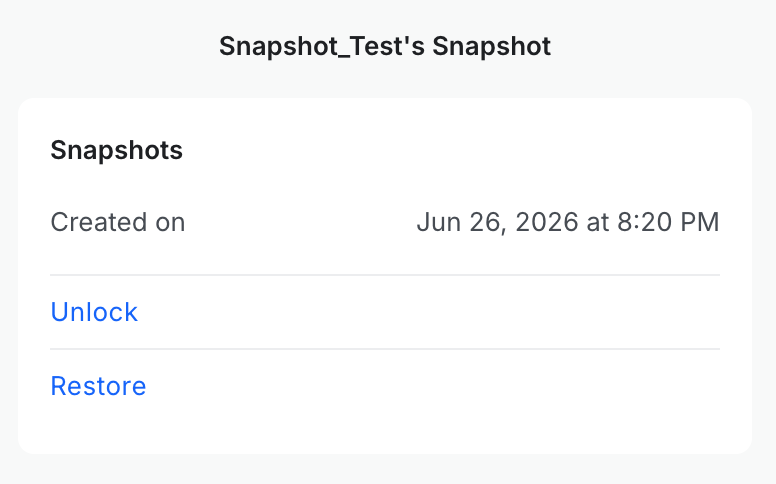
Lock protects against ordinary “Delete All,” but is overridable. A fresh snapshot was created and locked.
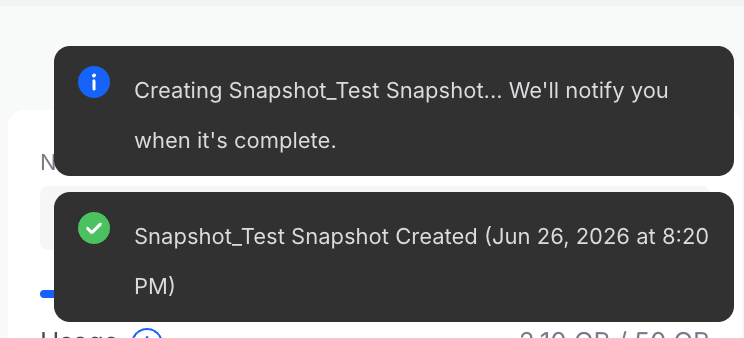
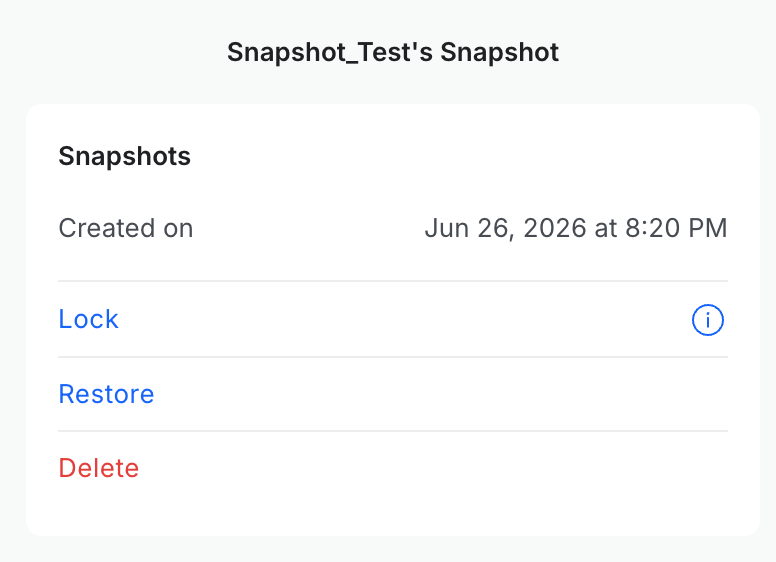
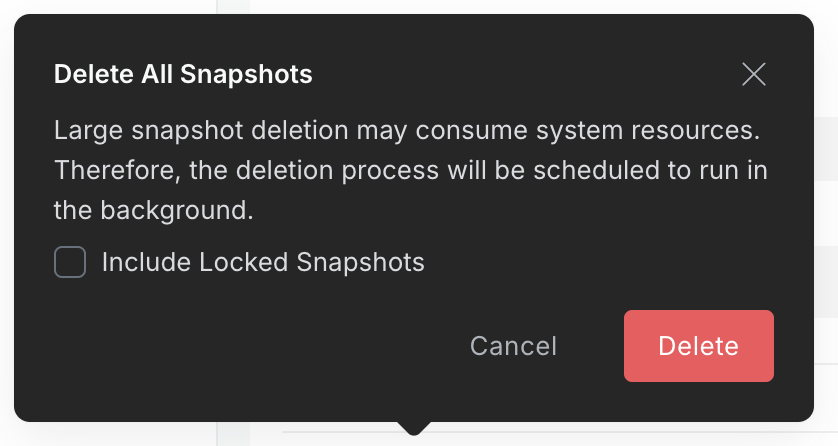
The “Delete All Snapshots” dialog includes an “Include Locked Snapshots” checkbox. Deleting without ticking it removed only the unlocked snapshots and left the locked one in place; ticking it would remove locked snapshots as well.
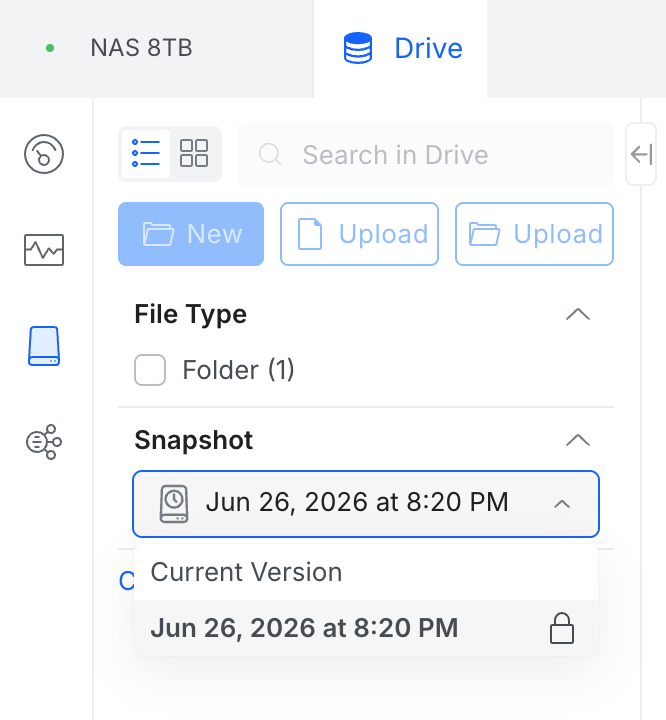
Result — Lock characterisation:
- Criterion #7 (lockable against automatic deletion): Yes — confirmed further in Test group 6
below. - Criterion #8 (locking automatable / scheduled): No — manual, per-snapshot only; scheduled snapshots are always created unlocked.
- Criterion #4 (safe from administrator): No — Lock is one-click reversible (Unlock) and bypassable via “Delete All → Include Locked Snapshots.” Lock is a guard against the NAS’s own automatic maintenance, not a guarantee of immutability against a deliberate administrator.
- Criterion #5 (fixed immutability period): No — Lock has no time-bound retention window or expiry.
Test group 4 — Throughput with snapshots (write and churn)
Internal (on-NAS) measurements. The question is whether enabling snapshots, and accumulating a deep history, slows the NAS. This was tested directly on the NAS (writes issued locally over SSH), which removes network variability and isolates the filesystem behaviour. Every write was fsync‘d so the reported rate reflects data committed to the pool, not data cached in RAM — verified independently with iostat, which showed ~250 MB/s genuinely reaching both mirror disks during a large write, ruling out cache inflation.
Two write patterns were measured, because they exercise different paths:
- Fresh write — new data into free space, no copy-on-write contention.
- Churn — overwrite-in-place of an existing 32 GiB dataset. This triggers copy-on-write against any snapshot sharing those blocks, and is the worst case for snapshot overhead.
Three states were compared: (1) snapshot feature off; (2) feature on, zero snapshots; (3) feature on, taking a snapshot after each churn to build depth from 0 to 12.
Findings:
- Fresh writes show no penalty. Feature-off vs. feature-on (zero snapshots) write throughput were indistinguishable within run-to-run noise.
- Churn with deep history plateaus, and does not degrade with depth. Two independent 12-round depth sweeps both settled at ~153–156 MiB/s once a handful of snapshots existed, and the rate was flat from ~5 snapshots through 12. The two runs agreed to within ~1 MiB/s at every depth ≥5. Twelve snapshots churn no slower than five — the common belief that Btrfs slows down as snapshots accumulate did not occur on this NAS.
| Snapshot depth | Run 1 (MiB/s) | Run 2 (MiB/s) |
|---|---|---|
| 0–4 (early, noisy) | 176, 128, 156, 225, 181 | 226, 228, 187, 159, 158 |
| 5–11 (settled) | 156, 157, 155, 155, 155, 152, 154 | 157, 156, 156, 154, 153, 152, 153 |
- The early-round scatter is background NAS activity, not a snapshot effect. The two runs disagree wildly at low depth (depth 1: 128 vs. 228) but converge from depth 5 on. An
iostatcapture during run 2 caught the cause: a one-off ~32 GiB sequential read burst (disks pinned at ~280 MB/s for ~2 minutes) from an unrelated background task, which landed on that run’s initial write phase. In run 1 an equivalent background task evidently landed on an early churn instead. Because the disturbance falls at a different point each run, it shows up as non-reproducible early scatter — it is not tied to snapshot depth. (An earlier single-run reading of a “~12% step at the first snapshot” did not survive this re-run and was retracted.) - Any steady-state penalty vs. no-snapshots is modest and within noise. No-snapshot churn measured 172–226 MiB/s across trials; the with-snapshot plateau (~155) sits at or just below that band. A small penalty (≲15%) is plausible but cannot be pinned precisely, because the run-to-run variance is dominated by the NAS’s own background I/O rather than by snapshots.
Baseline throughput is bursty even without snapshots. Each file is written with an
fsync, so the write blocks until the NAS confirms the data is durably on disk. Over SMB this produces a sawtooth: each file streams at close to line rate, then the send rate drops to near zero during the per-file commit round-trip before the next file starts, so the effective average sits well below the ~1 Gbps peaks. This cadence is a property of the durable write pattern — present with or without snapshots — and is distinct from the run-to-run background variability discussed above.
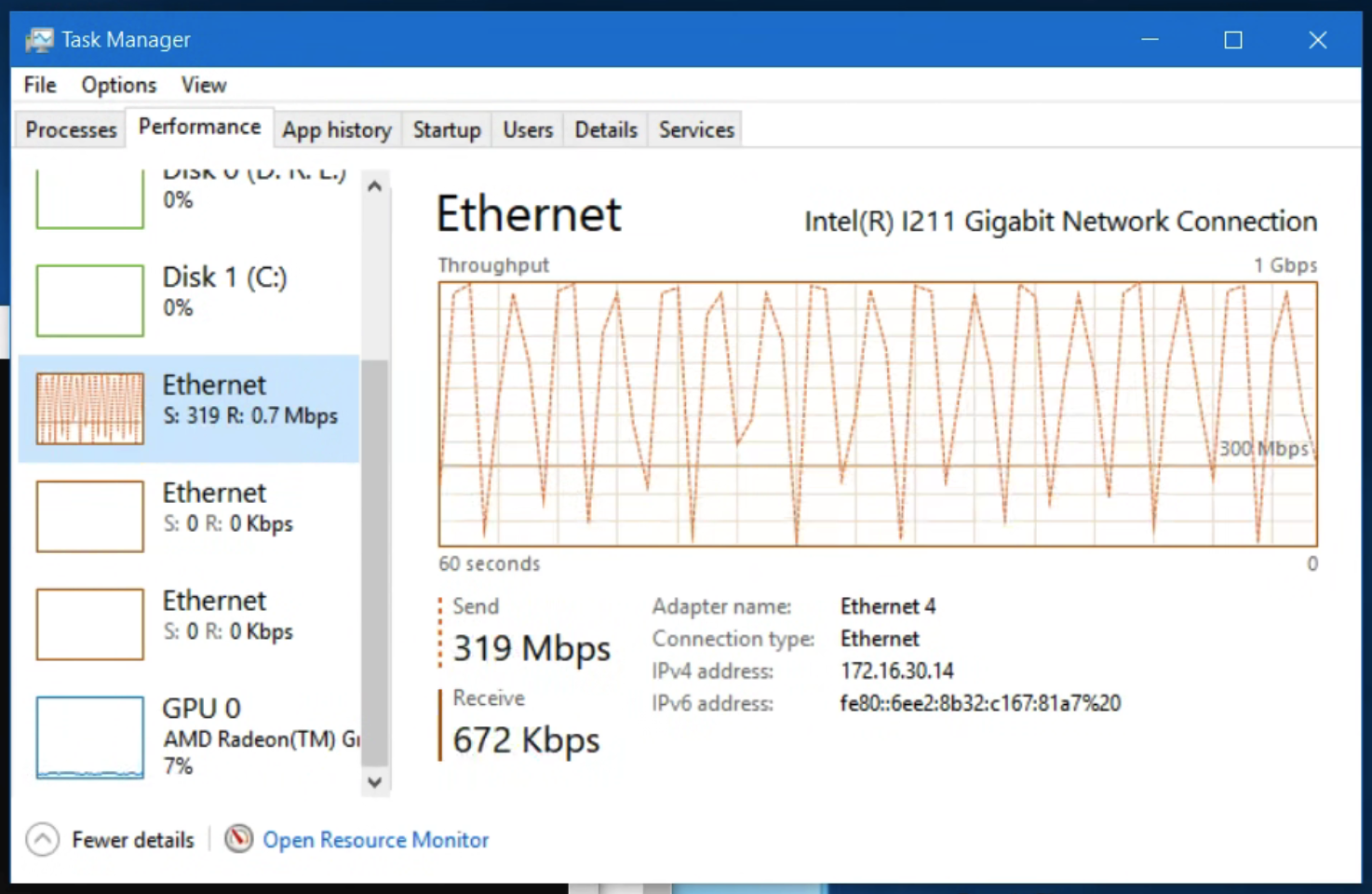
fsync, where the client waits for the NAS to commit that file to disk before the next begins.Mechanism note. btrfs qgroup show confirmed the drive’s storage limit is enforced via flat, per-subvolume qgroups (level 0/N, no parent/child rollup). There is no hierarchical accounting that would grow more expensive as snapshots accumulate — consistent with the observed flat-with-depth throughput. Each 100%-churn snapshot pins a full 32 GiB of exclusive retention on the pool, matching the space model in Test group 5.
Verdict (criterion #1): Yes. Enabling snapshots imposes no meaningful slowdown: fresh writes are unaffected, overwrite-heavy churn takes at most a modest bounded penalty, and — the property that matters for a backup target accumulating history — throughput does not degrade as snapshot count grows. The largest source of throughput variation on this NAS is its own background maintenance, not snapshots.
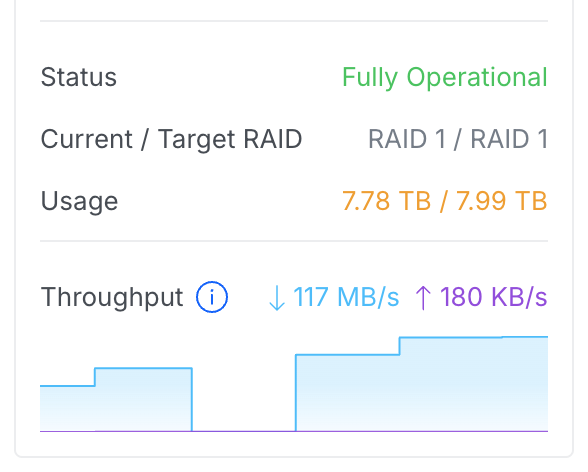
Scope note: these are internal measurements that isolate filesystem behaviour from the network. The over-SMB rate a backup product actually sees is network-bound: the pool-flood test (Test group 7) confirmed a sustained ~117 MB/s writing large incompressible files over gigabit ethernet — comfortably below the ~155 MiB/s internal churn plateau, meaning the network is the limit and any snapshot overhead is fully masked in practice.
Test group 5 — Foundational space-model tests
Test 5.1 — Natural space pressure (fill to full)
The drive was filled with junk (no churn) until writes failed, to observe behaviour as the drive reaches its limit.
python nas_snaptest.py fill --share S:\snaptest --yesThe fill proceeded until the write failed with [Errno 28] No space left on device at ~50 GB of live data. The NAS refused the write rather than deleting anything.
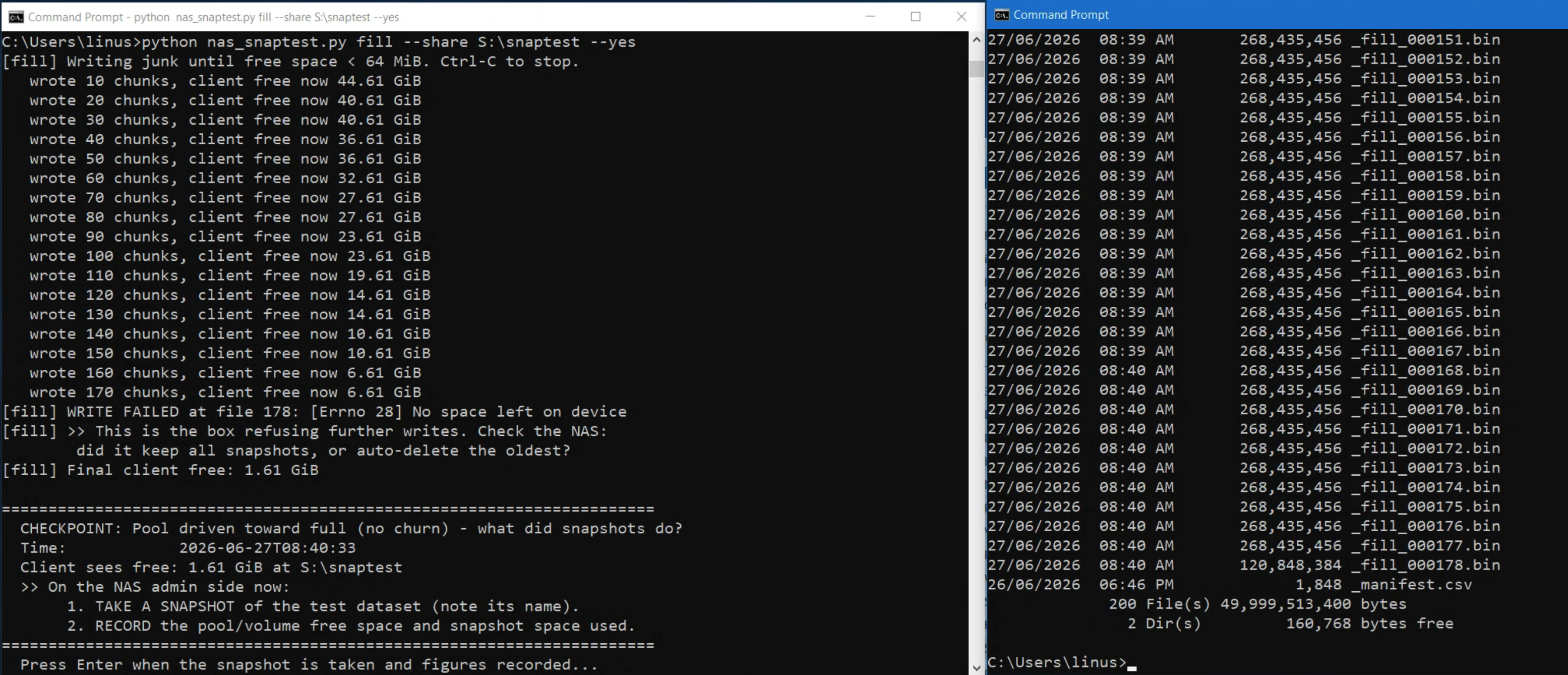
The drive had filled to its 50 GB enforced limit (49,999,513,400 bytes of live data), while the underlying pool had terabytes free (~902 GB / 7.99 TB used). The 50 GB drive quota — not the pool — is the effective limit.
The snapshots present before the fill were still present afterward (the count did not drop). Note, however, that this fill only added files; it did not overwrite or delete anything, so the pre-fill snapshots pinned no exclusive blocks and there was no space to be reclaimed by deleting them. This run therefore confirms the 50 GB quota is the effective limit and writes fail safely at it, but it does not by itself test snapshot auto-deletion.
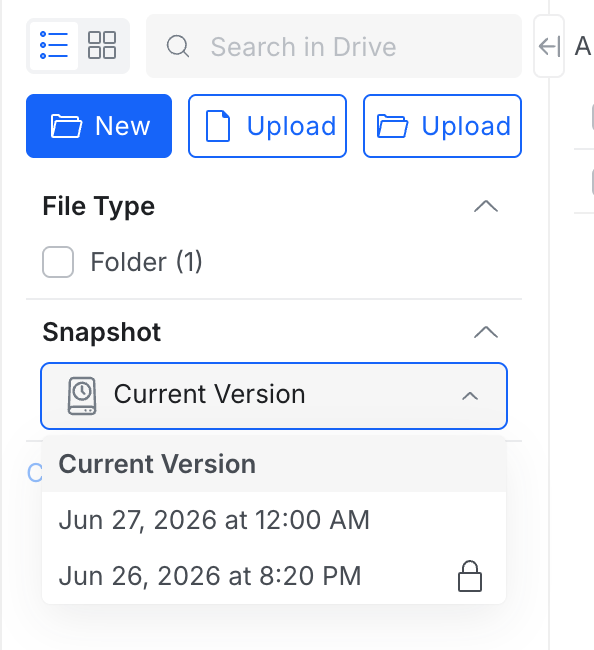
Test 5.2–5.3 — Where does snapshot retention live? (delete and write tests)
To locate snapshot retention (against the 50 GB drive quota, or on the 8 TB pool), a snapshot was taken of the drive in its ~50 GB-full state (pinning all the fill data), and then all fill files were deleted from the share. del * (on S:\snaptest)
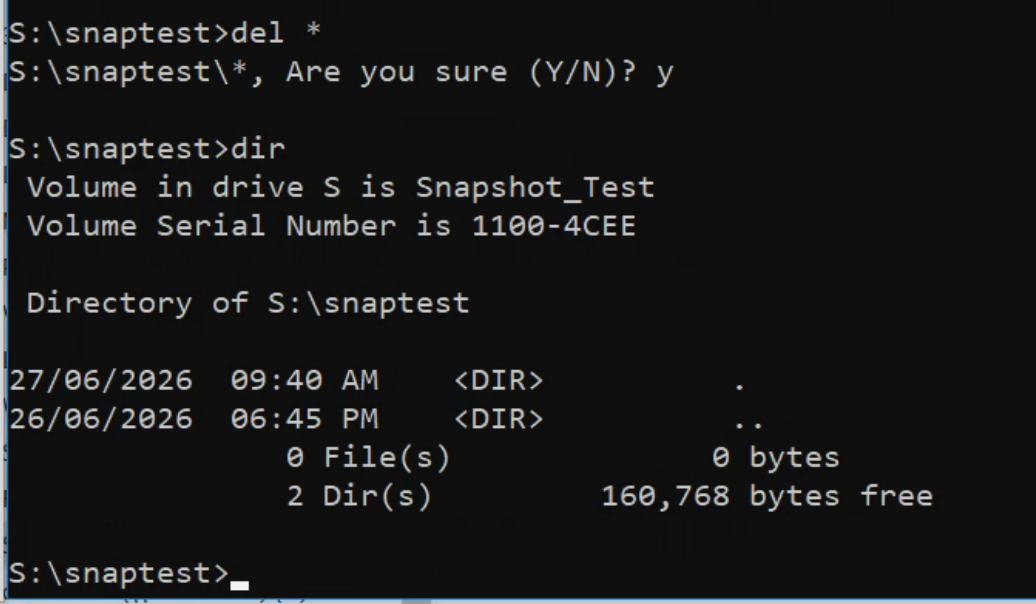
Immediately after the delete, the share reported almost no free space. This was the NAS taking time to update its space bookkeeping — the figure had not yet refreshed.
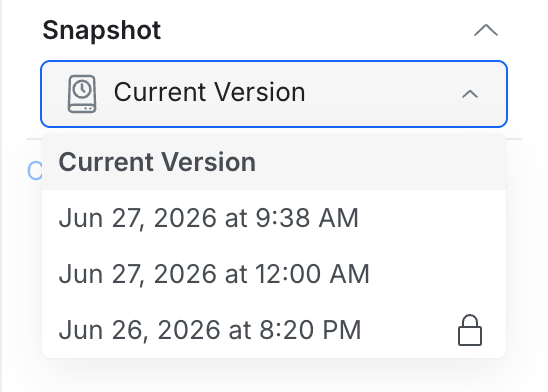
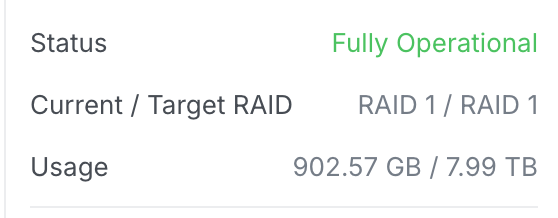
After waiting a few minutes, a fresh 2 GB dataset was written to confirm the true state:
python nas_snaptest.py init --share S:\snaptest --files 20 --file-size-mib 100The write succeeded, and the drive then reported ~48 GB free (50 GB less the ~2 GB just written). The NAS had completed its bookkeeping and returned the ~50 GB of space.
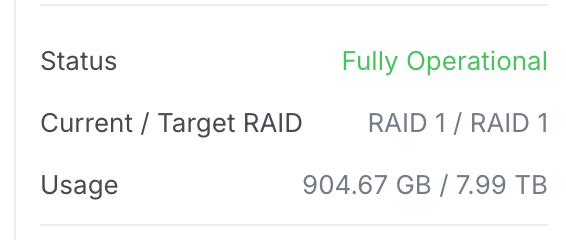
Result. Snapshot-exclusive retention does not count against the 50 GB drive quota — it is counted against the 8 TB pool. The snapshot taken while the drive held ~50 GB of (subsequently deleted) fill data pinned that data on the pool, yet the drive’s 50 GB allowance was fully returned for live use. The 50 GB quota governs live referenced data; copy-on-write retention accrues on the pool.
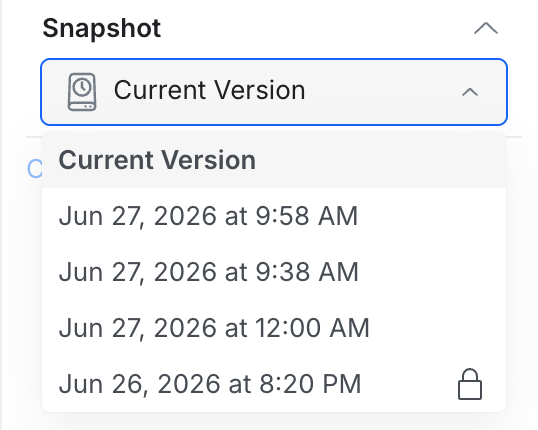
A new clean recovery-point snapshot (09:58) was then taken of the fresh dataset for the subsequent tests, deliberately left unlocked.
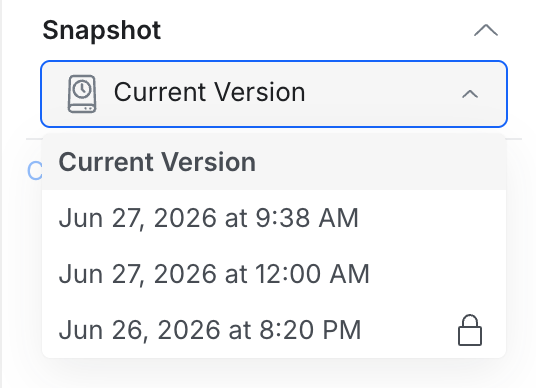
Test 5.4–5.5 — Churn rounds: space cost of churn, and where it lands
Two full-dataset churn rounds were run, taking a snapshot after each, to measure the space cost of churn and confirm where churn retention is counted.
Round 1 (Test 5.4):
python nas_snaptest.py churn --share S:\snaptest --percent 100 --csv tD_churn.csv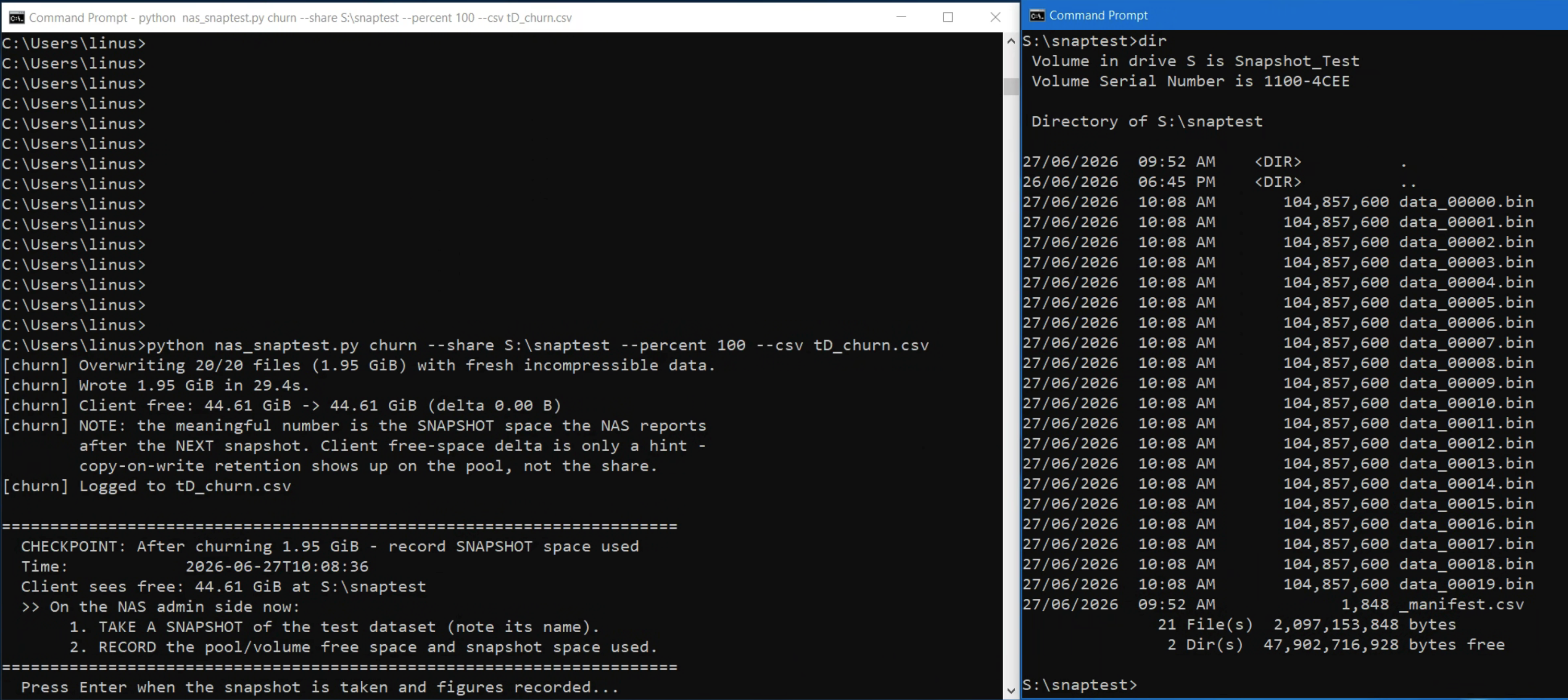
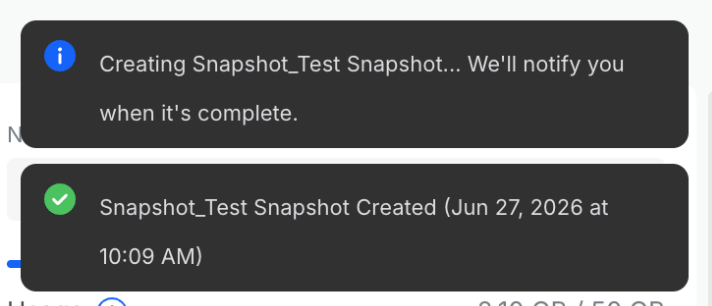
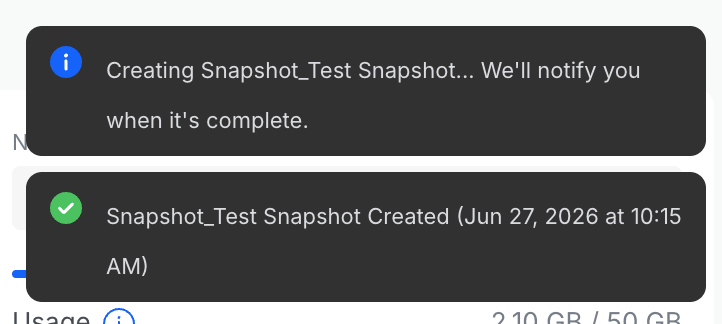
After the churn and snapshot: drive usage 2.10 GB / 50 GB (unchanged), pool up ~2.1 GB, snapshot count incremented.
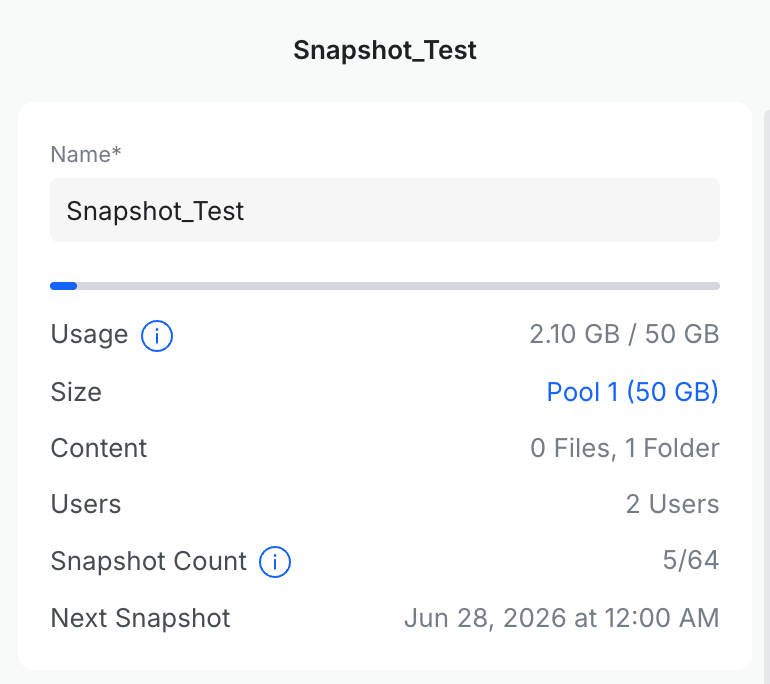
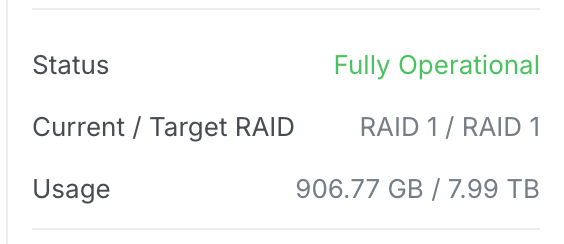
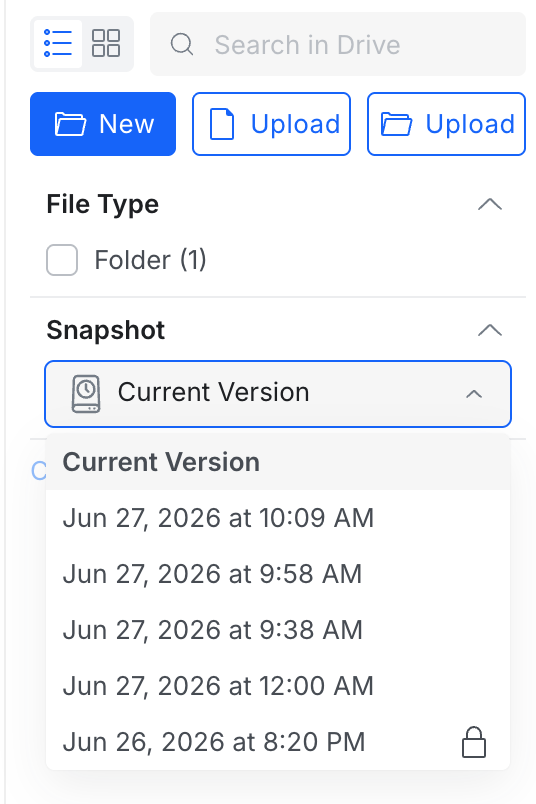
Round 2 (Test 5.5): same command. Drive usage again 2.10 GB / 50 GB unchanged; pool again +~2.1 GB.
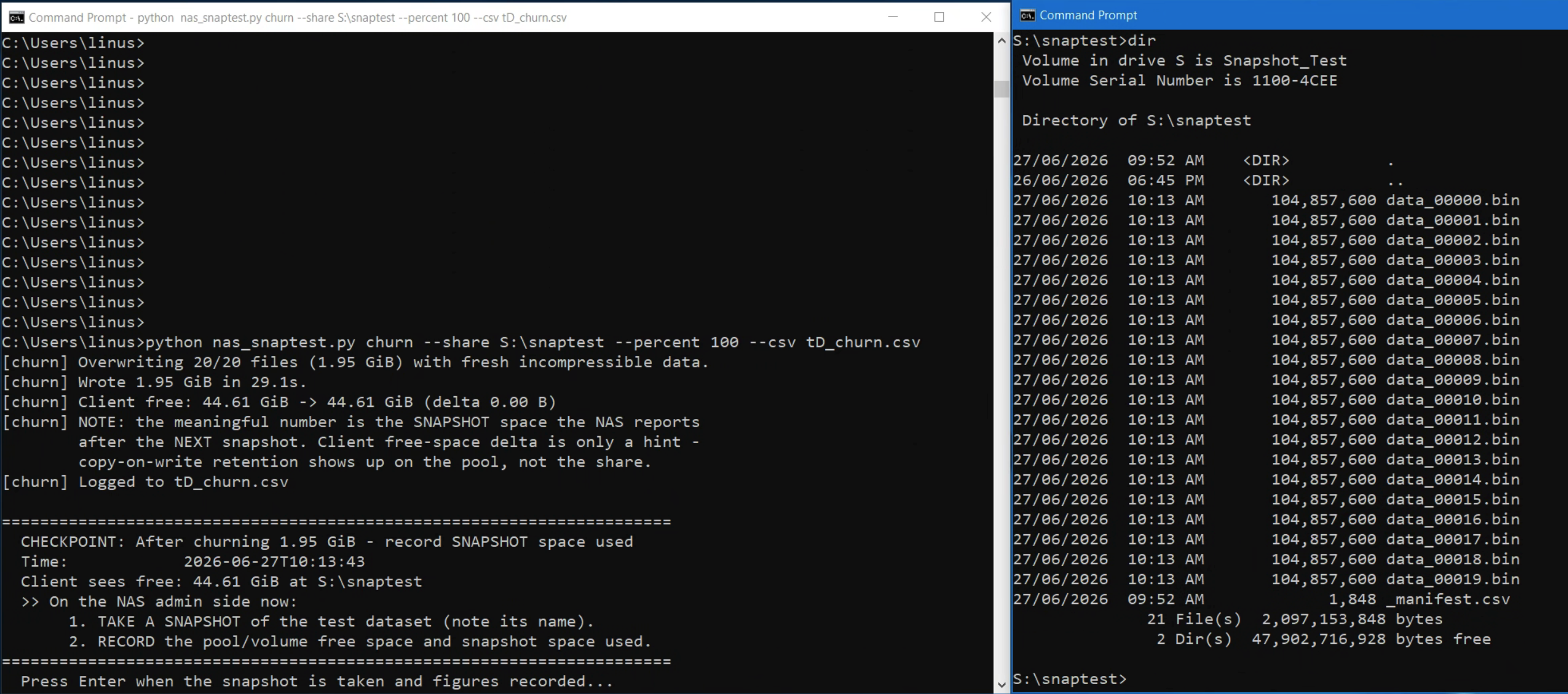
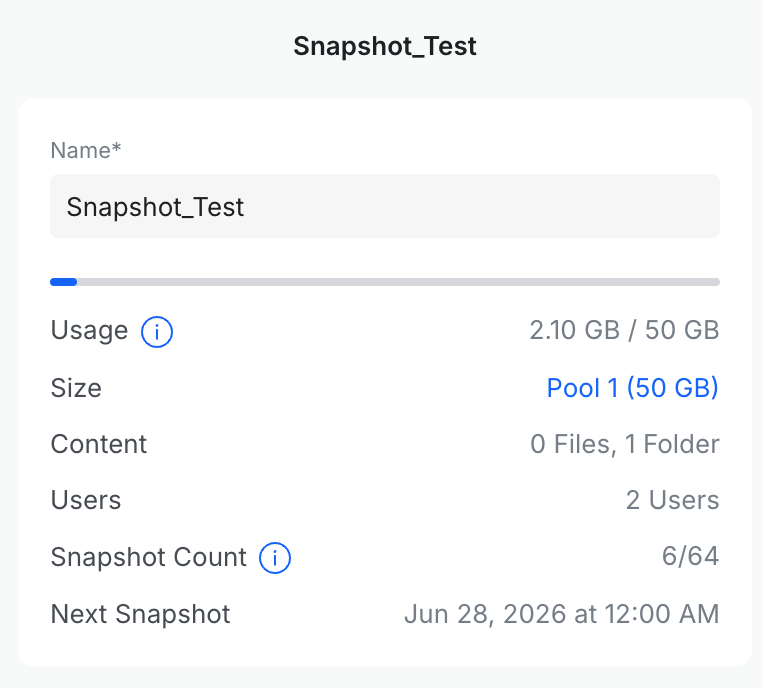
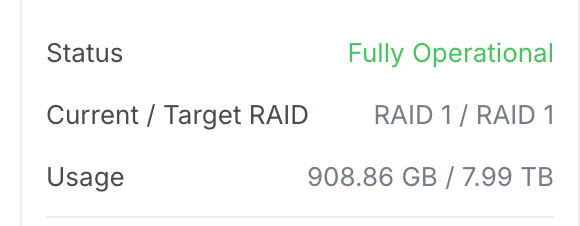
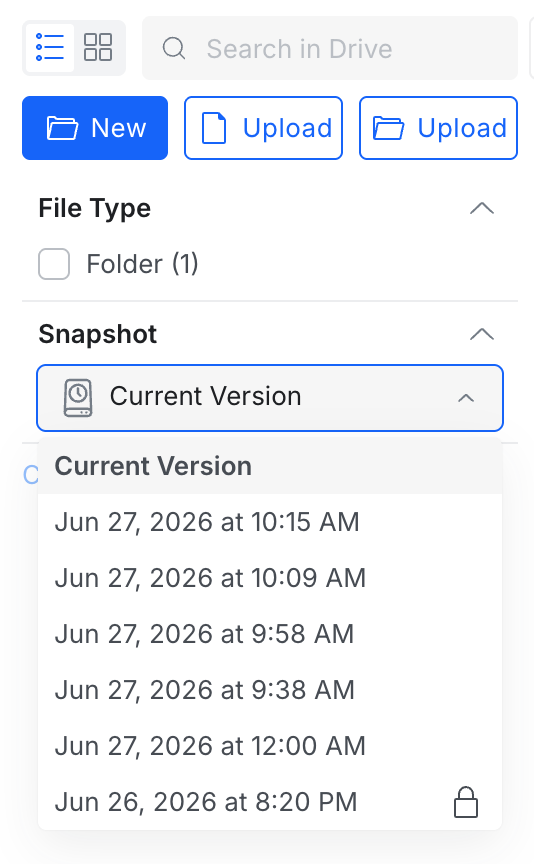
Result (Test 5.4–5.5 figure). A full-dataset churn (overwriting ~1.95 GiB in place) snapshotted costs ~2.1 GB of pool retention per round, with the drive’s live-data figure staying constant. Churn retention is counted against the pool, exactly as deletion retention is (Test 5.2–5.3). Consequently, the drive’s 50 GB quota can never accumulate snapshot-exclusive blocks and therefore can never itself trigger snapshot deletion.
Test group 6 — Snapshot-cap deletion and whether Lock is enforced
Because the snapshot limit is a per-drive setting (1–256), deletion can be triggered cheaply by the
snapshot count limit rather than by space. Starting from 6 snapshots (two of which were locked: the original 8:20 PM, and a second one locked mid-test at 10:09 AM), the limit was lowered step by step and the snapshot list observed.
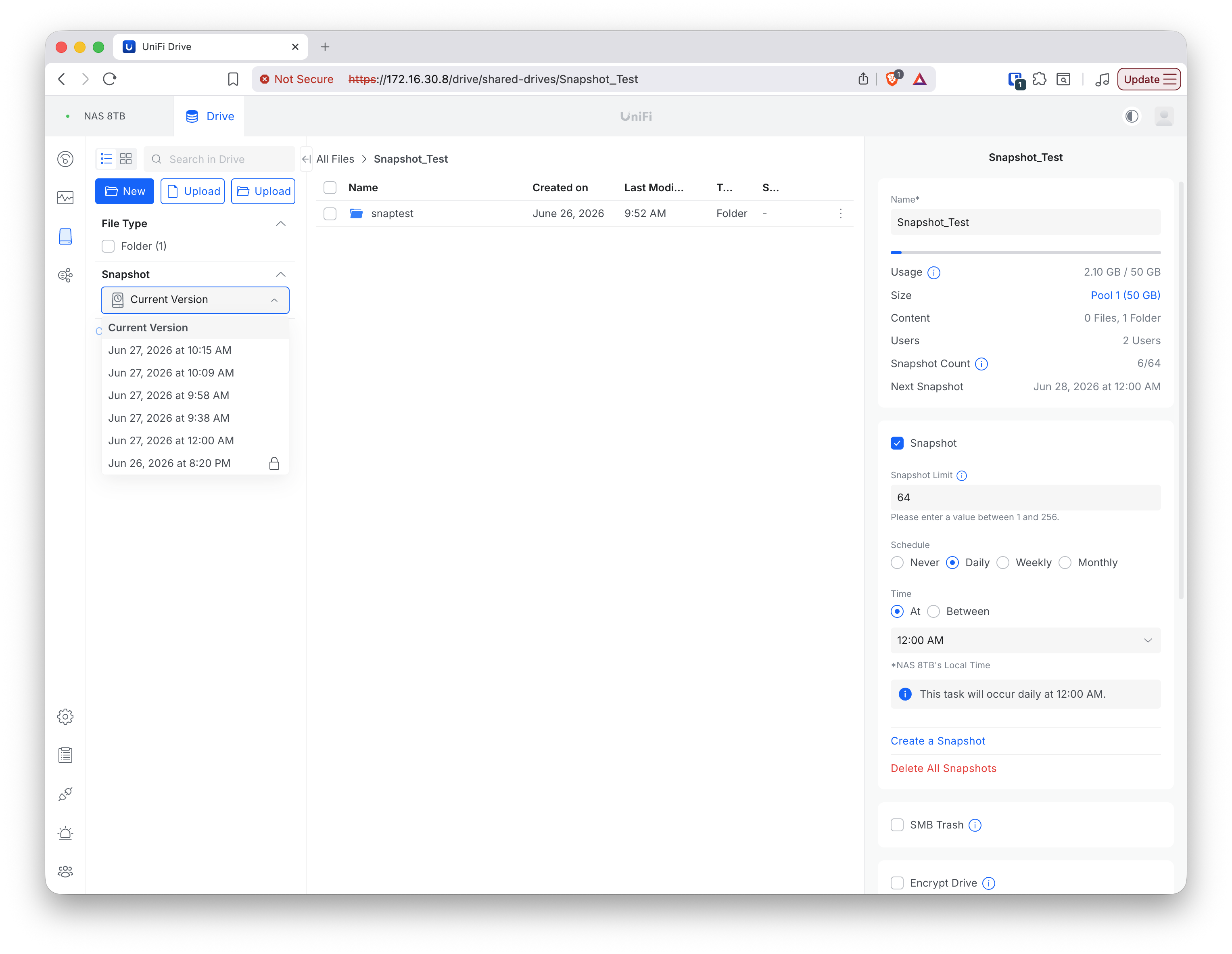
Setting the limit to 7 (above the current count) confirmed no existing snapshot is removed when the limit is merely set above the count:
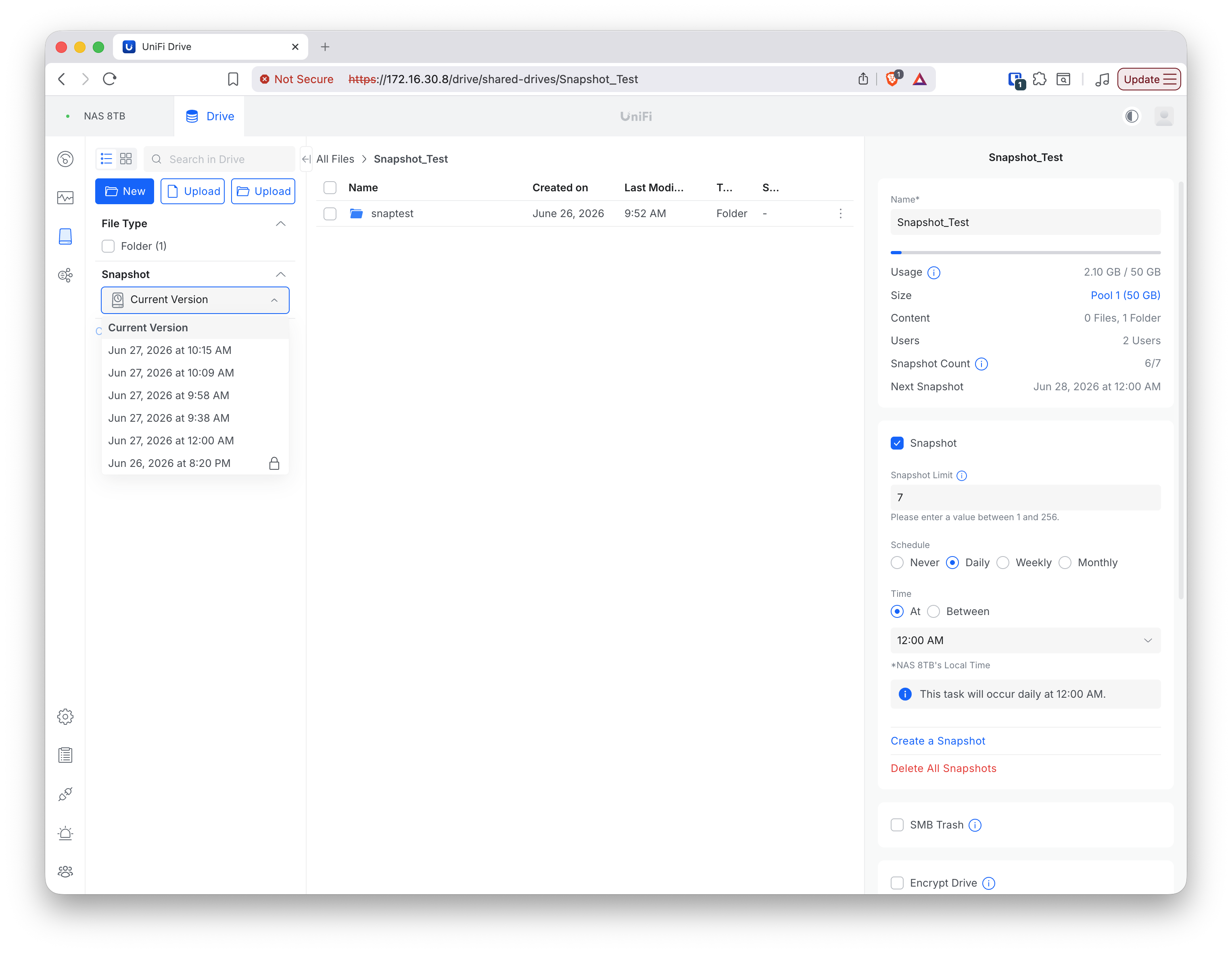
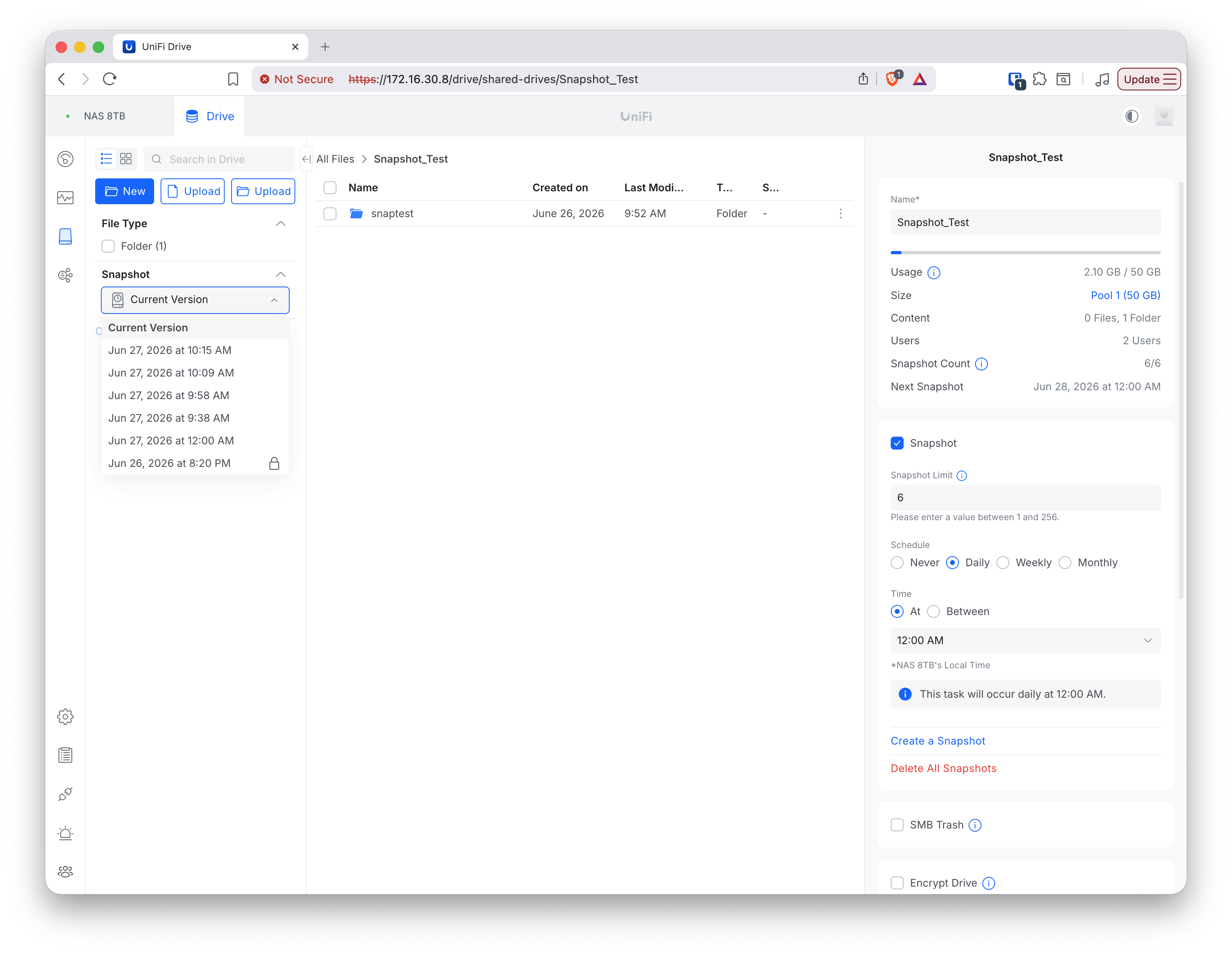
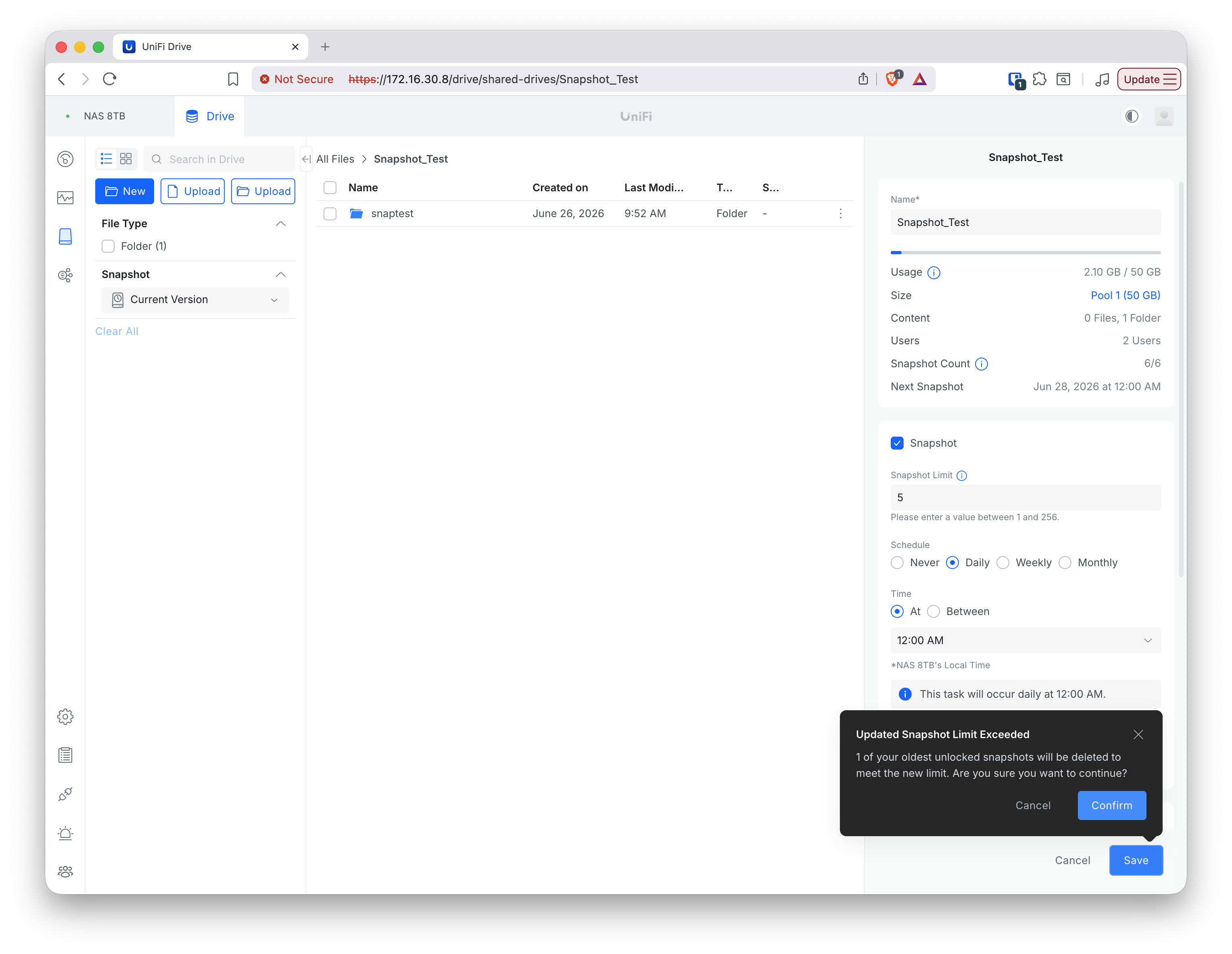
Lowering the limit below the current count triggers a confirmation that names the behaviour explicitly: “1 of your oldest unlocked snapshots will be deleted to meet the new limit.”
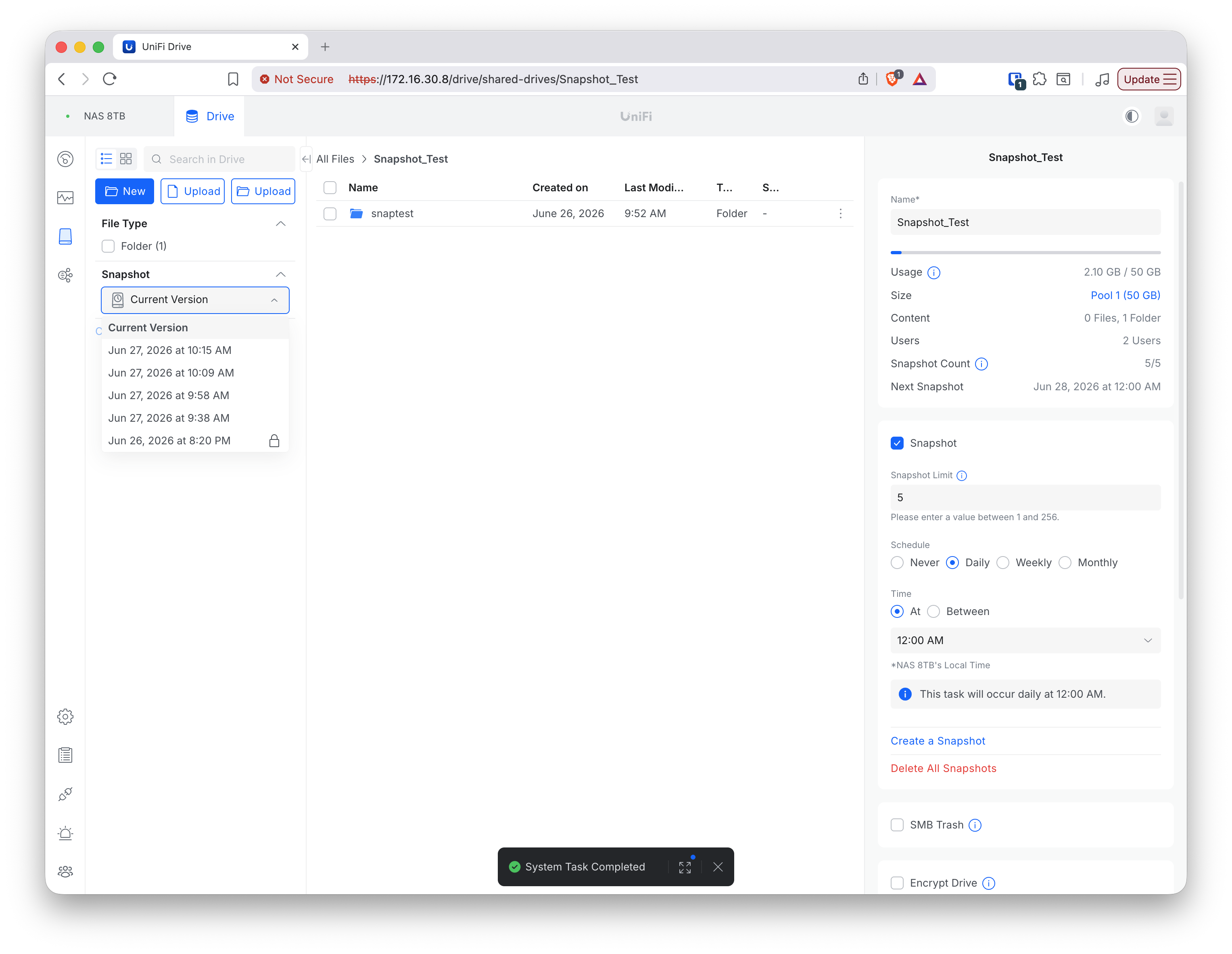
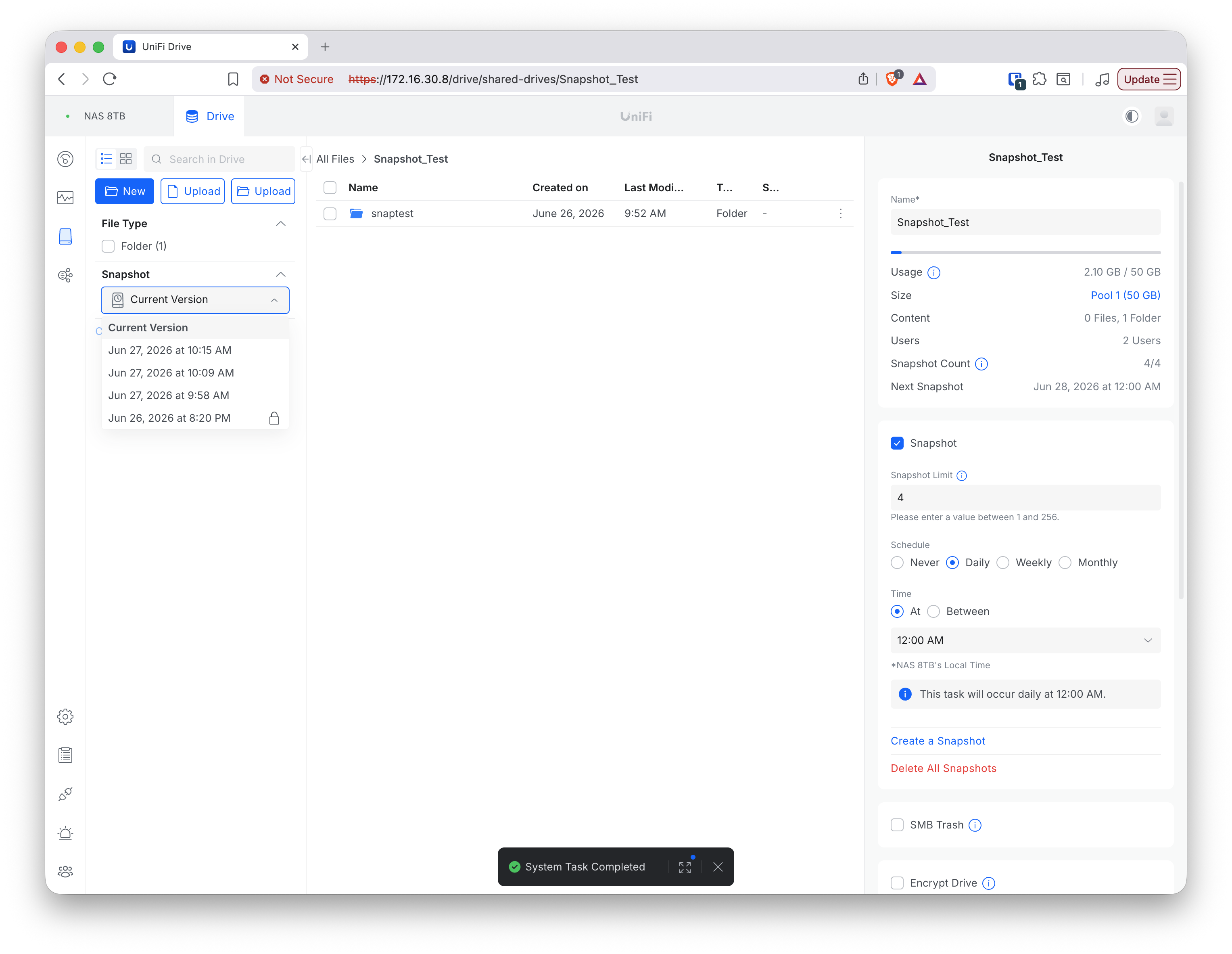
A second snapshot was locked partway through to observe its behaviour under continued reduction:
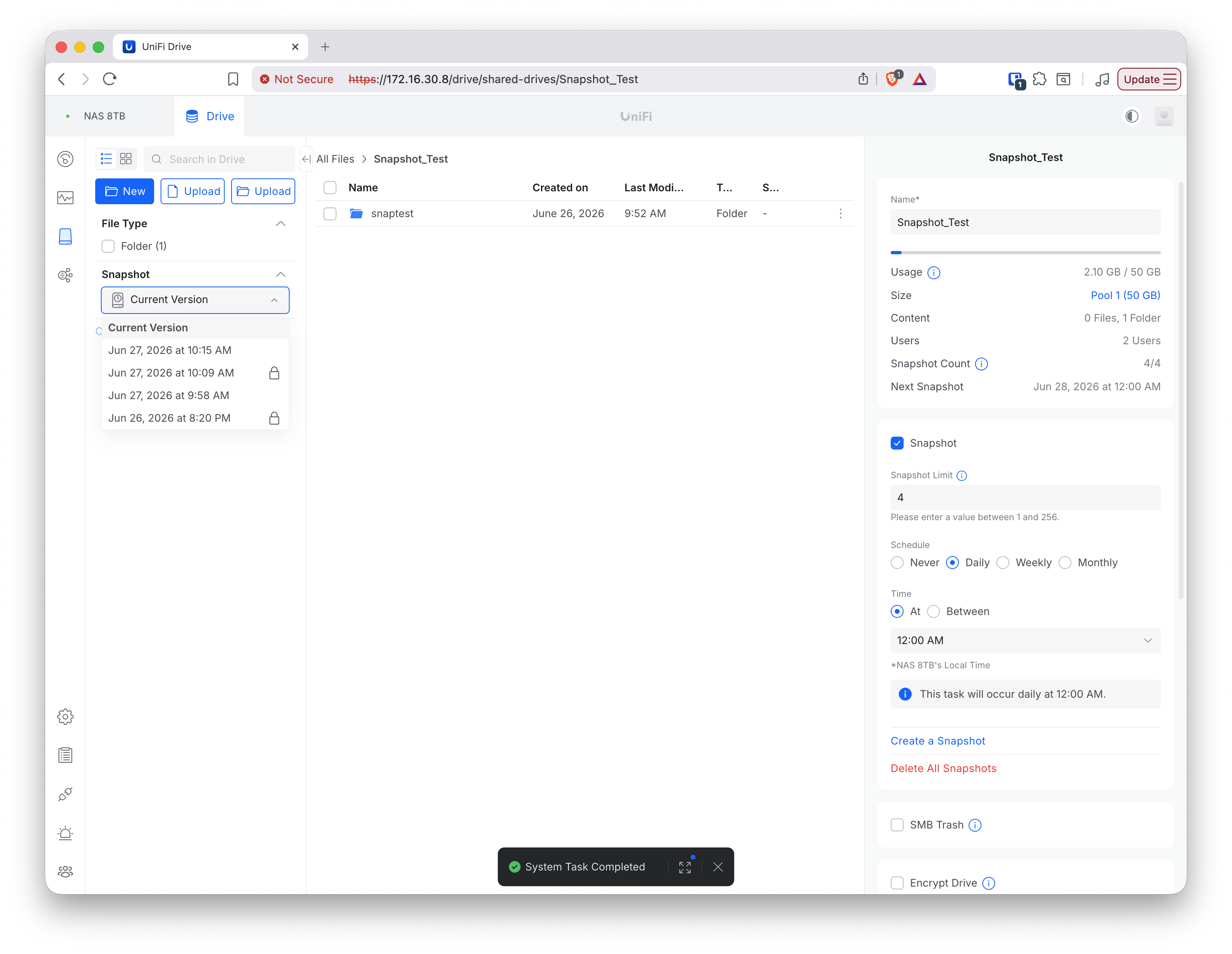
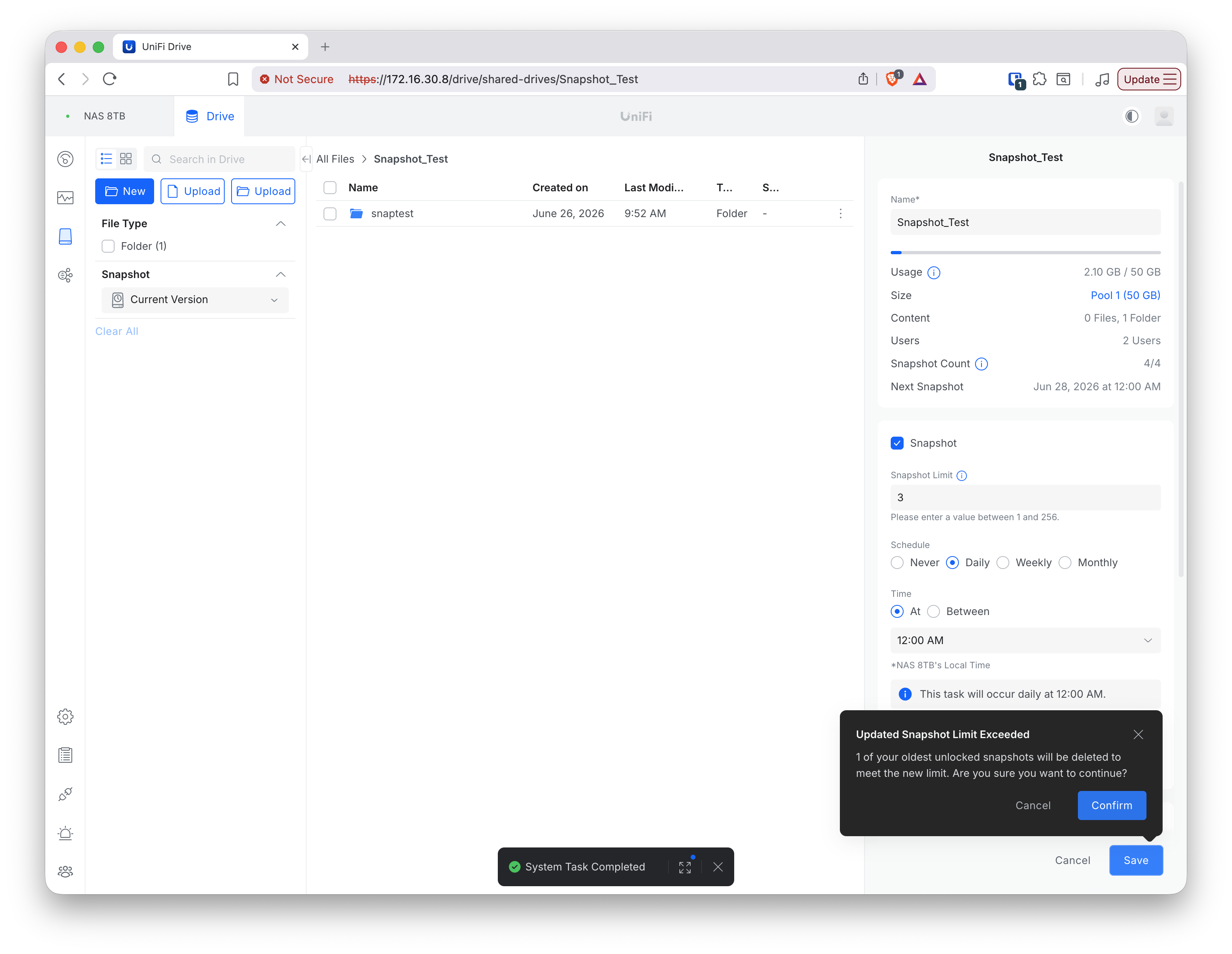
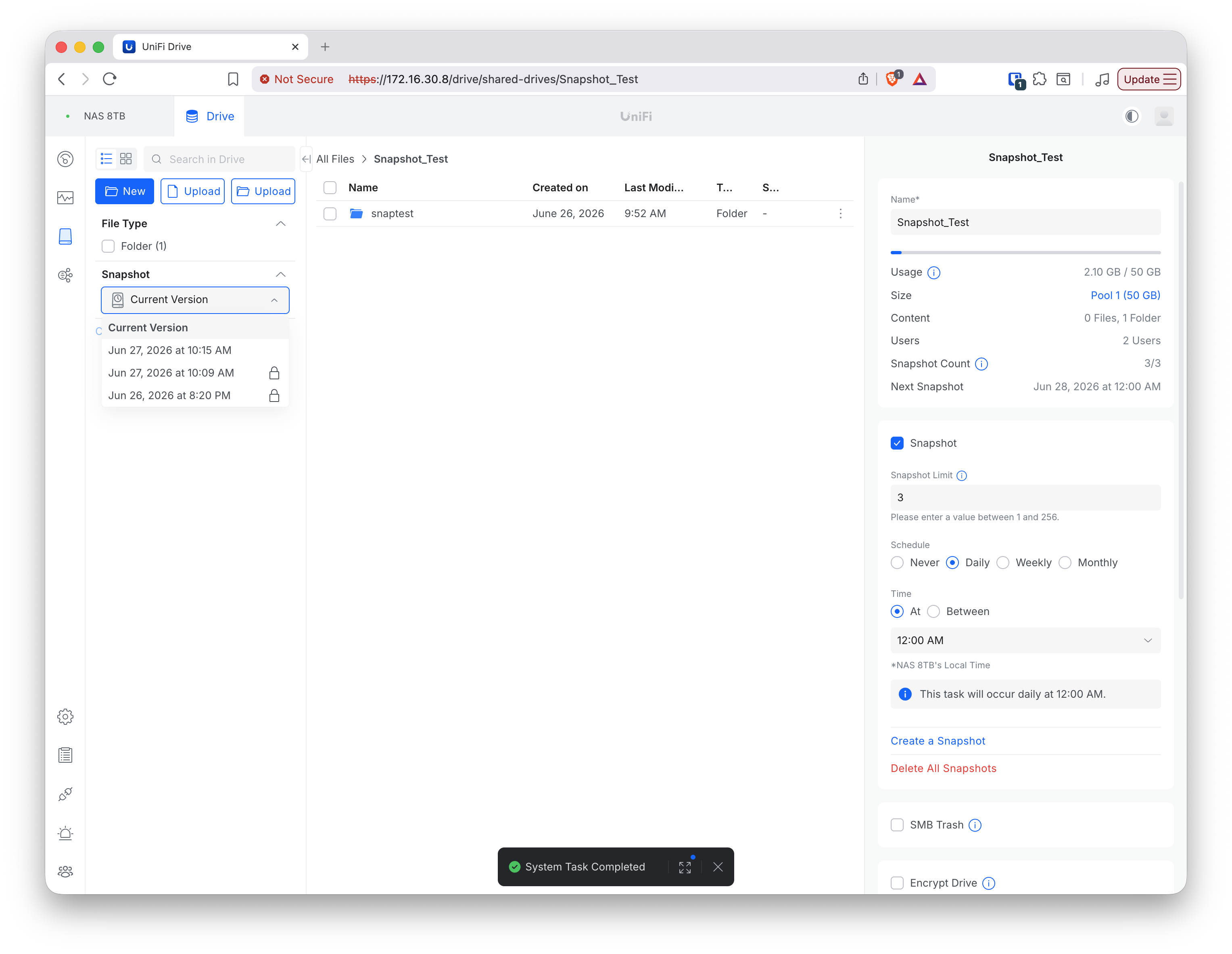
When the reduction reached the point where only locked snapshots remained as the oldest, the NAS could not honour the limit: it displayed a 3/2 state (count exceeding the limit) with the warning “You’ve reached the maximum number of snapshots, and all existing snapshots are locked and cannot be overwritten.” The NAS sits over its configured limit rather than auto-delete a locked snapshot.
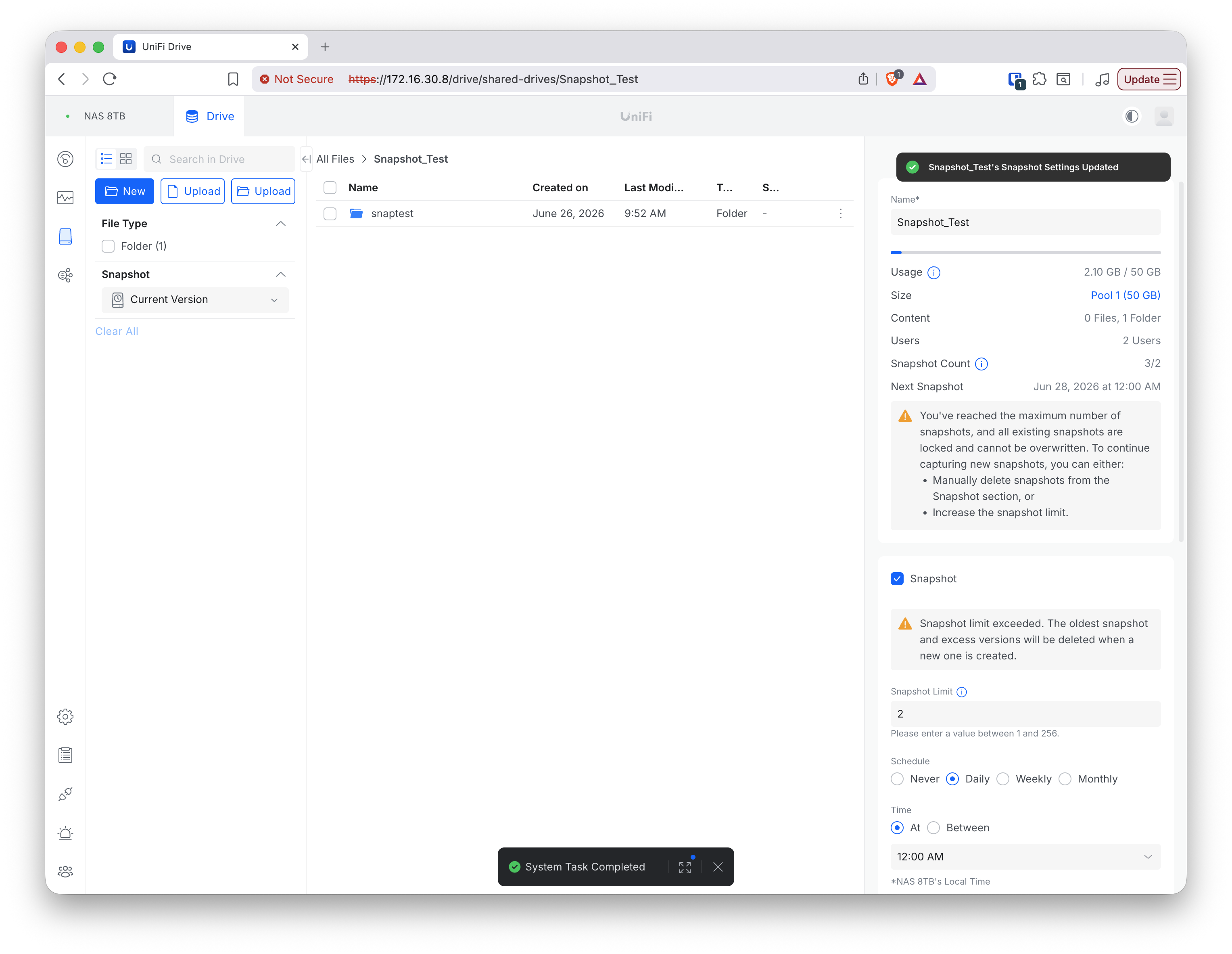
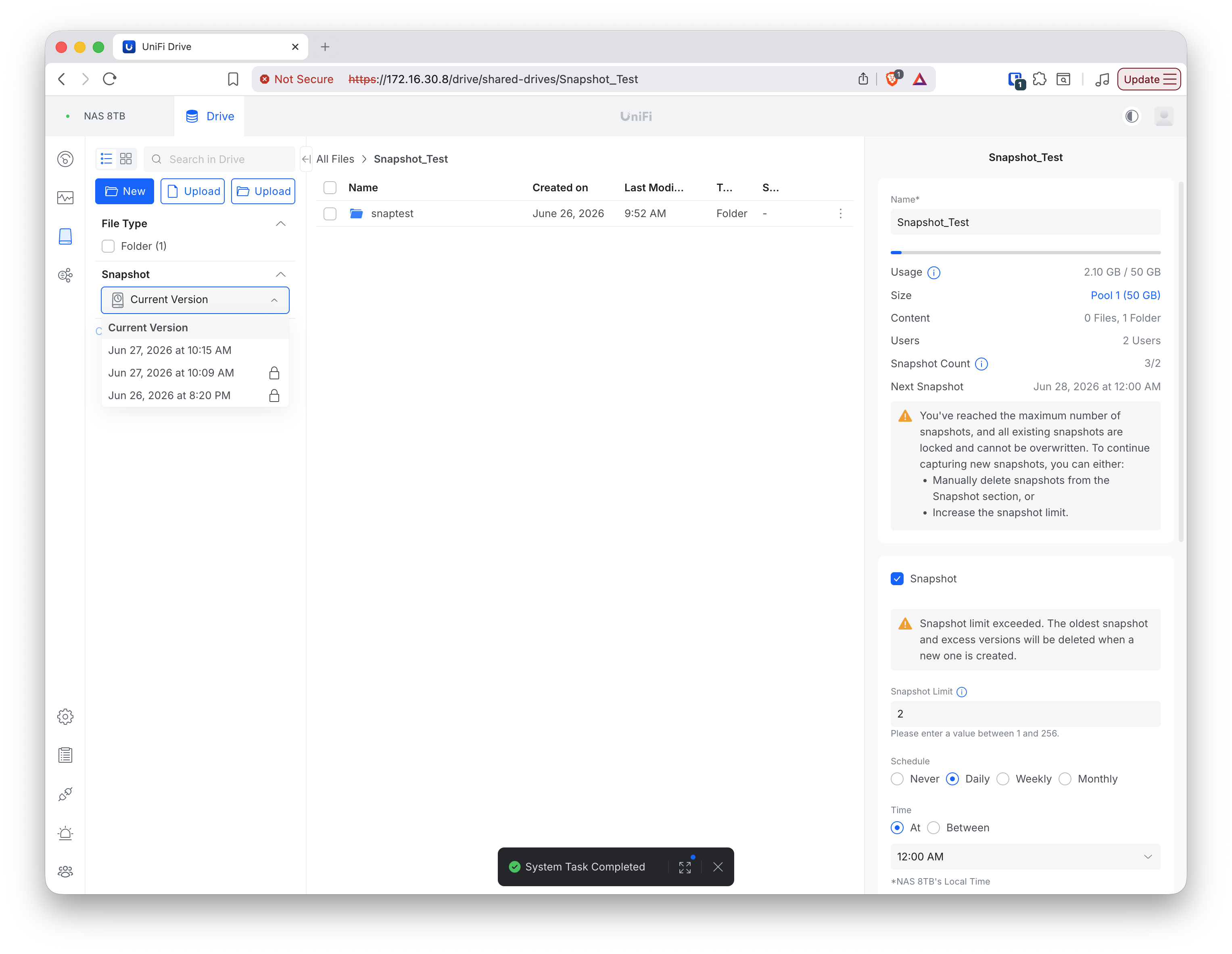
Result — cap deletion and whether Lock is enforced:
- Cap-driven deletion is oldest-unlocked-first, and it is clearly announced in the UI (the warning pre-announces “The oldest snapshot and excess versions will be deleted when a new one is created”). This is genuine oldest-first automatic deletion — the “dangerous default” behaviour — but it only ever touches unlocked snapshots, and it is not silent.
- Lock is effective against automatic/cap deletion (criterion #7: Yes). The NAS will sit over its own limit rather than auto-delete a locked snapshot.
- The clean recovery-point snapshot (09:58) used earlier was never locked, and was therefore correctly deleted as an oldest-unlocked snapshot during the reduction — confirming the deletion order and that unlocked snapshots are always vulnerable to automatic deletion.
The combination of Test group 3 and Test group 6 gives the precise Lock verdict:
| Threat to the snapshot | Does Lock protect it? |
|---|---|
| Automatic deletion to honour the snapshot count limit (cap deletion) | Yes — box refuses, sits over-limit rather than delete a locked snapshot |
| The NAS auto-deleting under pool space pressure | Yes (moot) — pool pressure deletes neither locked nor unlocked snapshots; the NAS refuses writes instead (see Test group 7) |
| A deliberate administrator action (Unlock, or Delete All → Include Locked) | No — one click / one checkbox defeats it |
Test group 7 — Pool-flood snapshot deletion (criterion #9)
The question is whether filling the pool via a different share deletes snapshots on Snapshot_Test. This is the self-inflicted scenario: an operational accident (or a second compromised share) consuming pool space until another drive’s snapshots are deleted unintentionally.
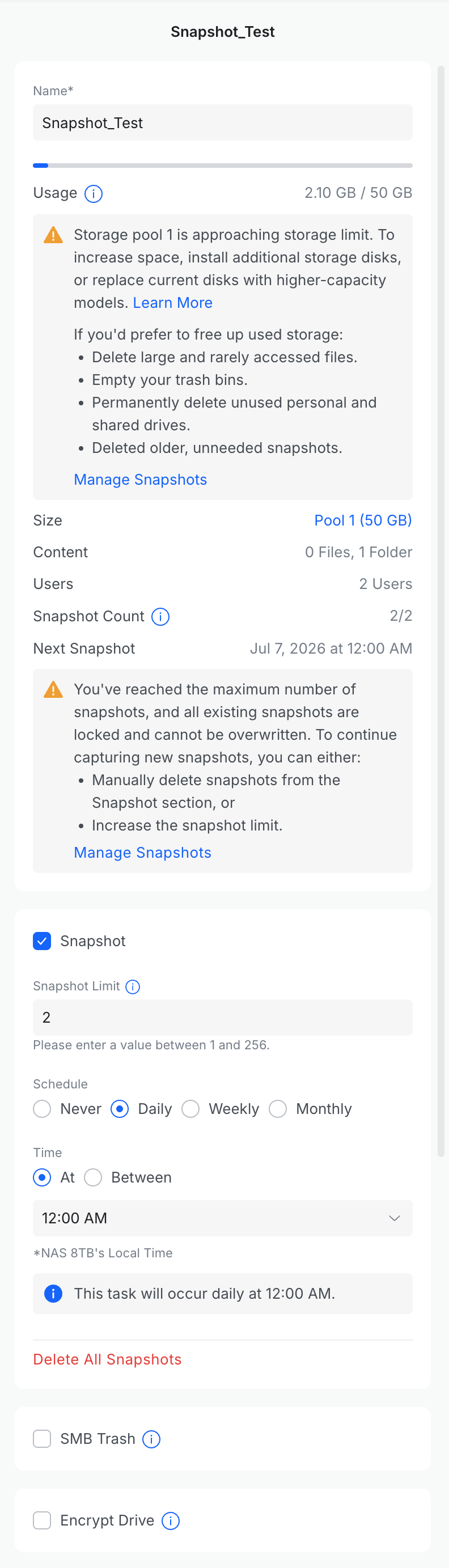
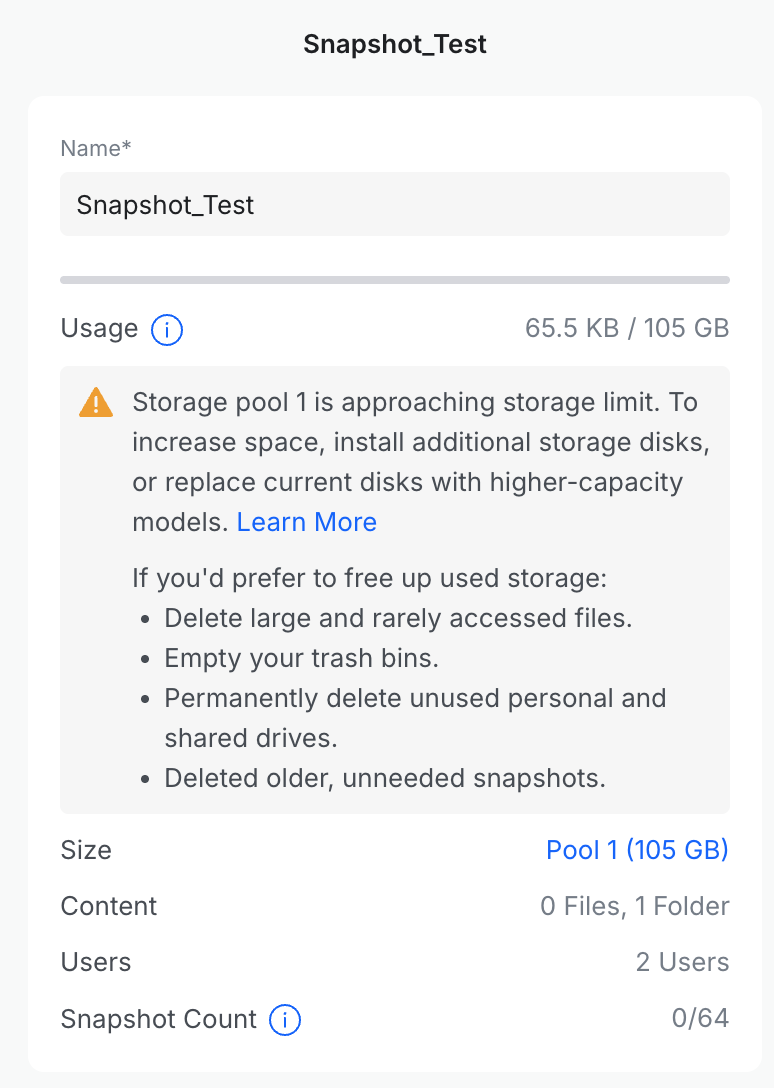
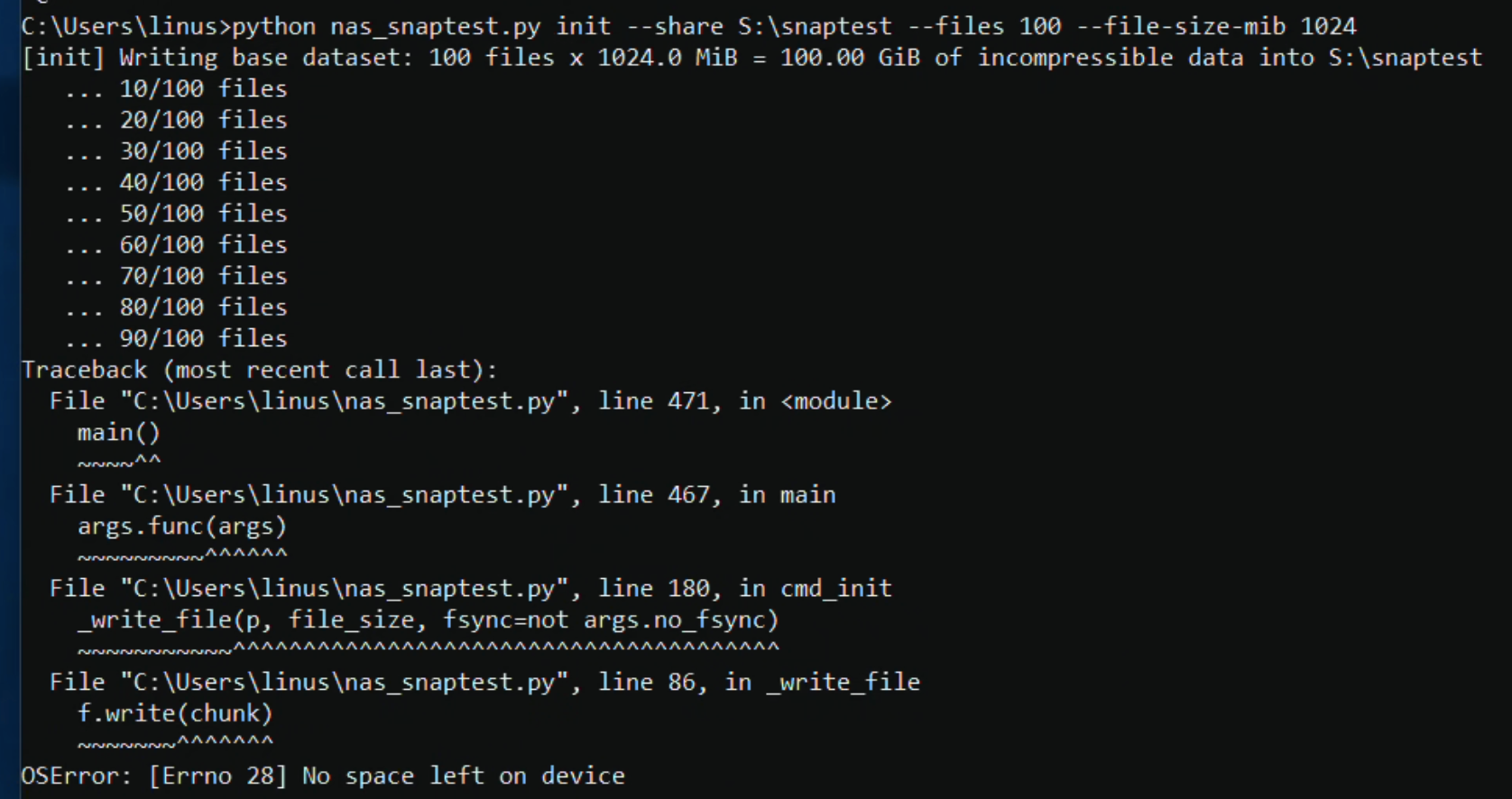
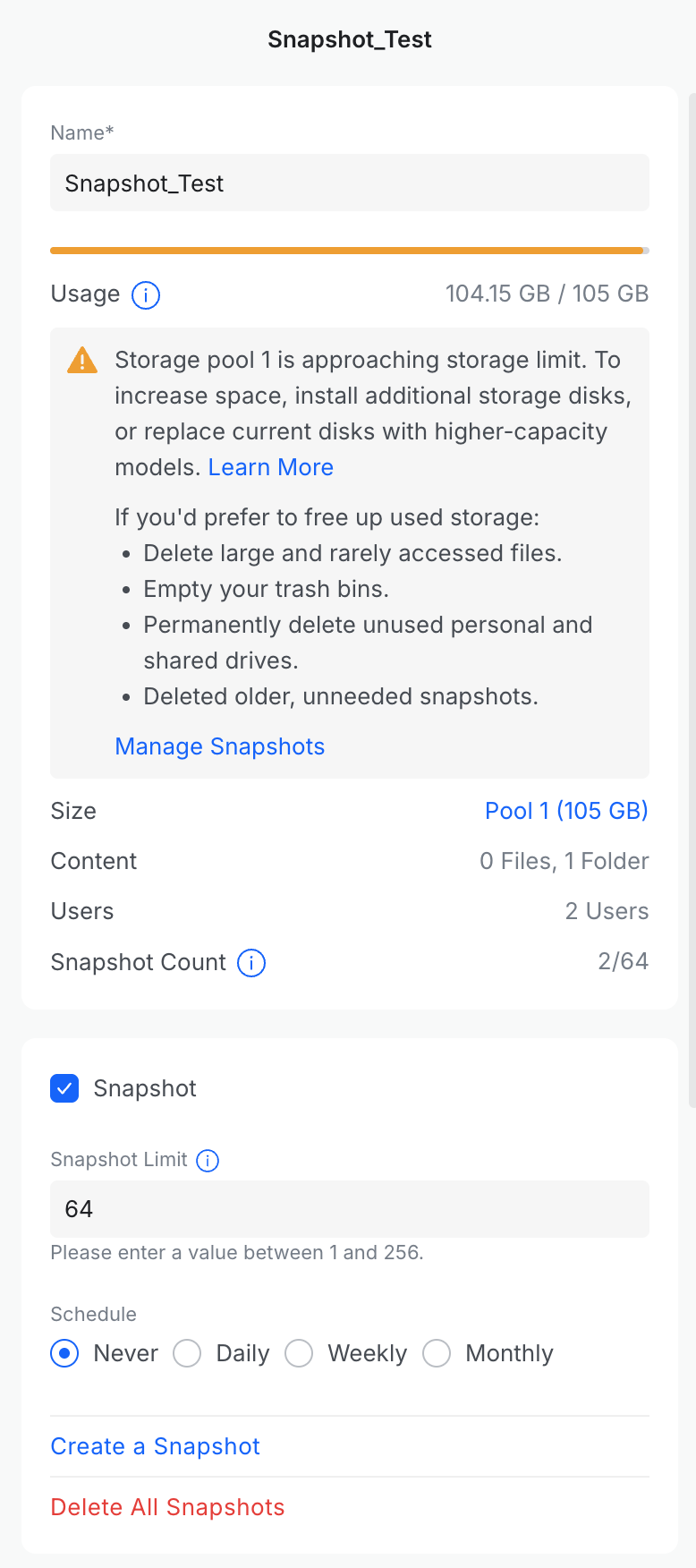
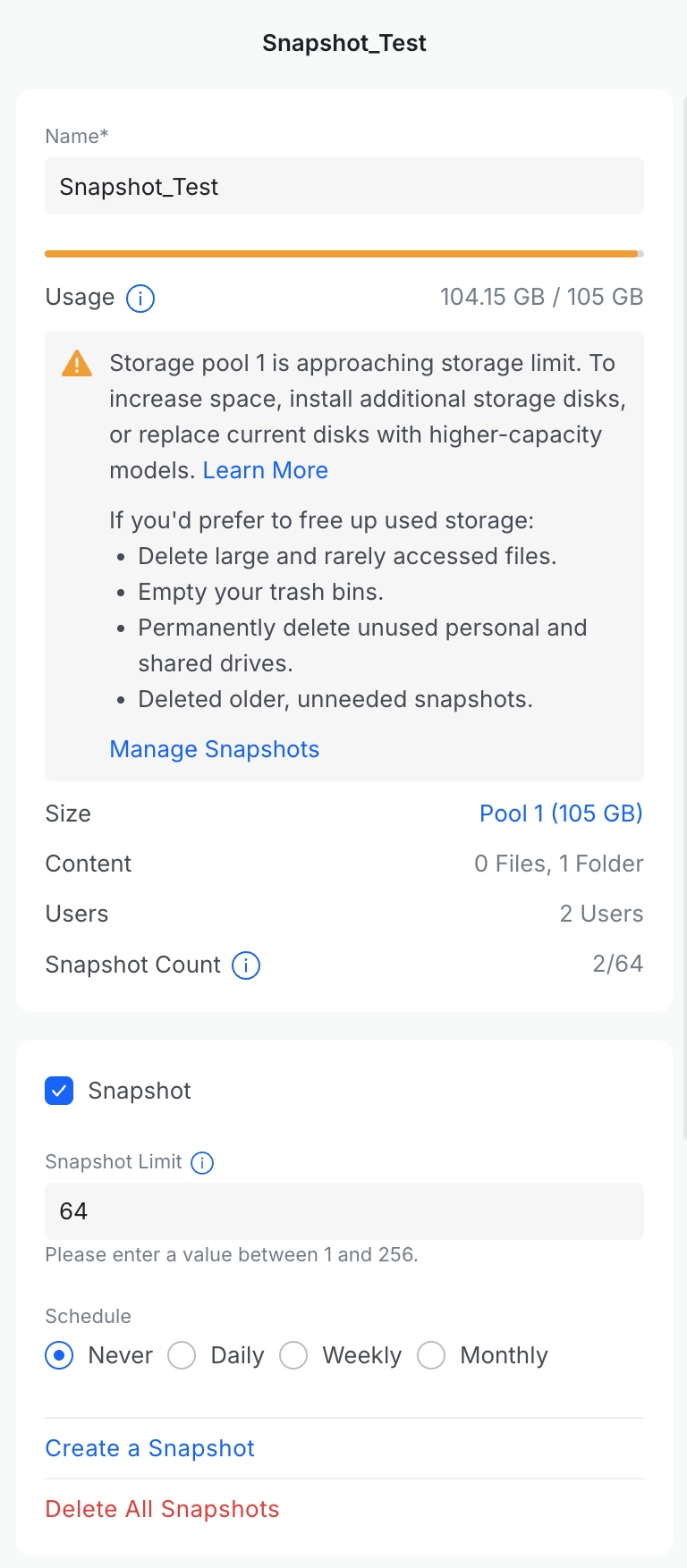
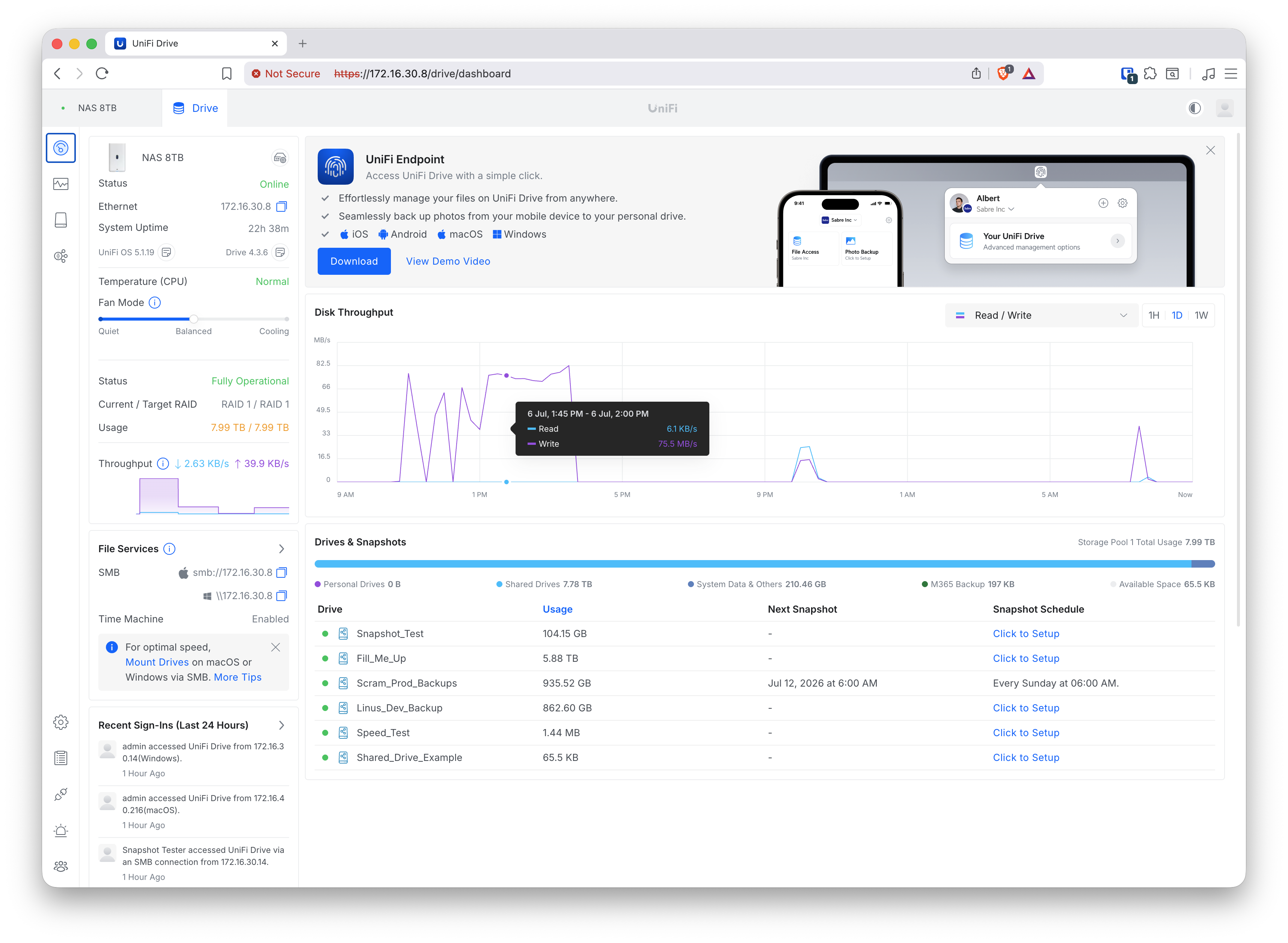
Precondition setup. Snapshot_Test was reconfigured with a 105 GB quota and a 64-snapshot limit. A 97 GiB dataset was written to the drive (the init run was interrupted by the quota limit at ~97 files rather than 100 — the partial file was deleted and the interrupted manifest noted). Two tracer
snapshots were then established:
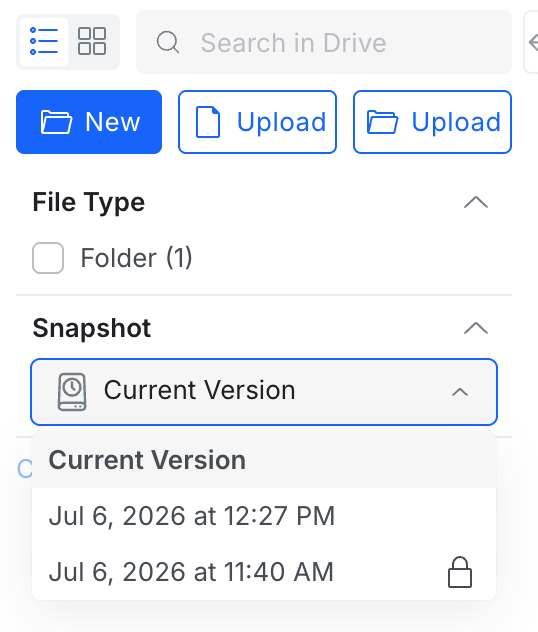
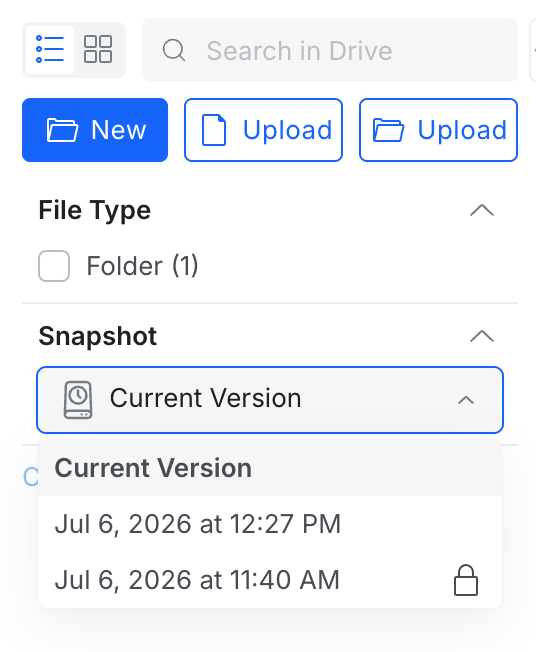
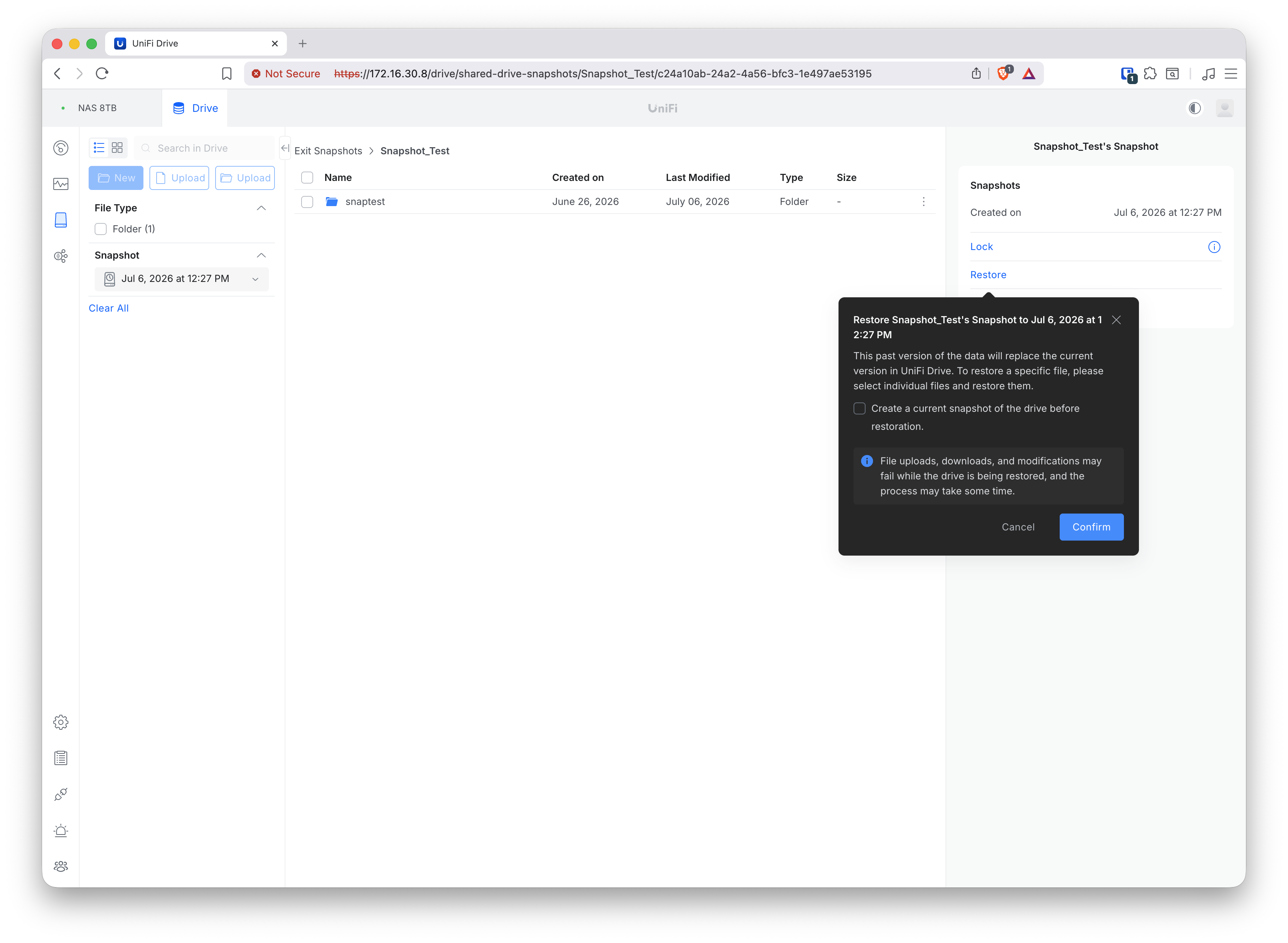
- Locked tracer — taken immediately after the initial write (Jul 6, 11:40 AM). This is the control: if pool pressure deletes locked snapshots, that would be new information for the Lock verdict table (Test group 6).
- Unlocked tracer — taken after a full 97 GiB churn round (Jul 6, 12:27 PM). This is the at-risk tracer: the decisive question is whether pool pressure deletes unlocked snapshots.
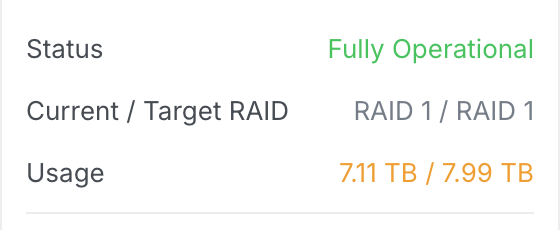
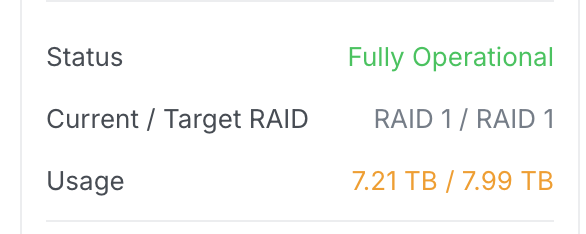
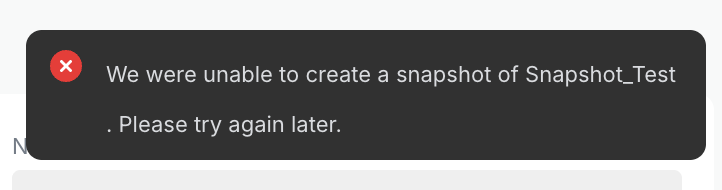
At this point the pool stood at 7.11 TB / 7.99 TB (~880 GB free). A third churn round was attempted to produce a second unlocked tracer, but the pool was already tight enough that the snapshot creation failed (“We were unable to create a snapshot of Snapshot_Test. Please try again later”) — the NAS had insufficient pool metadata space to commit a new snapshot. The two existing tracers were unaffected. This failure is itself a finding: at high pool pressure the NAS refuses to create new snapshots rather than deleting existing ones.
This failure was also silent. With no category or event filter applied, the event log recorded the surrounding activity at the time — snapshot creations, a Shared Drive Almost Full warning for Snapshot_Test (104 GB / 105 GB), and a Storage Pool Almost Full warning — but no Snapshot Creation Failed entry for the failed attempt itself. The only indication was the transient on-screen toast; nothing in the log identifies the snapshot as having failed. (Both this failure point and its logging are revisited in Test group 8, where snapshot creation instead succeeded at far lower free space — so the ~880 GB / ~11% figure here is best read as a one-off observation rather than a reliable threshold.)
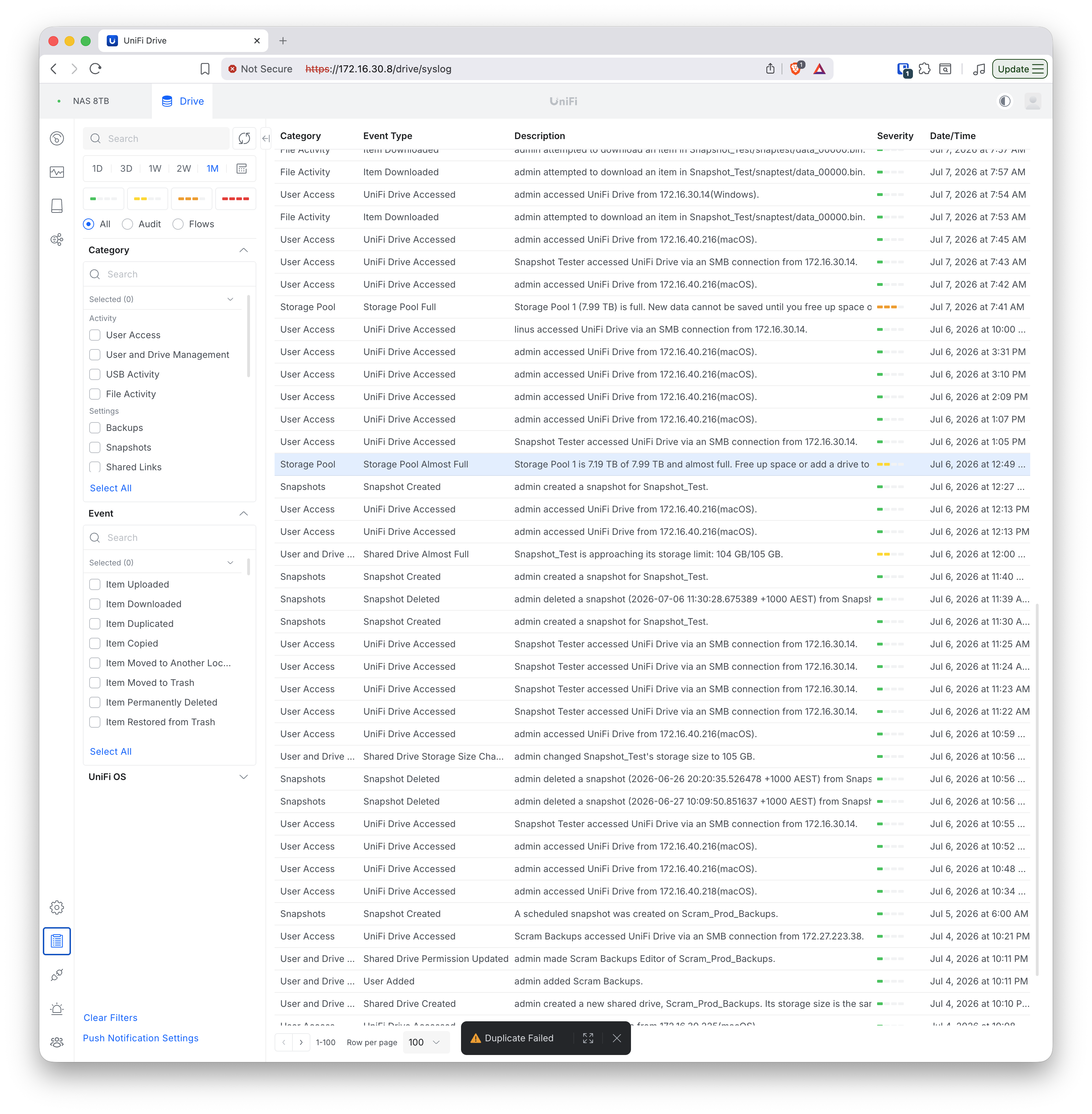
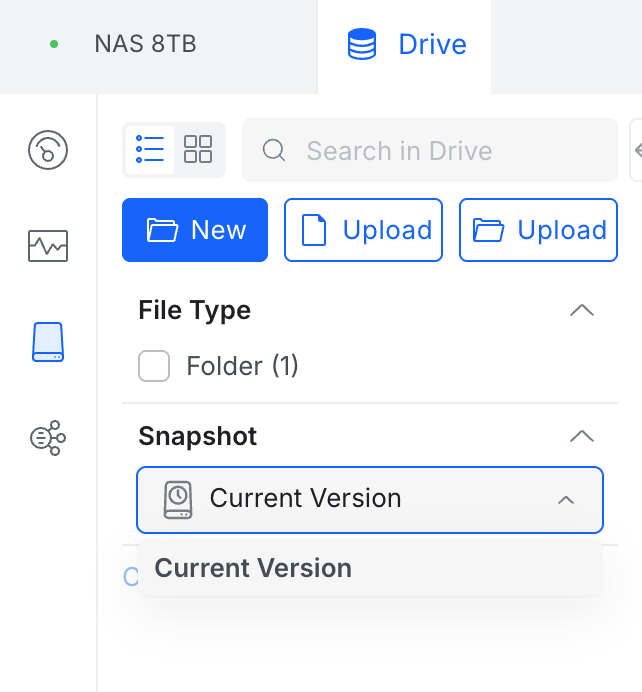
Setup evidence. The 97 GiB precondition dataset was written across three rounds (the 105 GB quota interrupts each pass), with pool, drive-usage and snapshot-list checkpoints captured after each:
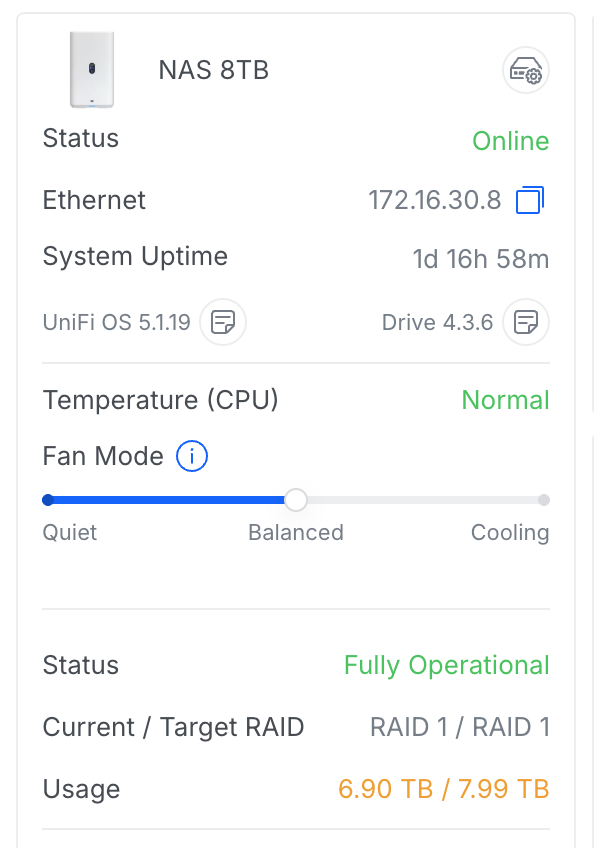
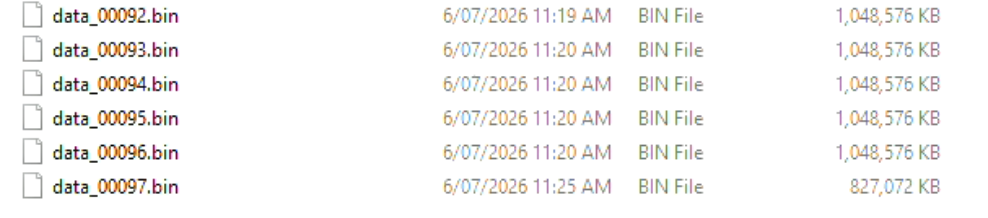
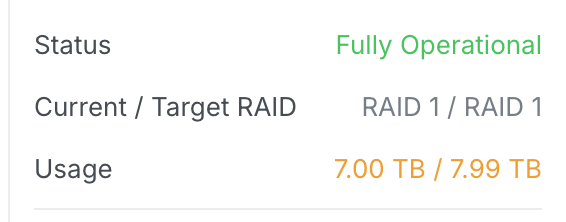
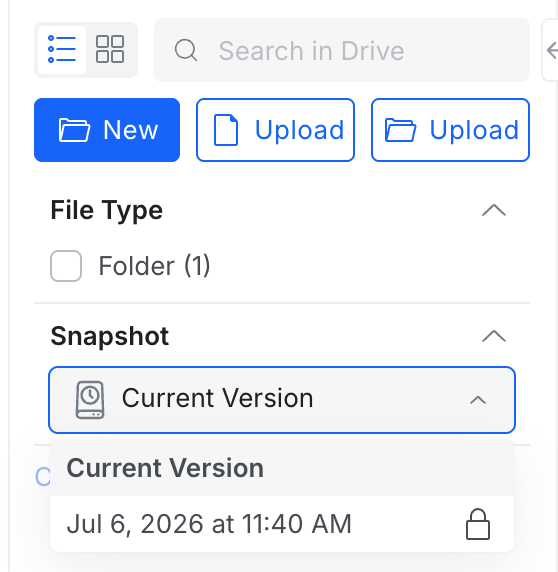
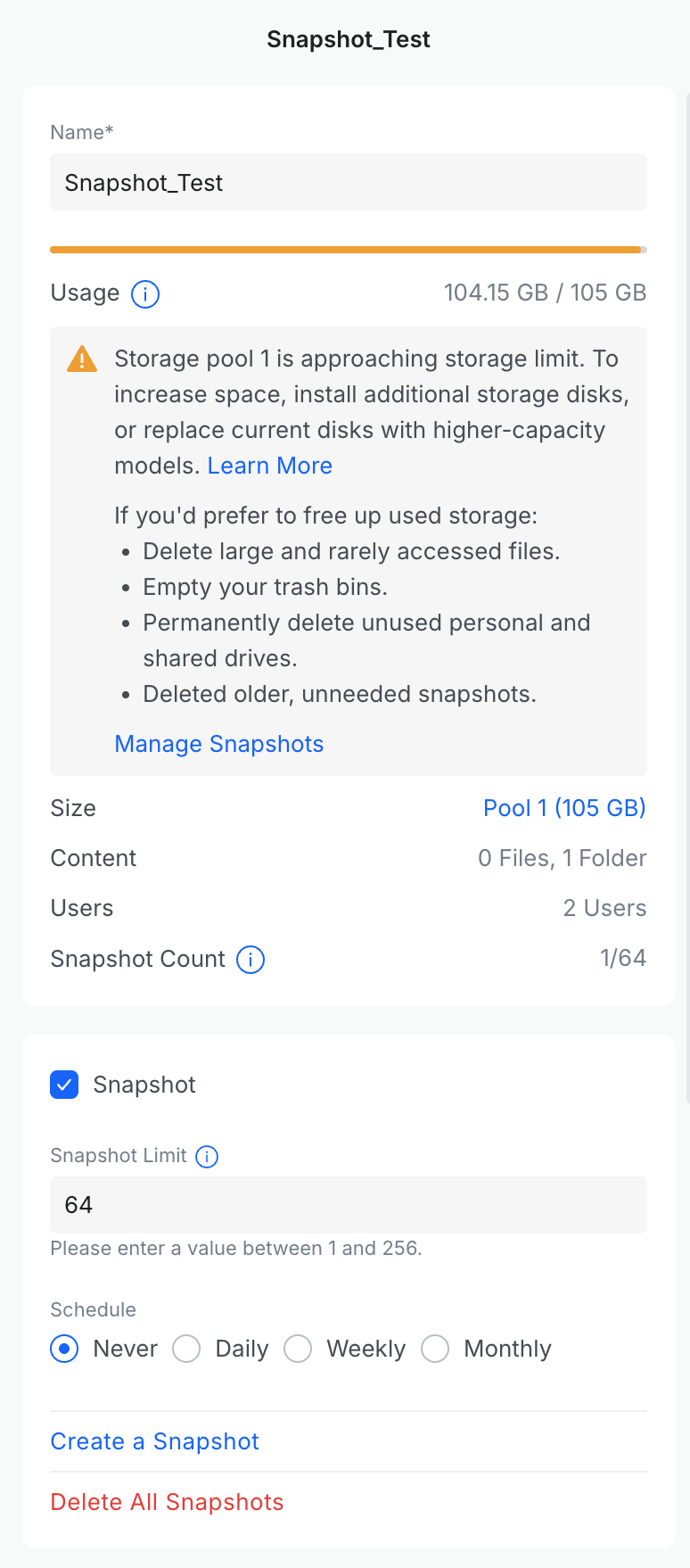



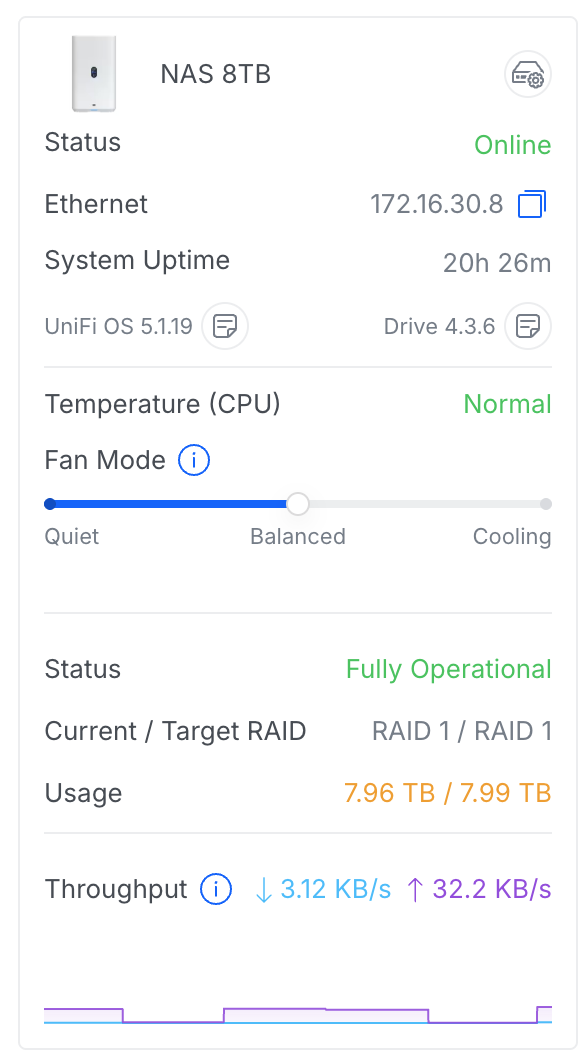
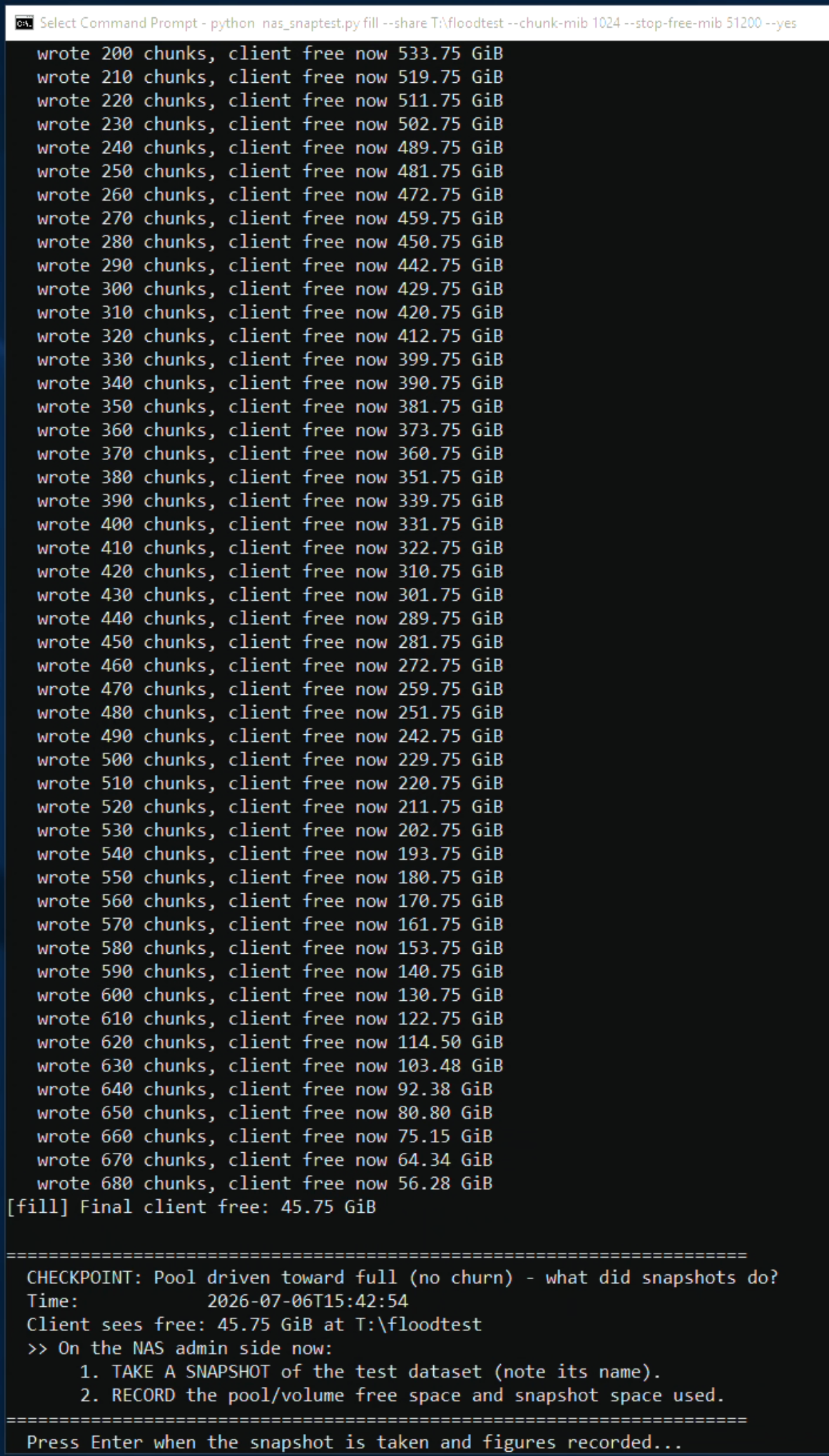
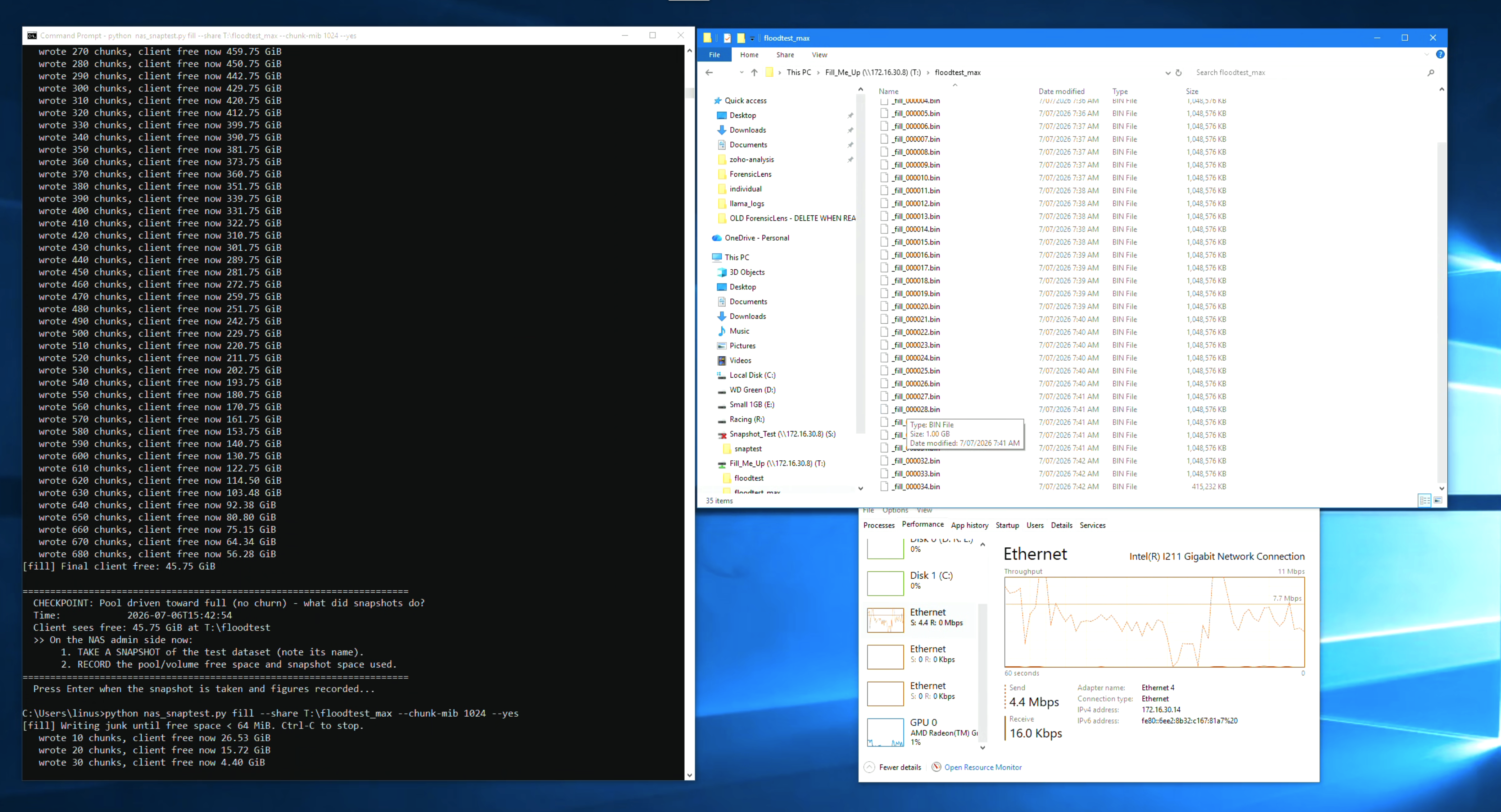
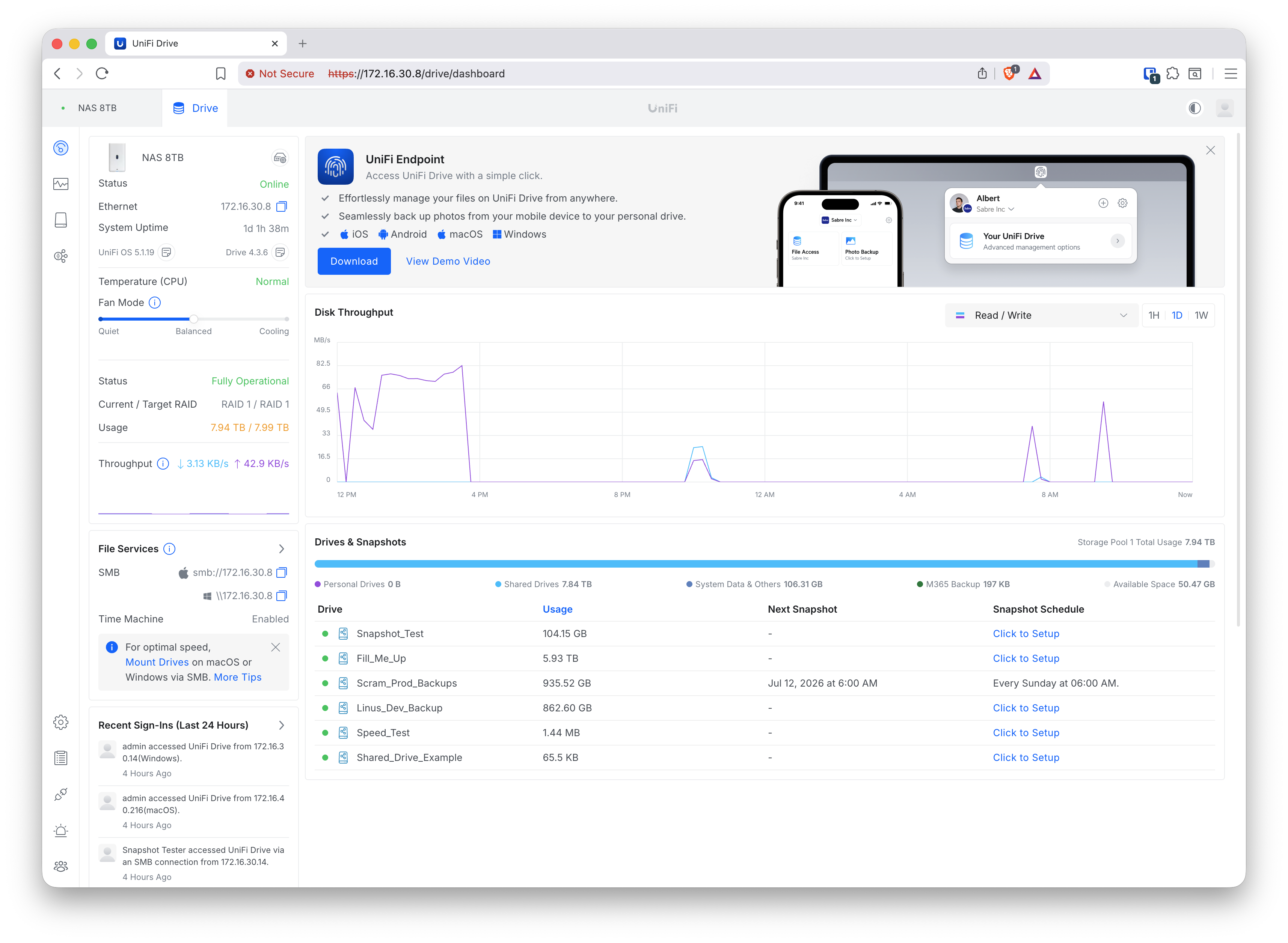
The flood. The share Fill_Me_Up (no quota, no snapshots) was mapped from the Windows client and flooded using nas_snaptest.py fill --chunk-mib 1024 --stop-free-mib 51200. The flood was run over SMB (share credentials only, consistent with the threat model) and wrote at a sustained ~117 MB/s, consuming ~680 GiB over approximately 1 hour 45 minutes. The pool was driven to 7.96 TB / 7.99 TB (~30 GB free) at the stop threshold.
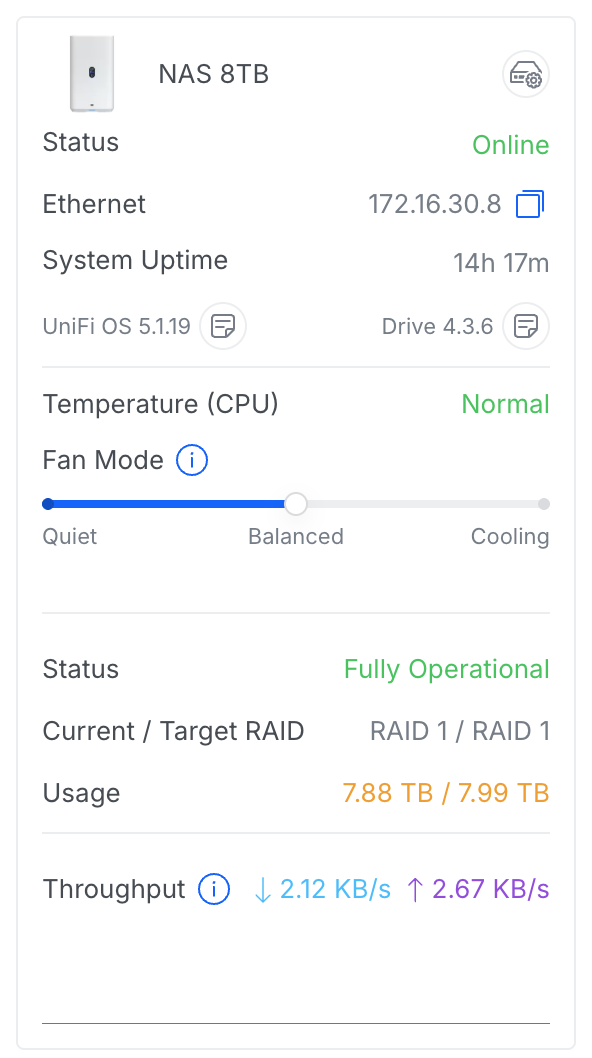
Both tracer snapshots on Snapshot_Test were checked at the stop point and after an overnight period:
both remained intact. The NAS surfaced a “Storage Pool 1 is almost full” log event during the flood, and the Snapshot_Test drive panel continued to display the “approaching storage limit” advisory — but no automatic snapshot deletion occurred.
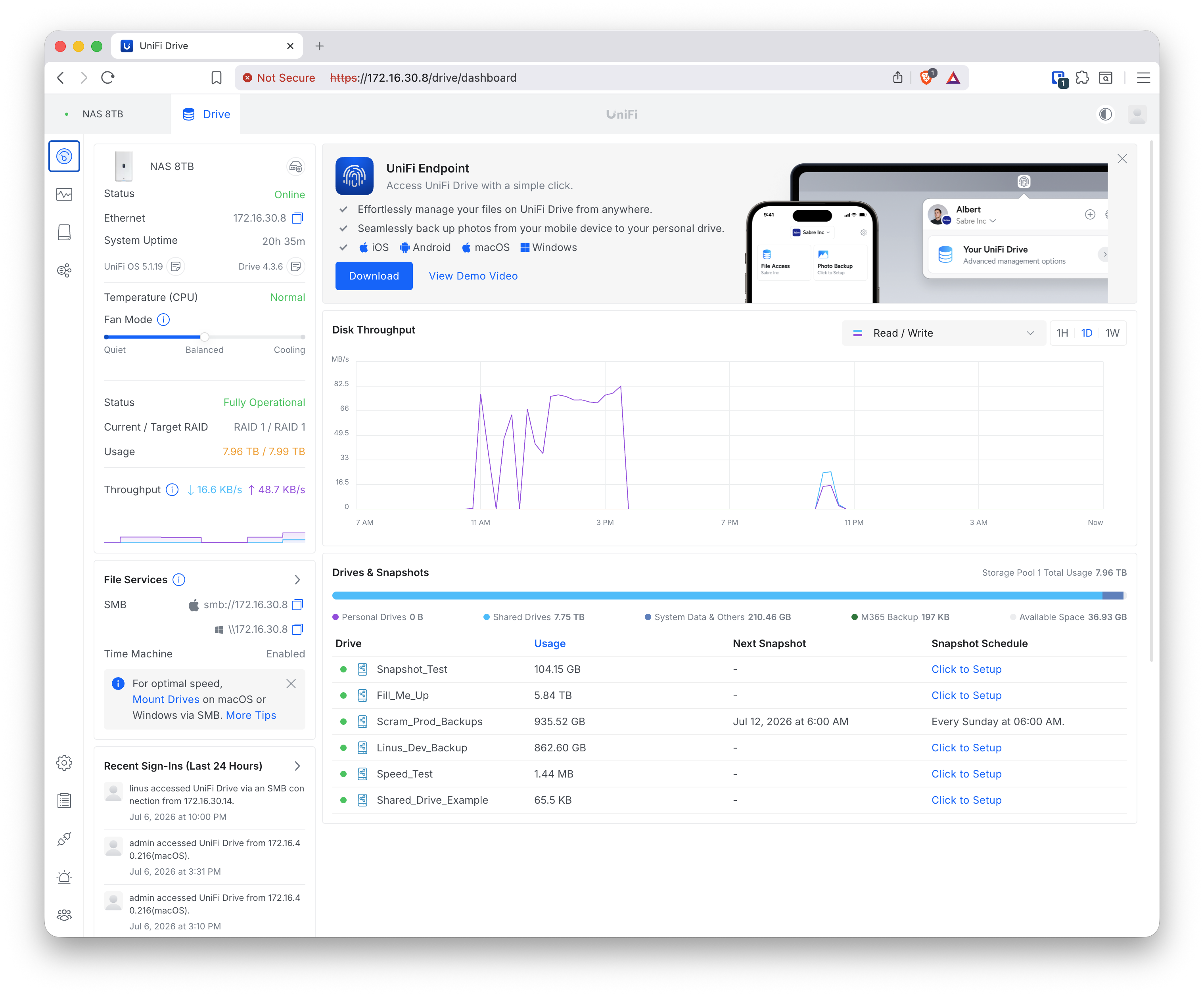
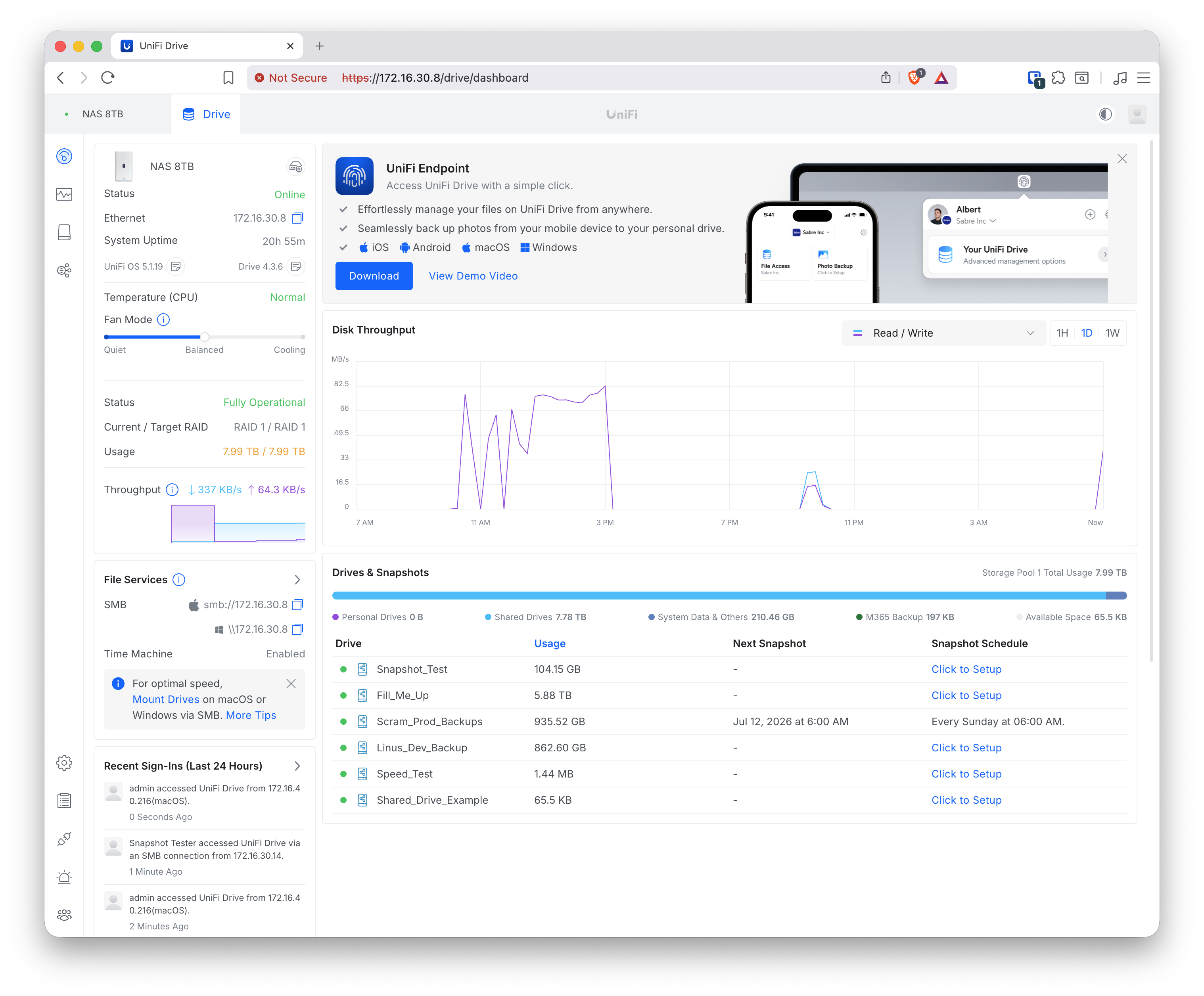
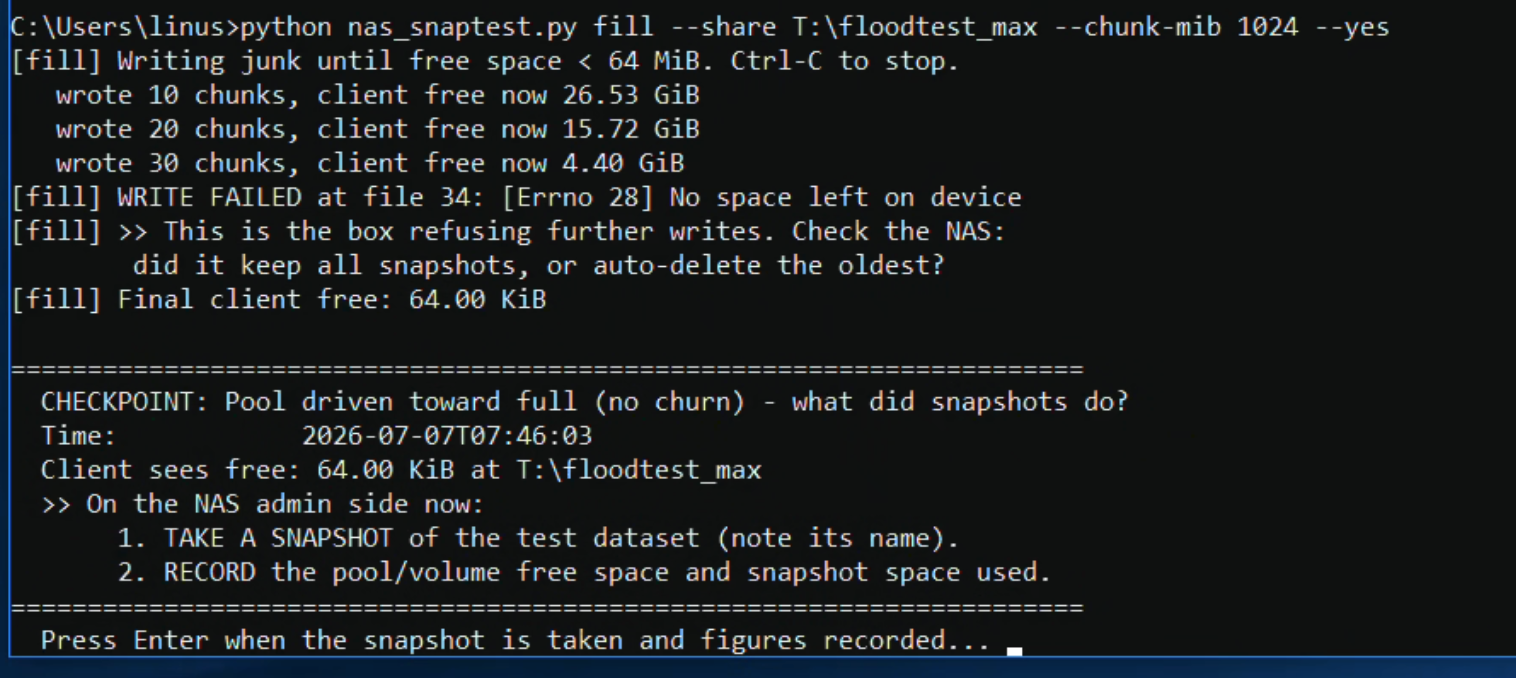
Driving to absolute full. A second flood run (fill with no --stop-free-mib threshold) was then run against a new subdirectory on Fill_Me_Up, driving the pool to 65.5 KB free — effectively zero. The fill script wrote 34 × 1 GiB chunks before failing with [Errno 28] No space left on device. The failure took 5–10 minutes to propagate back to the client, consistent with Btrfs stalling internally when it has exhausted metadata space. The dashboard confirmed 7.99 TB / 7.99 TB with 65.5 KB available.
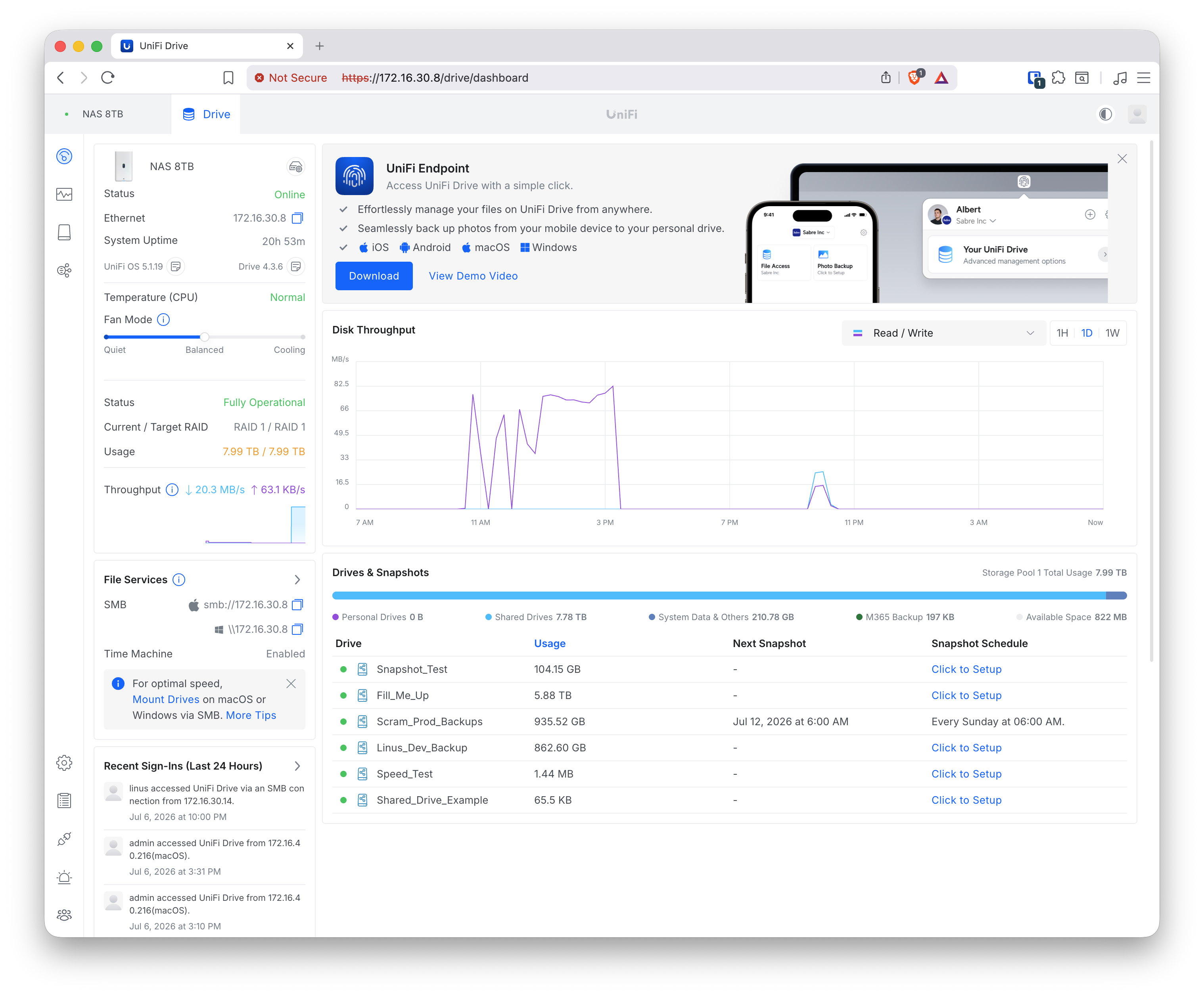
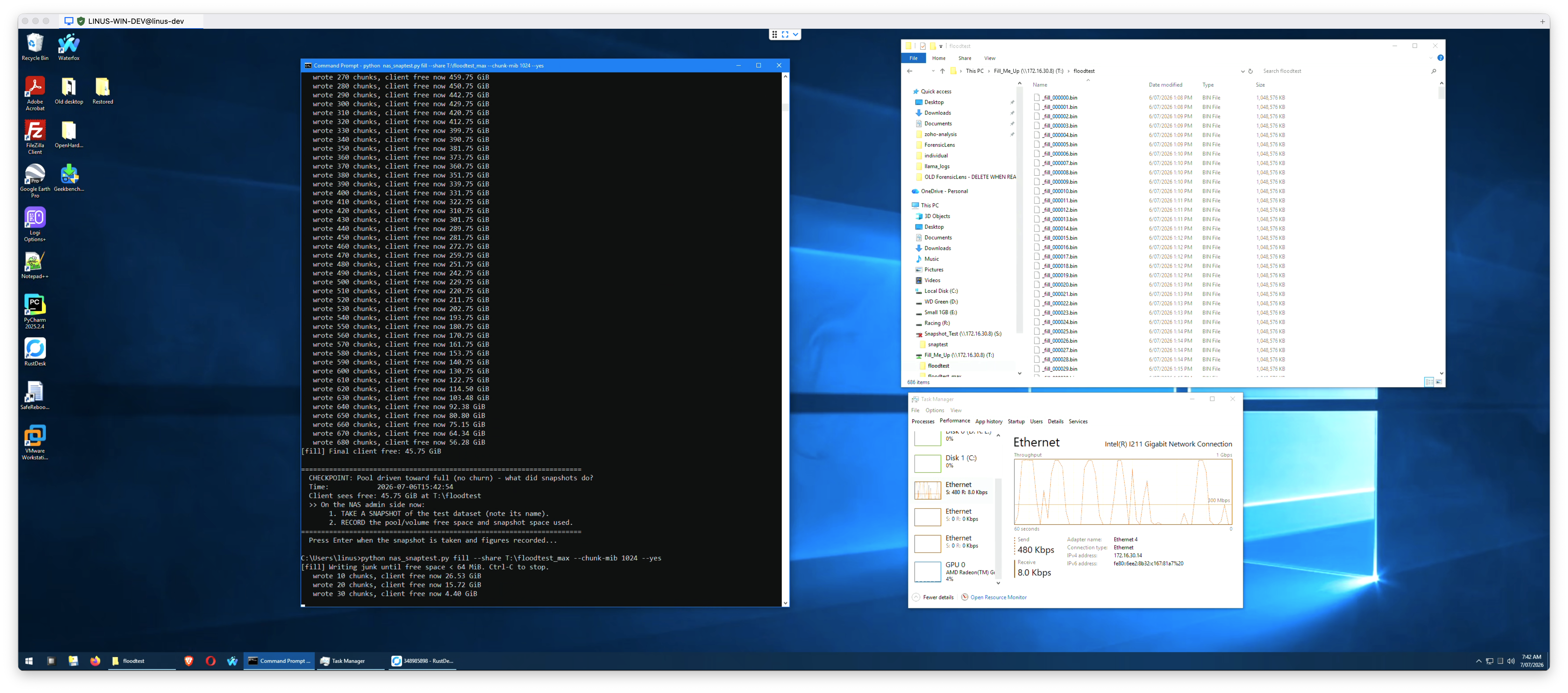
At absolute pool full, both tracer snapshots on Snapshot_Test remained present and intact:
- Jul 6, 12:27 PM — unlocked — present ✓
- Jul 6, 11:40 AM — locked — present ✓
- Snapshot Count: 2/64 — unchanged ✓
- Drive usage: 104.15 GB / 105 GB — unchanged ✓
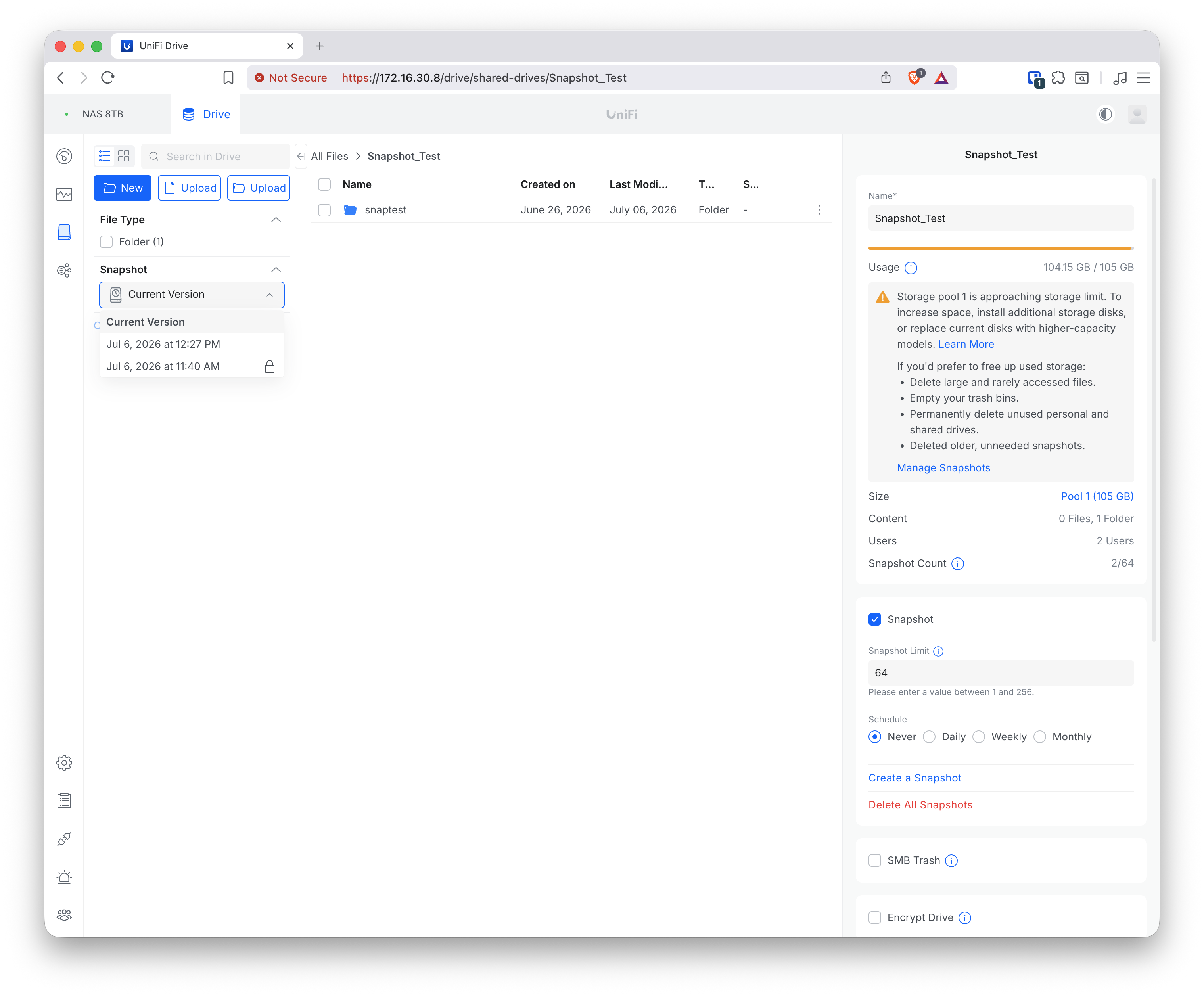
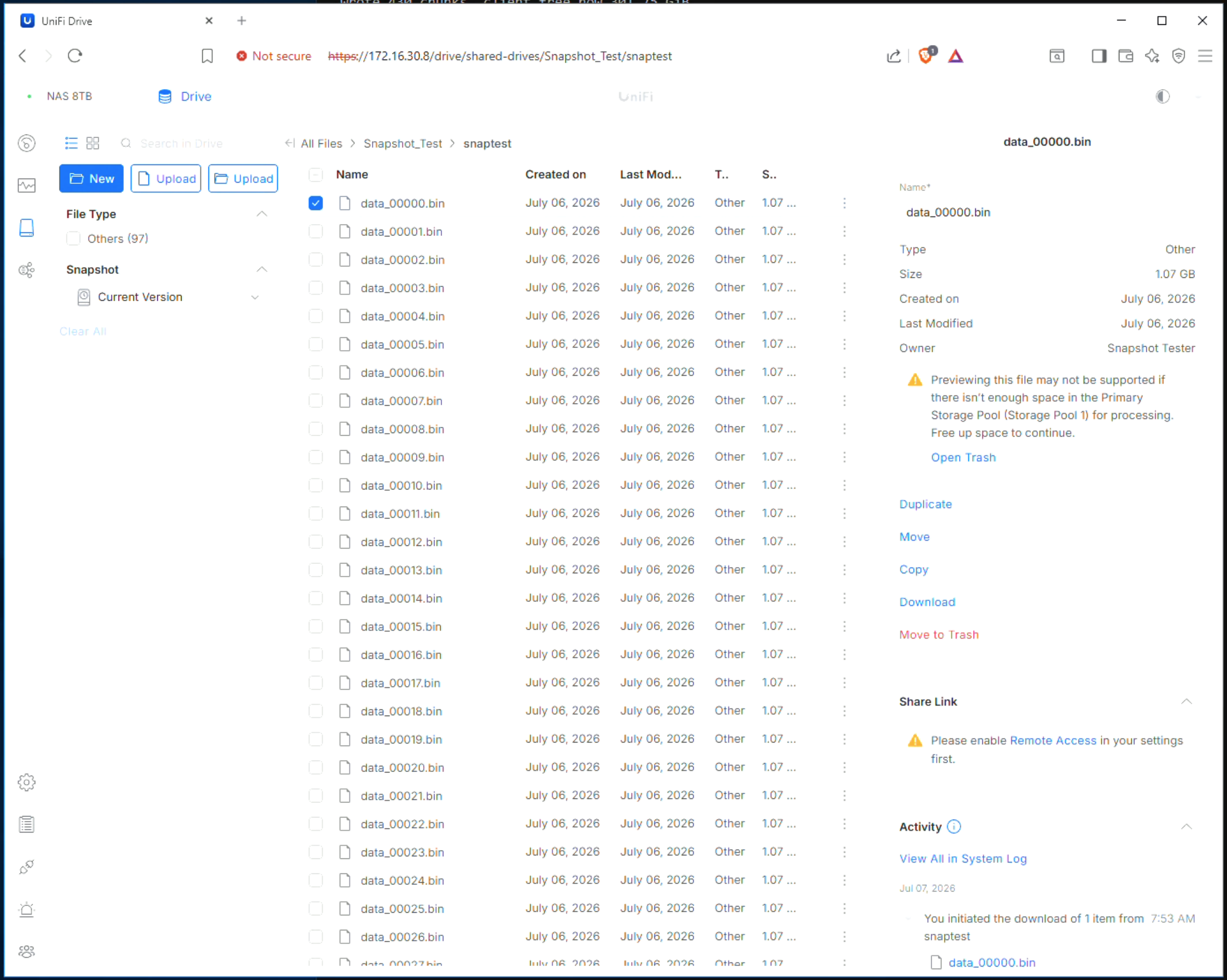
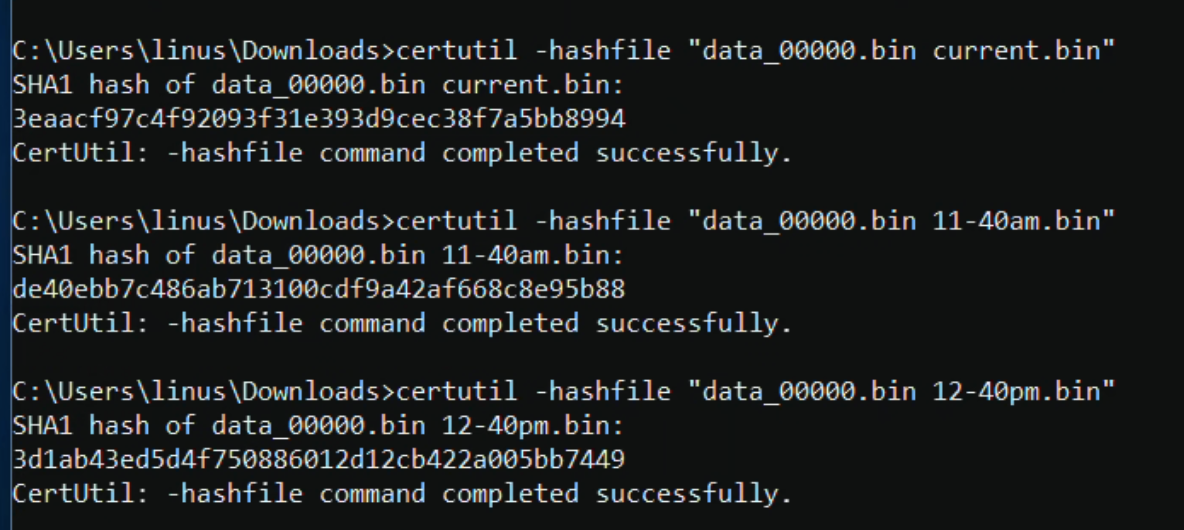
Snapshot integrity verification. With the pool at absolute full, data_00000.bin was downloaded from each snapshot and the current version via the admin UI and hashed with certutil -hashfile. All three SHA1 hashes were distinct, confirming each snapshot genuinely preserves a different point-in-time version of the data rather than sharing blocks:
| Version | SHA1 |
|---|---|
| Current (post-churn) | 3eaacf97c4f92093f31e393d9cec38f7a5bb8994 |
| 11:40 AM snapshot (locked, original) | de40ebb7c486ab713100cdf9a42af668c8e95b88 |
| 12:27 PM snapshot (unlocked, post-churn) | 3d1ab43ed5d4f750886012d12cb422a005bb7449 |
The admin UI remained responsive throughout, with no sluggishness observed at 65.5 KB free.
Same-share churn flood. To confirm the finding holds when the pressure originates from the backup share itself — the more direct attacker path — a further test was run. Snapshot_Test was restored to the Jul 6, 12:27 PM snapshot (returning ~100 GB of pool space), an additional 50 GB was written to Fill_Me_Up to tighten the pool back to ~104 GB free, and both tracer snapshots were confirmed present:
- Jul 6, 2026 at 12:27 PM — unlocked ✓
- Jul 6, 2026 at 11:40 AM — locked ✓
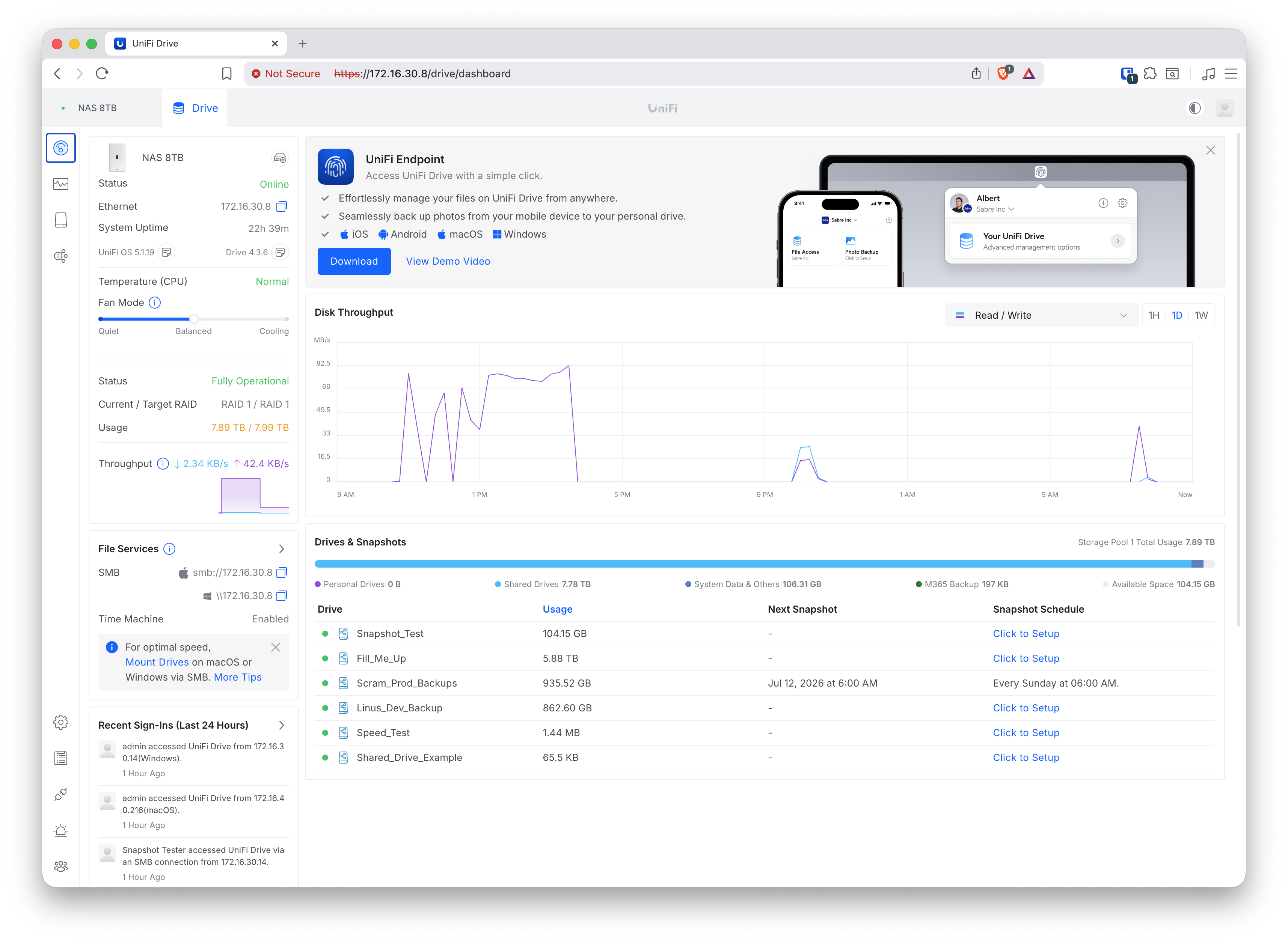
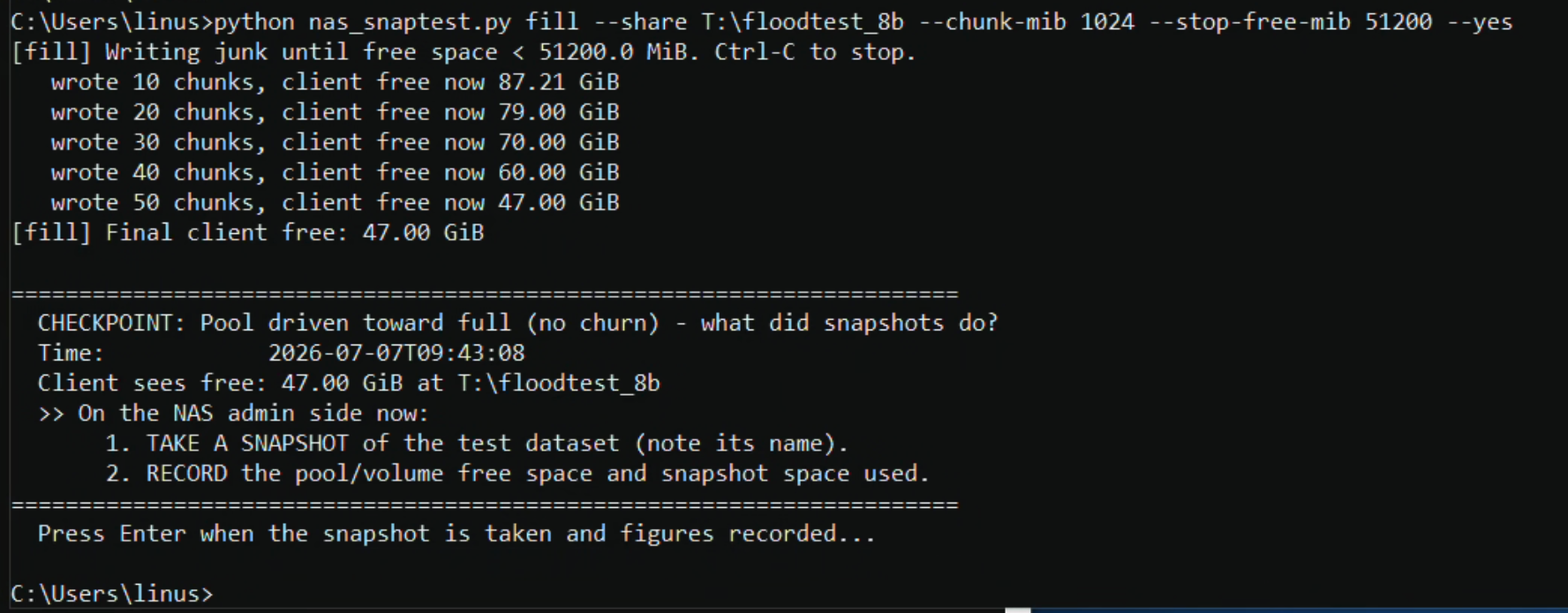
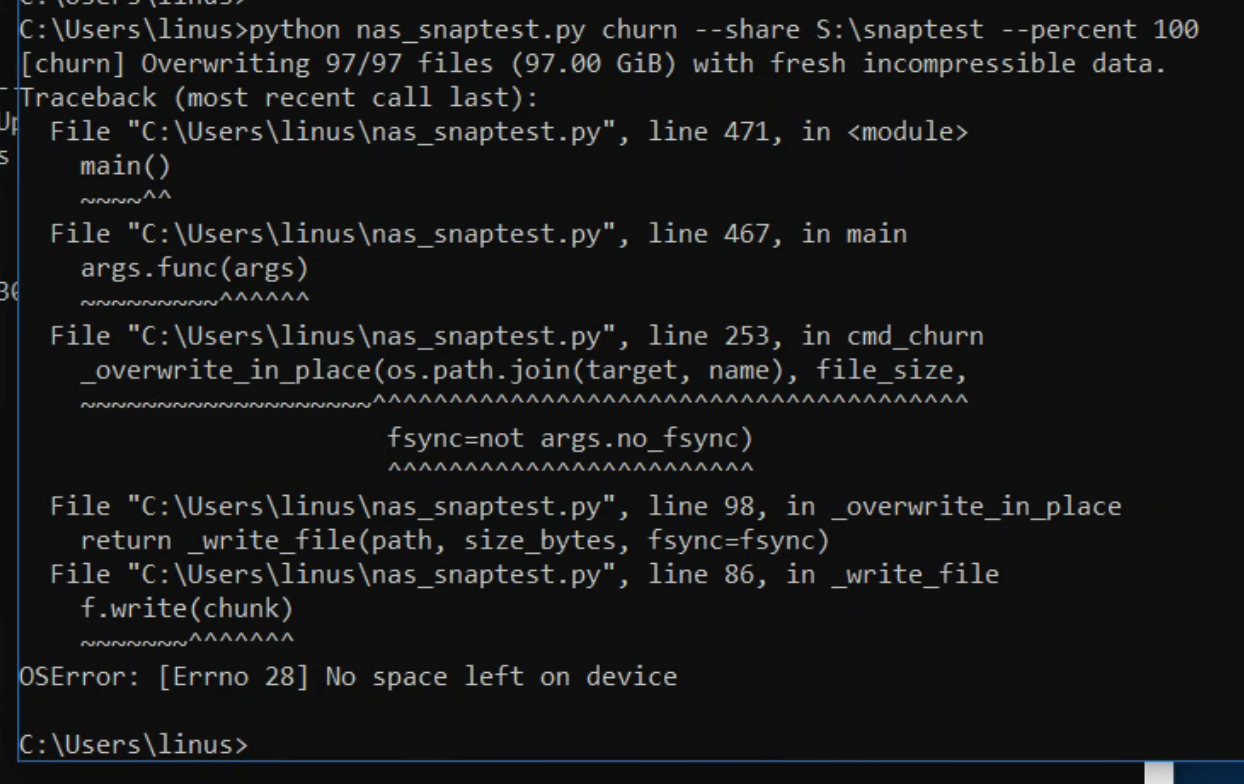
A full 100% churn of the 97 GiB dataset was then run against Snapshot_Test via SMB (share credentials only). With only ~104 GB of pool headroom, each GiB of in-place overwrite pins a further GiB of copy-on-write retention on the pool; the churn was expected to exhaust the pool at roughly the halfway point. The churn failed mid-run with OSError: [Errno 28] No space left on device, driving the pool to 7.99 TB / 7.99 TB (65.5 KB available) — absolute full. Both tracer snapshots remained intact:
- Jul 6, 2026 at 12:27 PM — unlocked — present ✓
- Jul 6, 2026 at 11:40 AM — locked — present ✓
- Snapshot Count: 2/64 — unchanged ✓
- Drive usage: 103.38 GB / 105 GB (slight reduction reflecting the partial churn before failure) ✓
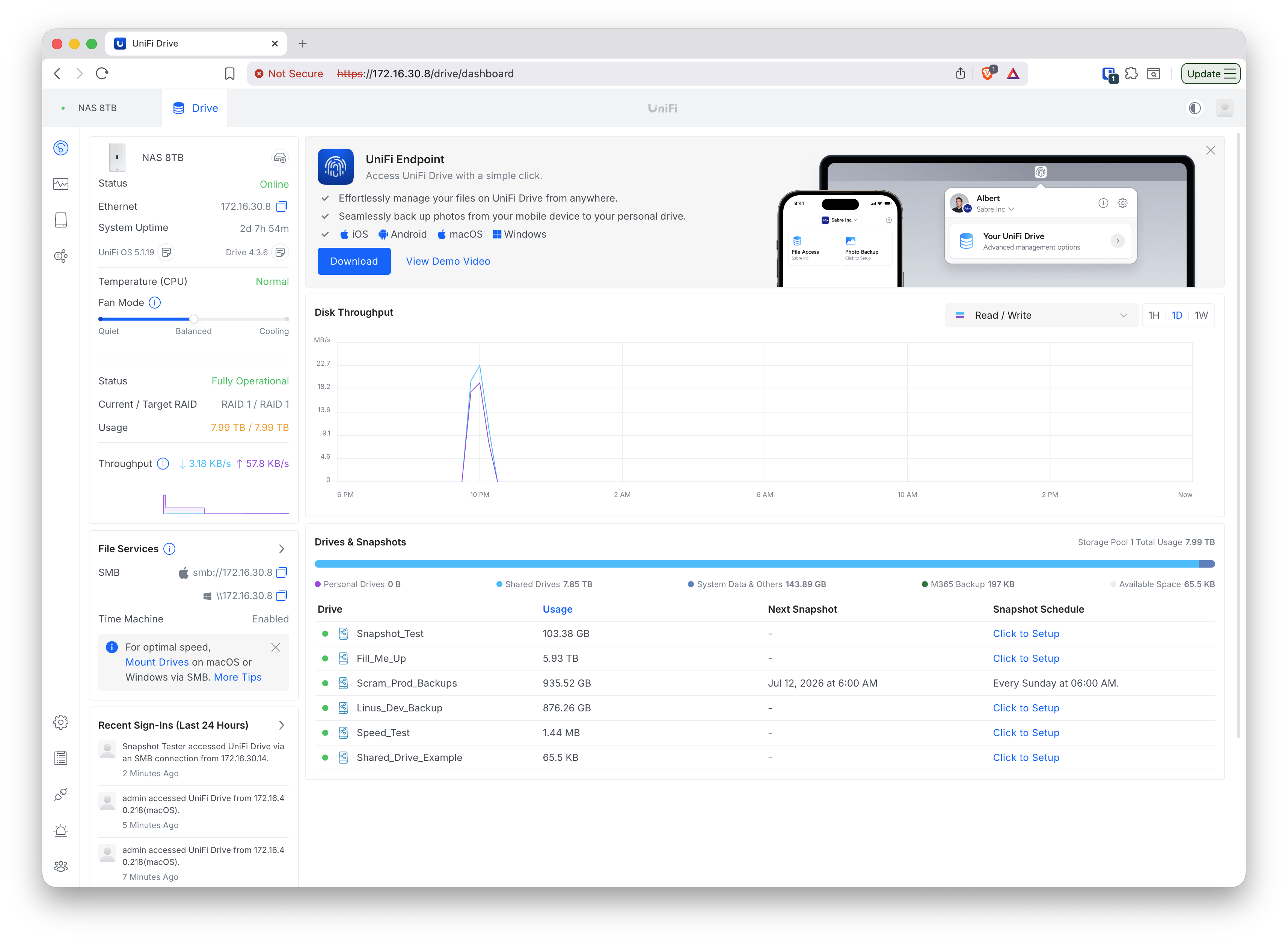
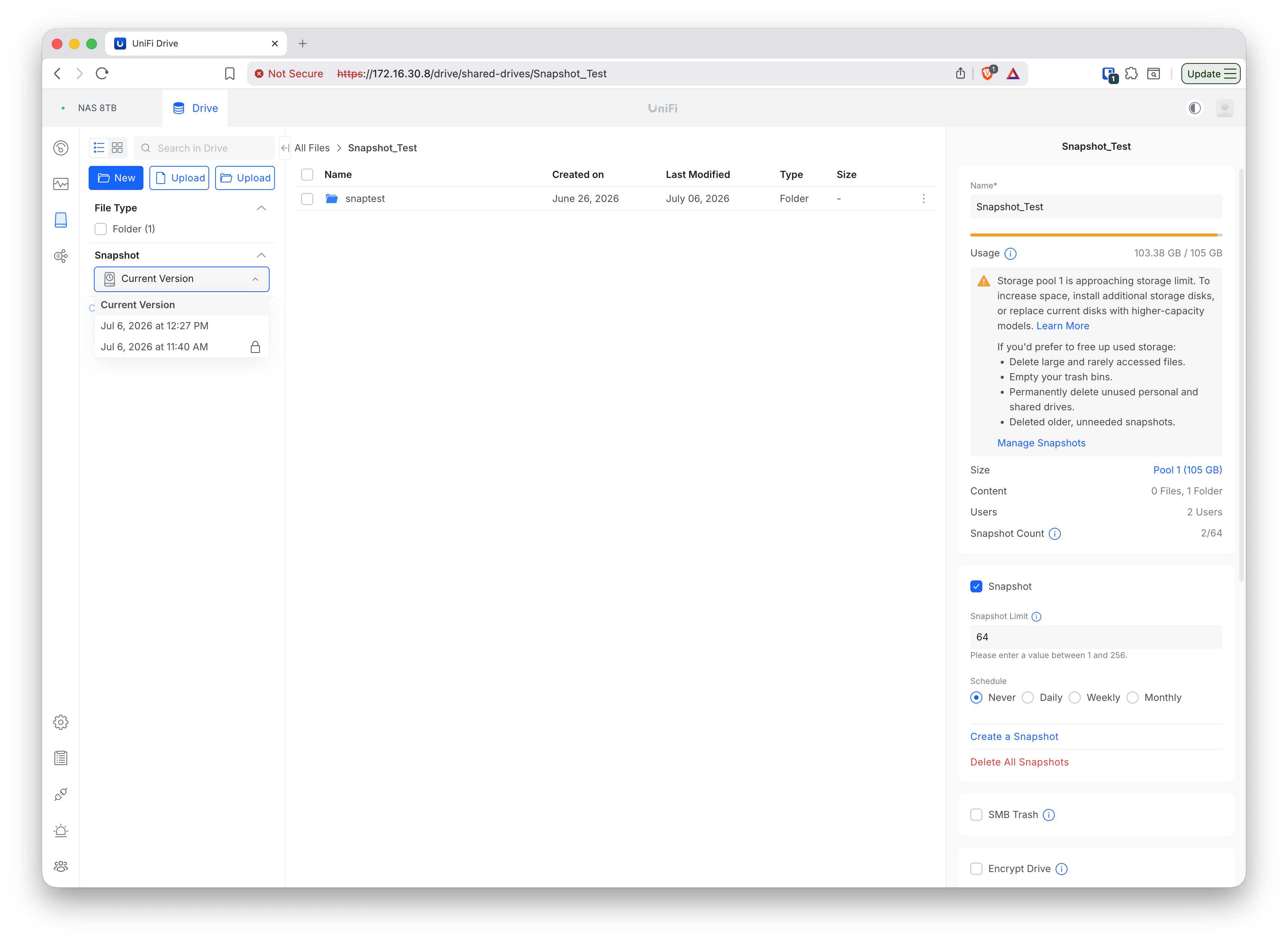
Result — criterion #9: Yes — confirmed under all conditions. Neither cross-drive flooding nor same-share churn flooding deletes snapshots, even at absolute pool full. The NAS’s response to pool exhaustion is consistent: refuse new writes rather than delete existing snapshots. This is the safe failure mode, and it holds regardless of which share is the source of pressure.
The Lock verdict table from Test group 6 can now be completed:
| Threat to the snapshot | Does Lock protect it? |
|---|---|
| Automatic deletion to honour the snapshot count limit (cap deletion) | Yes — the NAS refuses rather than delete a locked snapshot |
| The NAS auto-deleting under pool space pressure | Yes (moot) — pool pressure deletes neither locked nor unlocked snapshots; the NAS refuses writes instead |
| A deliberate administrator action (Unlock, or Delete All → Include Locked) | No — one click / one checkbox defeats it |
Test group 8 — Retest: where snapshot creation fails, and possible silent failures
This group is a deliberate retest. Several of the most important findings above rest on only a handful of observations, so they are replicated here under controlled conditions — both to confirm they are reproducible and, where possible, to characterise them more precisely. For completeness, four items are revisited:
- Automatic snapshot deletion driven by the maximum-snapshot-count limit (first observed in Test group 6).
- The point at which snapshot creation begins to fail as free space runs low — re-examining the single Test group 7 observation of a failure at roughly 11% free.
- Whether scheduled snapshots behave any differently from manual ones.
- Confirmation of the earlier observation that a snapshot which fails for lack of disk space does so silently, with no notification to the administrator.
Test 8.1 — Notification channels: can the NAS alert on a failure?
Before testing whether a snapshot failure caused by low disk space is silent, the available notification channels were investigated — because a failure that is recorded or alerted is not silent, whereas one that passes with no signal is.
The NAS offers two notification channels: email (SMTP) and push notifications through the UniFi mobile app. Push was not available here, as the mobile app had not been paired with this deployment, which left email as the only channel to configure. The NAS can send email either through its own hosted “UI Mail Server” or through a custom SMTP server; the hosted option was unavailable in this deployment, so a custom SMTP server was configured (SSL, port 465,
authenticated):
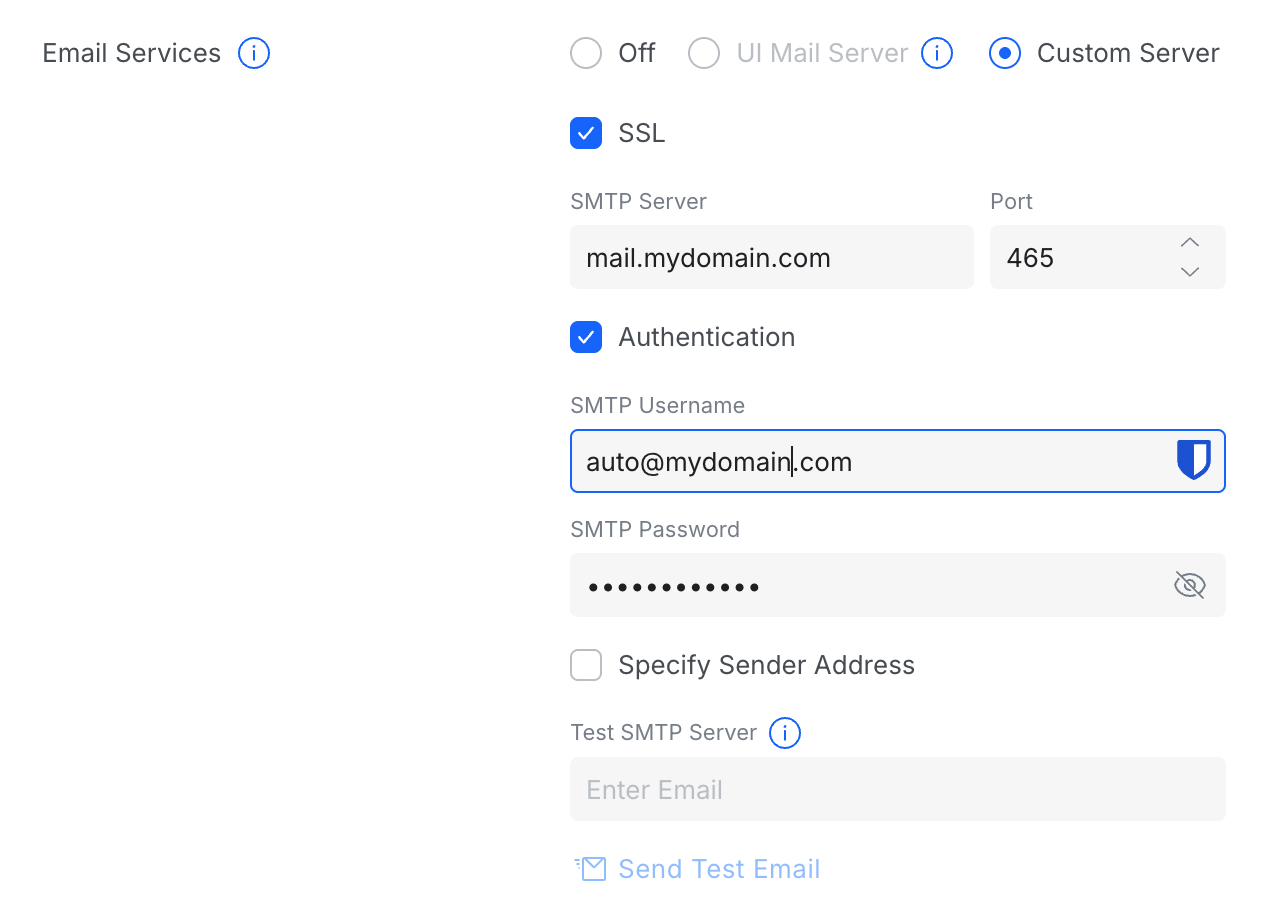
The built-in Send Test Email consistently failed with a generic error, and — importantly — produced no diagnostic detail and no corresponding entry in any log:
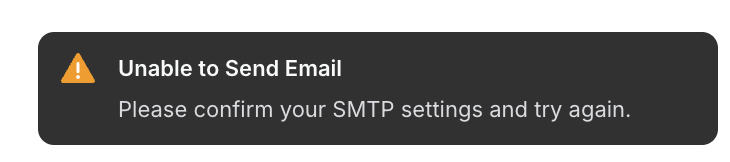
Roughly 20 minutes was spent verifying the settings. The same mailbox and credentials were confirmed working independently from an Apple Mail client, both sending and receiving, which rules out the mailbox, the credentials, and server reachability as the cause. The conclusion is that the NAS fails to send through this mail server for a reason it does not report: the test-email failure is itself a silent failure, with no log entry to diagnose it. Email notification could not be established.
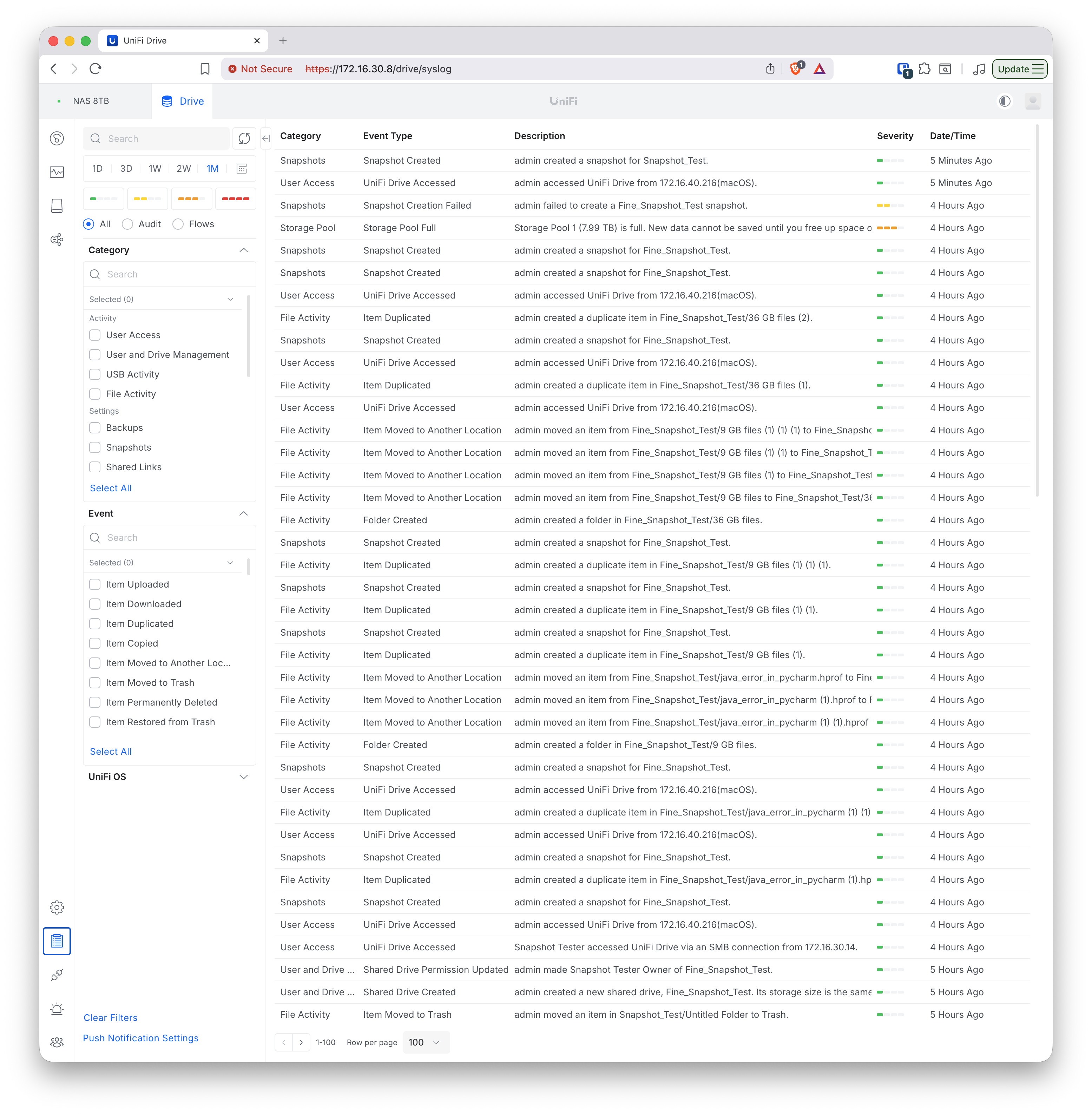
The NAS does, however, maintain an event log for snapshots, and that log records snapshot failures. The log below includes a Snapshot Creation Failed event — “A scheduled snapshot for Snapshot_Test failed because existing snapshots are locked” (28 June) — alongside the routine created, deleted, and restored events:
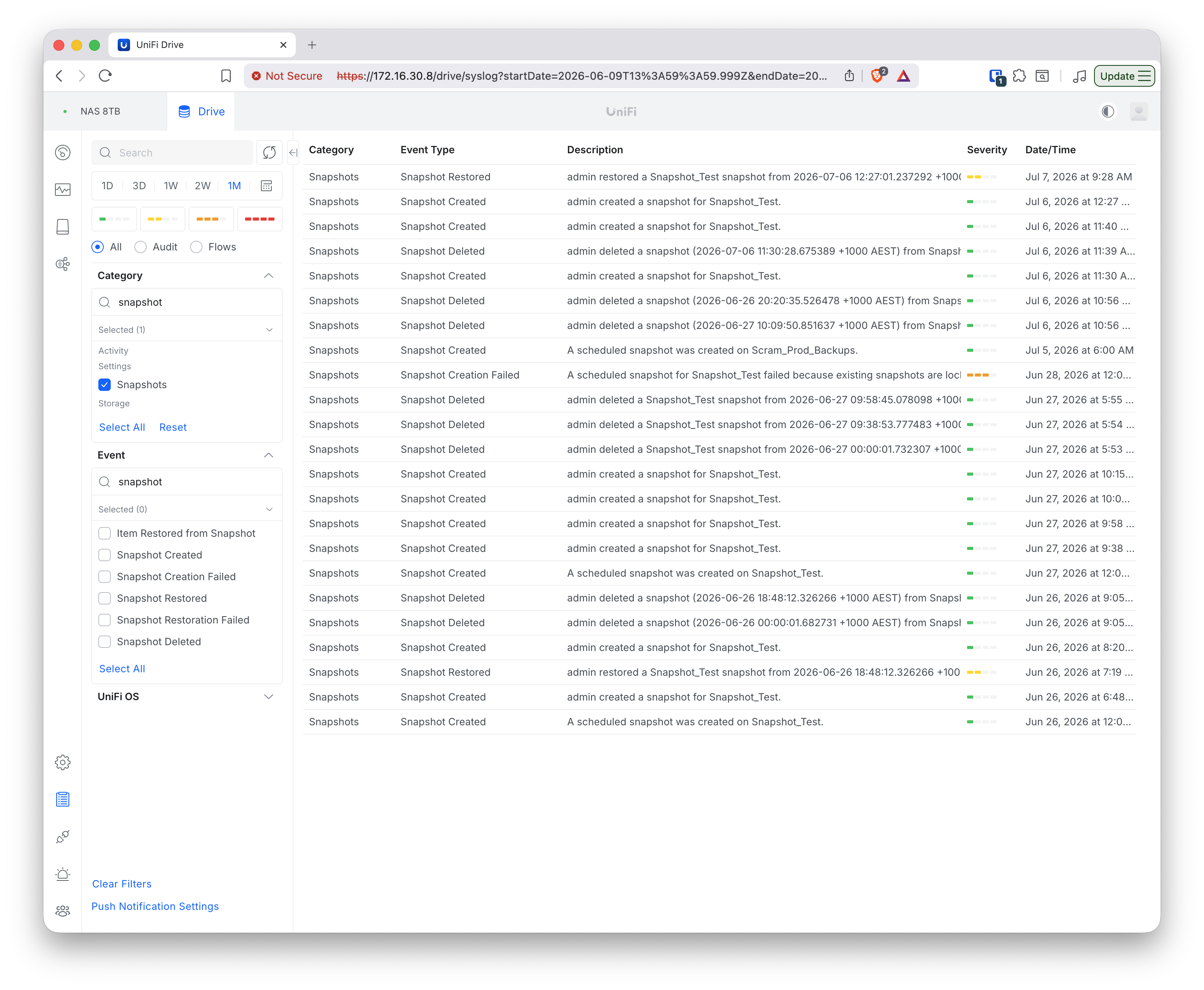
This matters for the silent-failure question. It establishes that at least one class of scheduled-snapshot failure — the count limit being reached while all existing snapshots are locked — is written to the event log, even though it could not be delivered by email. For the remainder of this group, therefore, the test for a “silent” failure is whether an equivalent event-log entry appears, since the event log, not email, is the notification channel that actually works on this NAS. The specific open question carried into the next test is whether a snapshot that fails for lack of disk space is recorded in the same way, or passes with no entry at all.
Test 8.2 — How far can the pool be filled before snapshot creation fails?
To find where snapshot creation fails, a fresh share (Fine_Snapshot_Test) was created and grown in steps: add data (by duplicating a file or folder), check the pool on the NAS dashboard, take a manual snapshot, then repeat — continuing until the pool was completely full.
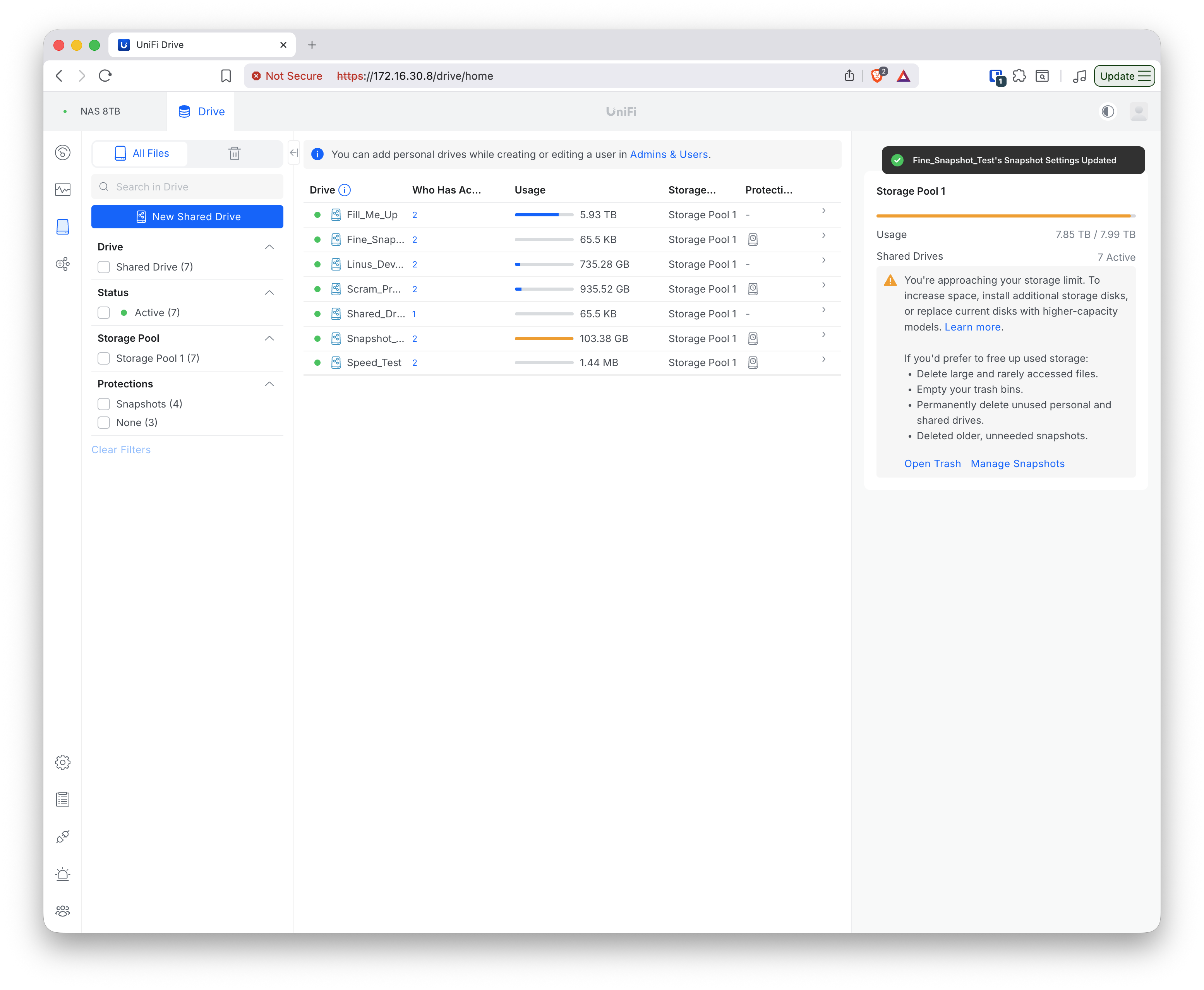
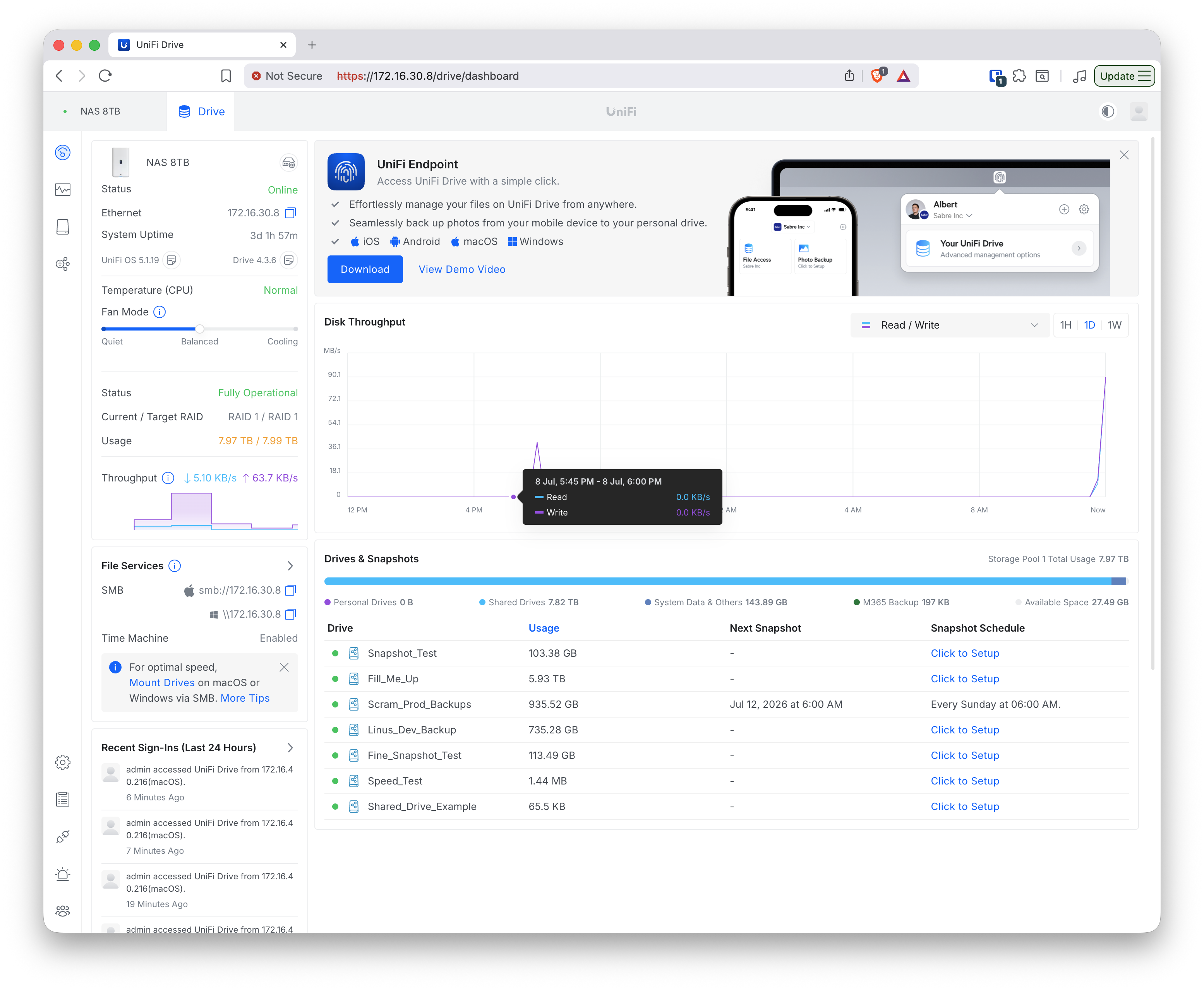
A snapshot succeeded at every step. As the drive grew from ~3 GB to ~151 GB and the pool’s available space fell from ~156 GB to ~2 GB, each manual snapshot was created without error and the snapshot count climbed steadily (1, 2, 3 … 9). Two points from that descent — snapshots still succeeding at ~27 GB and then ~2 GB of pool space remaining:
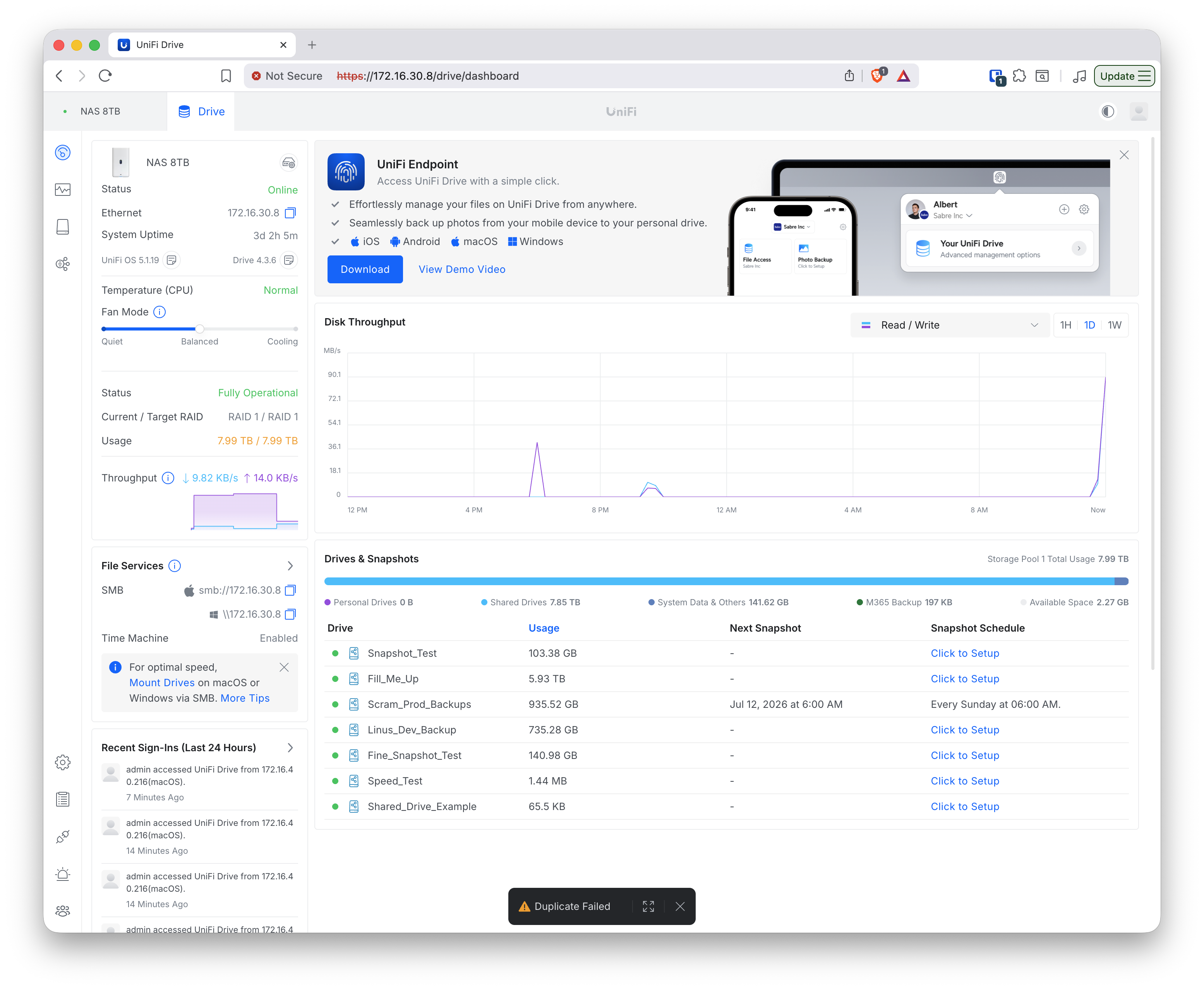
Creation failed only once the pool reached genuine full — 7.99 TB / 7.99 TB, zero bytes free:
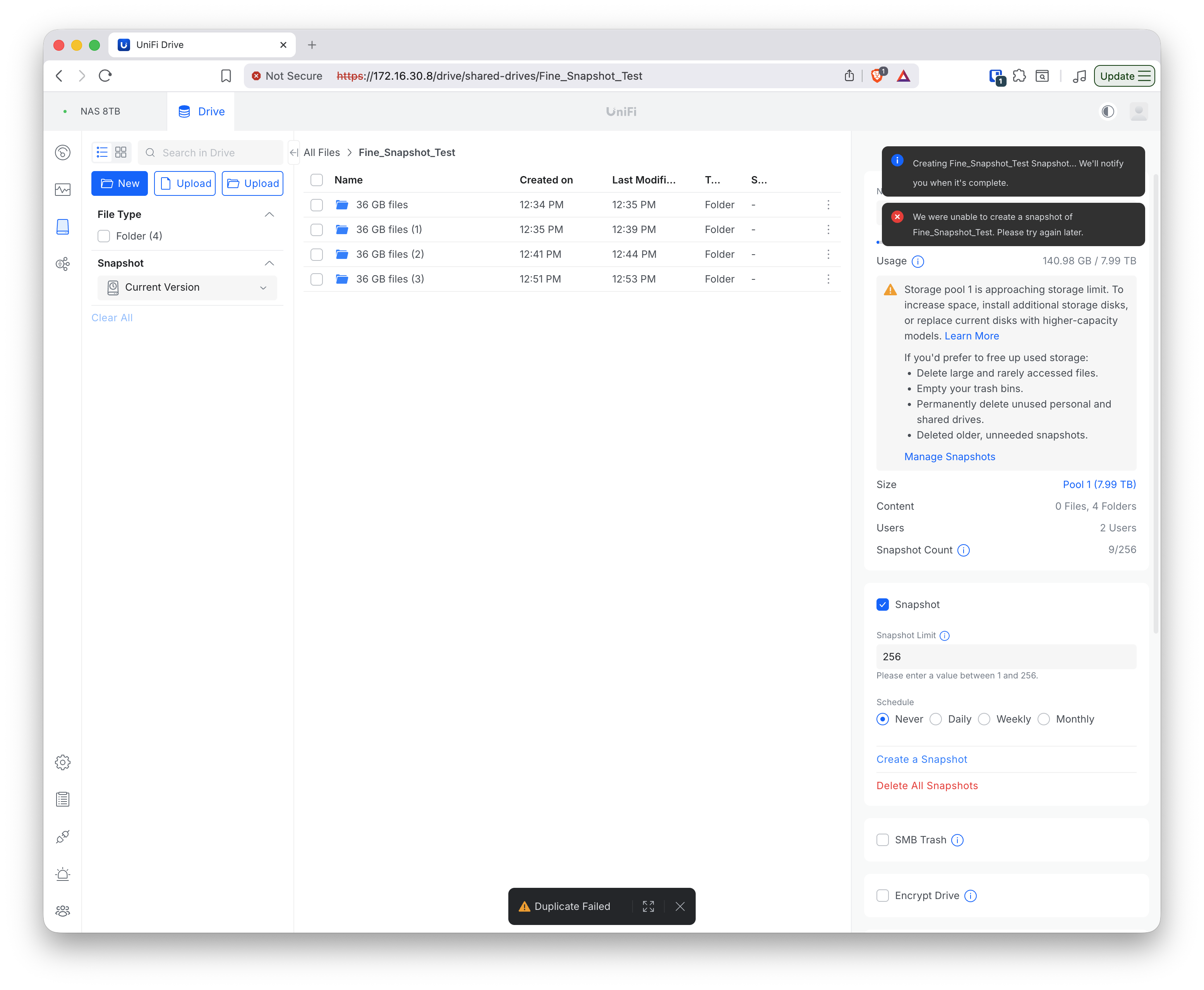
Unlike the failures seen elsewhere, this one was logged: the event log carried both a Snapshot Creation Failed entry and a Storage Pool Full event at the same time.
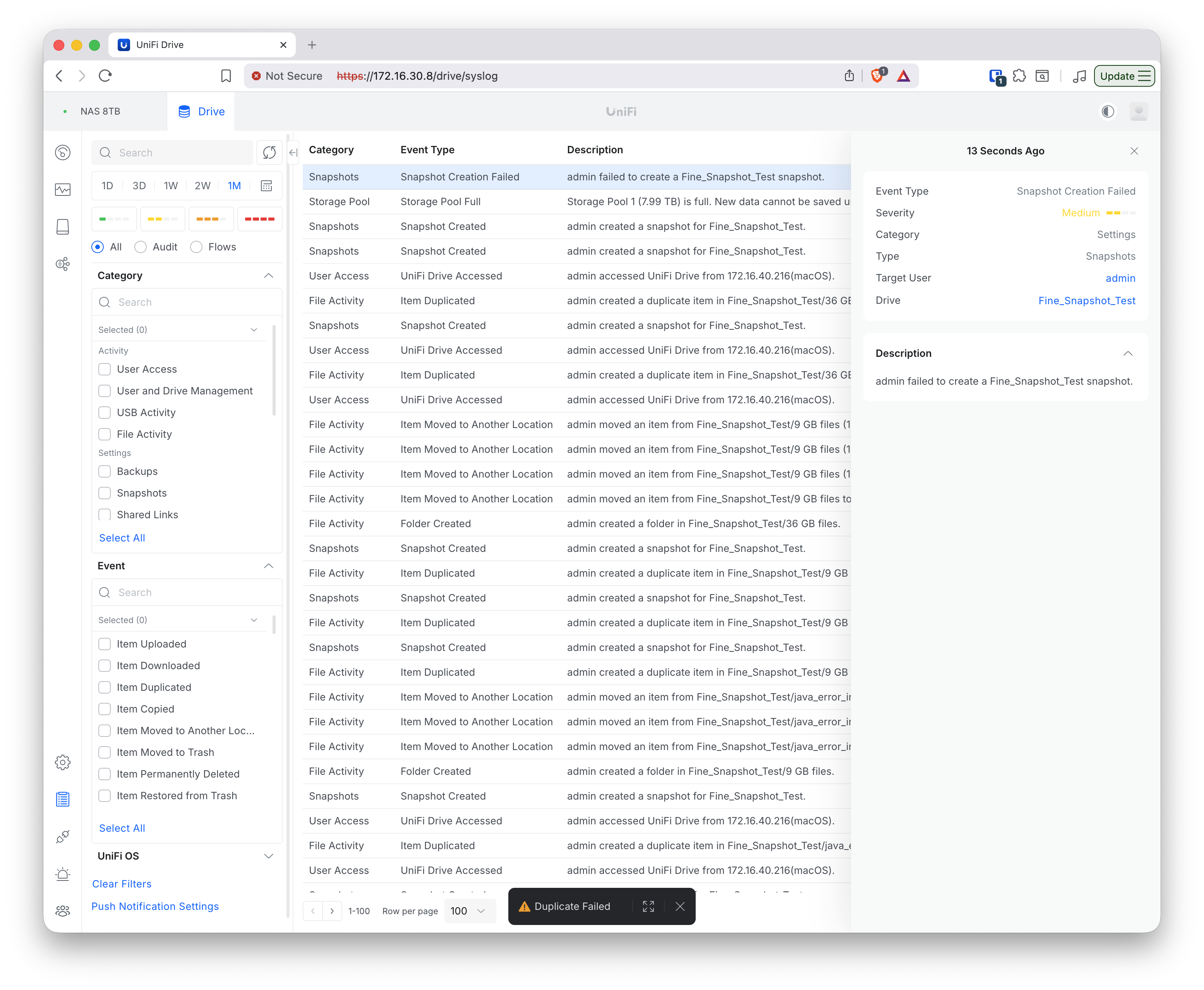
The full step-by-step series is captured in Test_8.2_01 through Test_8.2_39. The key result: contrary to the single observation in Test group 7, snapshot creation did not fail at ~10% free — it succeeded down to a few GB free and failed only at absolute pool exhaustion.
Test 8.3 — Recovering snapshot capability by freeing pool space
With the pool left at absolute full by Test 8.2, the next question was whether the original Snapshot_Test drive could be snapshotted again, and how much free space that takes. Pool space was recovered by deleting data from Fill_Me_Up (which holds no snapshots, so its deletes free pool space directly), with a manual snapshot of Snapshot_Test attempted after each deletion. Snapshot_Test‘s own usage stayed at 103.38 GB / 105 GB throughout, so every change in free space came from Fill_Me_Up.
| Attempt | Pool free | Snapshot of Snapshot_Test |
Event-log entry |
|---|---|---|---|
| 1 (starting state) | 2.37 GB | Failed | none — silent |
| 2 (after deleting ~2.4 GB) | 4.84 GB | Failed | none — silent |
| 3 (after deleting ~32 GB) | 34.55 GB | Succeeded | logged (“Snapshot Created”) |
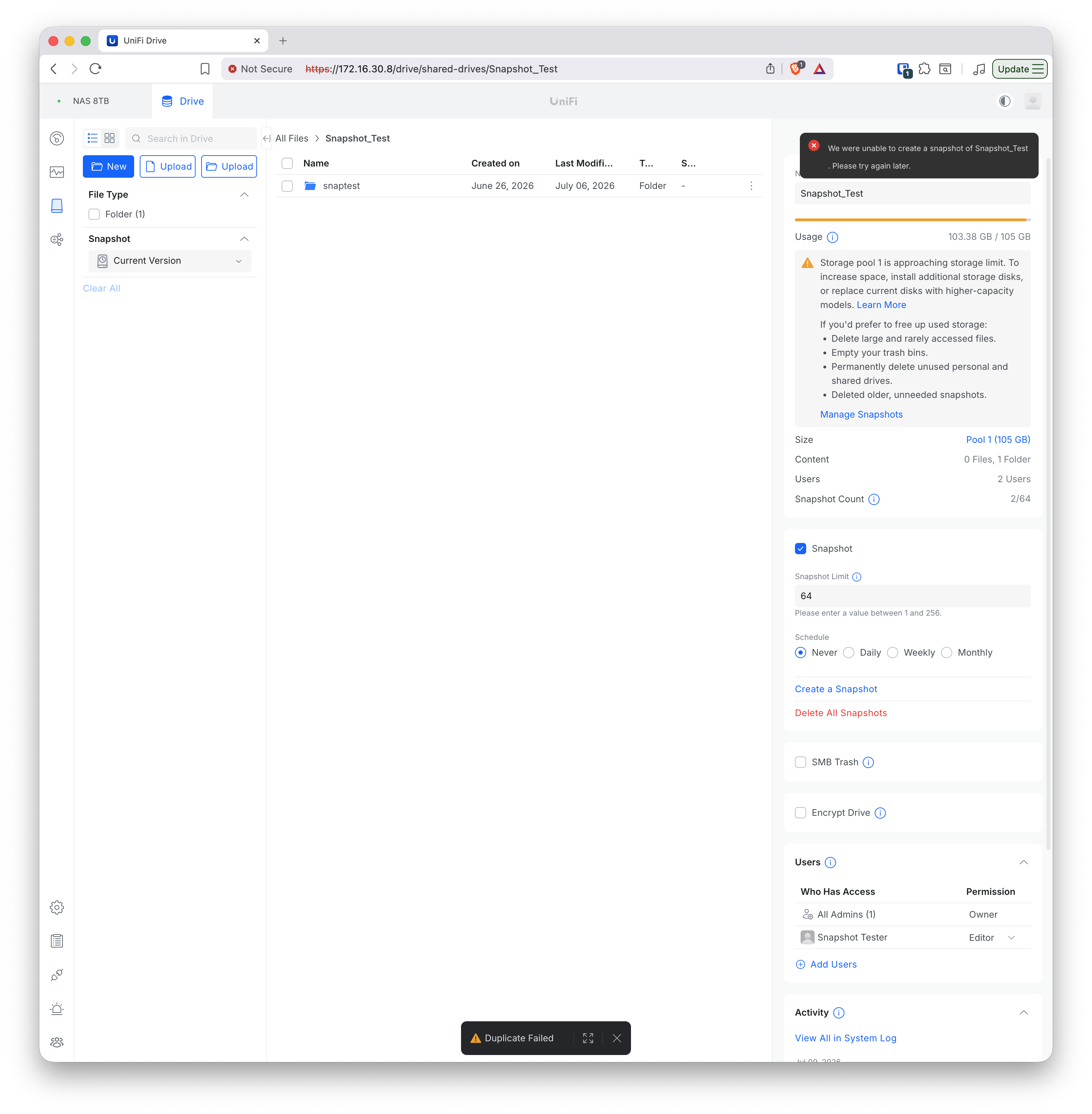
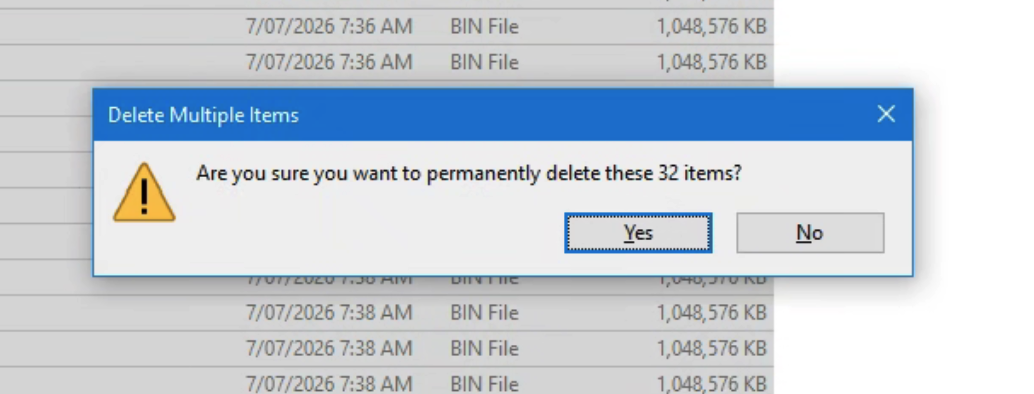
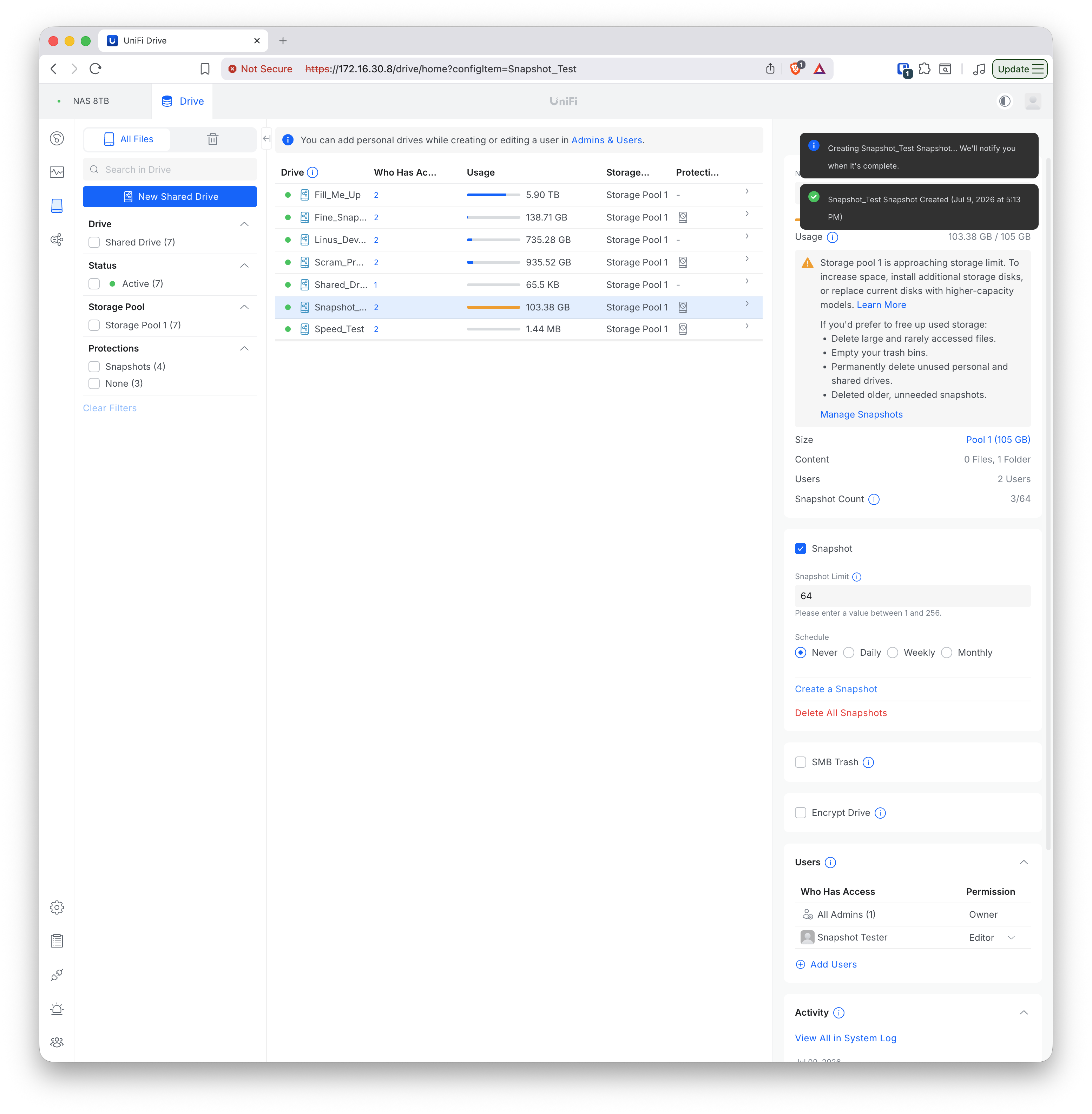
Two observations. First, Snapshot_Test required roughly 35 GB free to snapshot, yet in Test 8.2 Fine_Snapshot_Test — a larger drive with more snapshots — succeeded at ~2 GB free. The free space a snapshot needs is therefore not a single fixed figure; it varies with the drive and its state. Second, both failed attempts (at 2.37 GB and 4.84 GB free) produced no event-log entry, while the success was logged — confirming, again, that a failure short of absolute pool-full is silent.
Test group 8 — findings
1. Snapshots can fail, but not at a predictable point. The single ~11%-free observation from Test group 7 did not reproduce. Snapshot creation succeeded down to ~2 GB free on one drive (Test 8.2), required ~35 GB free on another (Test 8.3), and the same drive failed twice at 2–5 GB free before succeeding once ~35 GB was available. The determinant is unclear — it may involve data or drive-state dependence, or the timing of background maintenance running on the NAS over time. The important point is the lack of repeatability: an operator cannot rely on a known free-space margin, and that non-determinism is itself the risk for anyone who needs guarantees.
2. Some failures are silent. This was observed repeatedly. A snapshot failure short of absolute pool-full produced no event-log entry in every case seen — Test group 7 at ~880 GB free, and Test 8.3 twice at 2–5 GB free. Only a failure at genuine zero-free generated a Snapshot Creation Failed / Storage Pool Full pair (Test 8.2), and email notification could not be established at all (Test 8.1). So an operator may not be told that recovery points have stopped being created.
Scope note: two of the four replications planned for this group were not carried out — count-limit automatic deletion (already established in Test group 6) and any difference between scheduled and manual snapshots. Neither is expected to change the report’s conclusions.