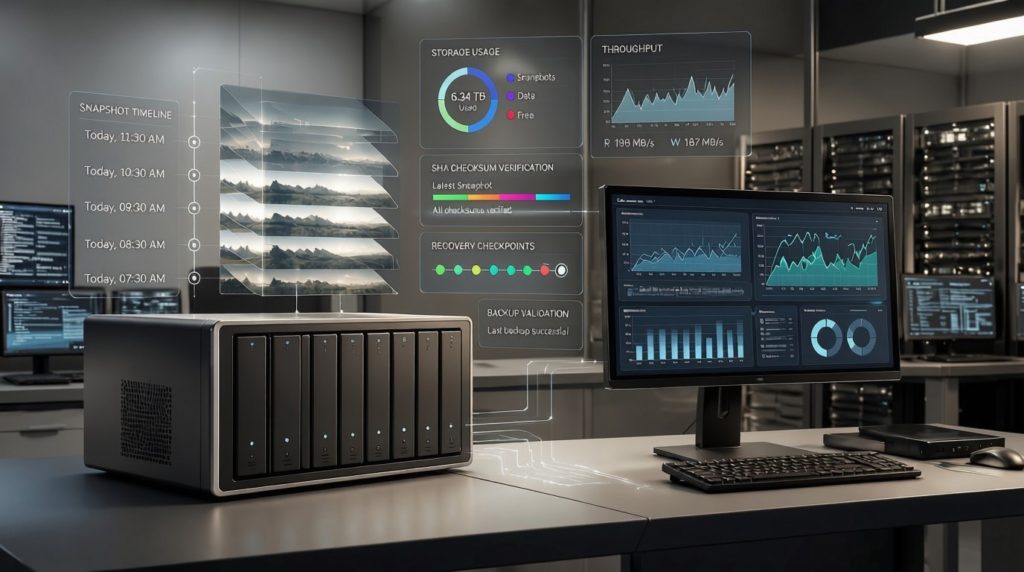
The short version. Having NAS snapshots of your backups can be the deciding factor in a ransomware attack, determining if you can recover easily or have to pay the ransom. It all depends on setting things up in a way that will defeat the hacker. Snapshots are fast, easy and cheap. If you haven’t set them up already, we hope this article will inspire you to take action.
I’ve seen what that hunt costs. Years ago a business owner sat across from me, working out how to buy two Bitcoin to pay a ransom. Her technician had set up automated backups to a second server over a network share. The network was compromised, the attacker had admin access, and the backup was deleted before the ransomware was even deployed. The backup was always reachable. That was the whole problem.
The feature that would have saved her has shipped in NAS devices since 2016. Almost nobody switches it on. It’s called a snapshot.
That business owner wasn’t unusual. From studying how our users configure BackupAssist, we know network shares are the most popular destination for backups of on-premise machines, so for most of you, this is your setup. Switching snapshots on is what makes those backups much safer from harm.
What a snapshot actually is
Picture a photograph of a room, taken this morning.
Through the day the room gets used, rearranged. The photograph doesn’t change. It’s a record of how things were at the instant the shutter clicked, and nothing that happens to the room afterwards can reach back and alter it.
A snapshot is that photograph, for your data. The NAS records the exact state of a folder at a moment in time and freezes it as read-only. Files change afterwards; the snapshot doesn’t.
The clever part is the cost. Or rather, the lack of cost. A snapshot doesn’t copy your data: it copies the bookkeeping. Modern NAS filesystems work by never overwriting a block in place. When a file changes, the new version goes to a new block and the old block is simply kept instead of recycled. The snapshot is just a note saying “hold on to the blocks as they were at 9am.” Taking one is instant. It costs nothing until data starts changing, and even then, it only costs the difference.
That’s the technical term, by the way: copy-on-write. You don’t need to remember it. You need to remember the photograph.
Next, how to set it up properly, and then why it’s so effective.
How to set it up properly
The exact clicks differ from brand to brand, so these are principles, not button-by-button instructions. The brand-specific steps will come in the per-brand tests. Get these right and the defence holds.
- Keep the NAS firmware up to date. Immutable snapshots and the locks that protect them are recent features: old firmware may not have them, or may contain security vulnerabilities that undermine them.
- Use a dedicated NAS for backups, not your production file server. Keep it backup-only: nothing else stored on it, no staff logging in, only the backup software touching it. The less the box does, the less there is on it to attack.
- Don’t connect it to your central login system. The temptation is single sign-on: join the NAS to Entra or Active Directory so there’s no separate password to manage. But that separate password is the defence. If an attacker takes control of your directory, a NAS that was never joined to it stays out of reach.
- Keep the NAS admin login separate and confidential. This is the login that controls snapshots, the one the attacker must never reach. You use it to manage the box; the backup software never touches it.
- Give the backup its own dedicated user, and lock everyone else out. The backup data is owned by one dedicated account with its own share credentials: not the admin login, not a staff login. Only the backup software, signing in as that one user, can reach it. That partitions the backup off from the rest of the box.
- Scope the snapshot to the backup data, not the whole box. Snapshot only the dataset or folder that holds your backups, so you’re not retaining churn from unrelated data. The level of granularity depends very much on the brand and underlying technology of your NAS.
- Schedule the snapshot for when the backup is reliably finished. If you take a snapshot while a backup is running, you risk having data integrity problems. It’s best to schedule your snapshots when you know the backup would have finished. If you run backups overnight, take a snapshot during the day.
- Keep enough snapshot history to outlast a slow attacker. Attackers often sit in a network for weeks before they trigger. Your snapshot history has to reach back far enough that at least one clean copy predates the break-in. So keep weeks or months of snapshots, not days. With only a week of history, an intruder who got in a month ago was already inside when every snapshot you still hold was taken, so none of it is guaranteed clean.
- Lock your recent snapshots so they can’t be deleted. This is the real defence against the disk-flood attack. Where your box supports it, newer firmware lets you lock recent snapshots (this makes them immutable) for a set protection window, so that neither a flooded disk nor a stolen admin login can evict your clean copy. Some brands, like QNAP, also let you reserve pool space for snapshots; it helps, but won’t stop this attack on its own, because once the reserve fills, the oldest snapshots are still deleted.
- Test a restore. Recover from a snapshot to make sure it works, and that you’re familiar with the procedure.
Why the hacker can’t reach it
Here’s the property that turns a neat feature into a genuine defence.
Your files are protected by one login, while your snapshots are protected by another.
The share, where your backups sit, is accessed with one username and password. That’s what your backup software uses to write to it. Now suppose an attacker has stolen those credentials. With that login they can do anything a normal user can: read the backups, encrypt them, delete them.
The snapshots can only be managed using a different login entirely: the NAS administration account. The attacker never had access to that second login, and probably wouldn’t even know that snapshots had been set up.
So picture the attack again, but with snapshots running. The infected server has the backup drive mapped. The ransomware encrypts the live files on the share, deletes what it can, and congratulates itself. Every file that first login could reach is gone.
The snapshot is untouched. The stolen login was never able to reach it. You sign in to the NAS with the admin account the attacker never had, pick the snapshot from this morning, and restore from it.
This works when the attacker has your file-share login but not your NAS admin login. That’s why it’s so important to keep them separate.
Unlike NAS snapshots, Windows Volume Shadow Copies won’t save you
Here’s the part that trips people up. Windows has had a snapshot feature for 20 years. It’s called Volume Shadow Copy, and it’s what sits behind “Previous Versions” and System Restore. So why doesn’t it stop ransomware?
Because of where it lives. A shadow copy sits on the same Windows machine as your files, controlled by the same Windows admin rights the attacker steals. So deleting it isn’t even a challenge: it’s a standard, automated step in the malware. One command wipes every shadow copy on the machine, and the ransomware runs it before it starts encrypting. Security tools now treat “all shadow copies deleted” as a ransomware signal in its own right, because almost nothing else does it.
A NAS snapshot is the same idea moved to a different place. It lives on a separate box, controlled by a separate login that the infected Windows machine never holds. The command that wipes your shadow copies can’t touch it. Same concept, opposite outcome. The only thing that changed is where the snapshot lives and who controls it.
That’s the whole lesson in one line: a snapshot is only worth as much as the barriers between it and the attacker.
| Windows shadow copy | NAS snapshot | |
| Where it lives | On the same Windows machine | On a separate device |
| Controlled by | Windows admin rights | The NAS admin login |
| Ransomware deletes it automatically? | Yes, a standard step | No, different login, out of reach |
| Survives a compromised PC? | No | Yes |
What snapshots do not protect you against
Snapshots are a layer of protection, not a complete strategy. They protect against precisely one category of threat: someone, or something, reaching in over the network with a stolen login. They do nothing about the physical world.
| Threat | Snapshot helps? | Why |
| Ransomware / hacking over the network | Yes | The stolen login doesn’t grant access to the snapshot |
| Accidental deletion, a bad change | Yes | Restore the version from before the mistake |
| Drive or NAS hardware failure | No | The snapshot dies with the disk it lives on |
| Fire, flood, theft | No | The whole box is gone, snapshot and all |
| A compromised NAS admin account | No | The admin login is the one account that can delete them |
This is the old 3-2-1 rule, and snapshots don’t replace it. Three copies of your data, on two kinds of media, with one kept off-site. A snapshot is a strong second line on the copy you keep locally. It is not the off-site copy, and it is not a substitute for one. Anyone who tells you a snapshot is “a backup” is selling you a false sense of security — and probably a NAS.
The five questions everyone asks before turning it on
How much disk space does keeping all these copies cost me?
Less than you’d think. Remember, a snapshot doesn’t copy your data. It only costs the changes made after it’s taken. The formula isn’t “data size times number of snapshots.” It’s “how much your data churns per day, times how many days you keep.”
For a backup share, that depends entirely on how your backup software writes. File replication that only touches changed files churns very little, and snapshots are nearly free. Image backups that rewrite large VHDX files churn hard, and snapshots cost more. There’s a trap worth naming: when your backup software deletes an old backup set to honour its retention policy, that space isn’t actually freed while a snapshot still references it. Snapshot retention quietly stacks on top of backup retention. Plan storage for both.
Over the next few months, I’ll be running comprehensive tests to measure space overheads. Stay tuned for my results!
Does it slow my NAS down?
No. Not in any way you’ll feel on a backup target. Taking a snapshot is instant regardless of how much data you have, and keeping snapshots imposes no real penalty on writes. If you carry a scar from the old LVM snapshots of 15 years ago, which copied a block on every single write and slowed everything to a crawl, this isn’t that. Copy-on-write doesn’t work that way.
Important note: if you experience unexpected slowdowns with your NAS, check that you installed CMR hard drives, not SMR hard drives. SMR hard drives can slow down write operations by a factor of 6 and slow your backup to a crawl, as explained on our blog.
Do I need more RAM?
No. The snapshots themselves cost essentially no memory; their bookkeeping lives on disk. One warning, because people confuse the two: do not turn on deduplication thinking it’s related. It isn’t, and on ZFS it’s a genuine memory monster. Snapshots are cheap. Dedup is not. Leave it off.
Should it integrate with my backup software, or stay separate?
Separate. The separation is the whole defence, as the setup principles laid out. The backup software uses the share login; the snapshots answer only to the admin login. One shared account between them hands the attacker both in a single theft.
There’s one piece of coordination the principles don’t cover, though: alerts. Set them up on the NAS itself, because your backup software has no idea whether snapshots are even running. A snapshot schedule that silently failed 3 weeks ago is invisible until the morning you reach for it.
And the one nobody asks: what happens when the disk fills up?
This one matters more than all the others combined, so it gets its own section.
The dangerous default nobody mentions
Ask yourself what your NAS does when the snapshots fill the disk.
Some devices, by default, delete the oldest snapshot to make room for the newest. It sounds sensible. It’s housekeeping. It’s also a security hole, and here’s the attack that walks straight through it.
An attacker with only your share login can’t delete a snapshot. But they can write to your network share. So they don’t bother attacking the snapshots directly. Instead, they flood the share with garbage, writing huge amounts of junk, trying to fill up the underlying disks and trigger the NAS to delete older snapshots to free up space. And with each snapshot that gets deleted, the attacker gets one step closer to extracting a ransom.
If that mechanism sounds familiar to anyone who’s used my software, it should. It’s the same attack that CryptoSafeGuard Scan was built to detect and mitigate: encrypted files quietly displacing the last clean restore point because a retention limit started deleting good copies to stay under quota. The shape of the attack is identical. Only the layer is different.
So the question to ask of any NAS isn’t “can it take snapshots.” It’s “what does it do under pressure, and can an attacker create that pressure from the share?” The fix you’ve already met in the setup principles: lock recent snapshots so they can’t be deleted during a protection window (Synology calls this immutability; ZFS calls it a hold). Then a flooded disk can’t evict them. Two habits back it up: where your brand offers it, reserve pool space for snapshots; and treat a low-disk-space alert on your backup NAS as a possible attack, not a chore.
We’re testing four brands: here’s what each test will check
Different boxes behave very differently under that pressure, so rather than trust spec sheets, over the next few months I’m putting four NAS brands through the exact attack above: churn the share from a low-privilege login until the disk is under pressure, then check whether the clean, pre-attack snapshot survives.
Each test will be its own write-up, covering the space cost, the performance, the credential-separation check, and the headline question of whether I can destroy my own recovery point using nothing but share access:
- TrueNAS → (test coming)
- Ubiquiti UNAS Pro → (test coming)
- Synology → (test coming)
- QNAP → (test coming)
I’ll link each one here as it publishes. If you run only one of these boxes, that’s the test to watch for.
You can probably already do this
This isn’t bleeding-edge technology you can be forgiven for missing. This capability has been commonly available since 2016. It has been sitting in the rack, switched off, for a decade.
So before you buy anything, check the box you already have. Three catches decide whether you can use it:
- Model support. Older and entry-level units may not support snapshots at all, regardless of firmware. Check the vendor’s list for your exact model.
- Volume type. Synology snapshots need a Btrfs volume, and you can’t convert an existing ext4 volume. It has to be rebuilt. QNAP needs a storage pool, not a legacy static volume. Either way, switching on snapshots may mean backing up, rebuilding the volume, and restoring. Plan for it.
- Plain versus locked. Basic snapshots are a decade old and a compromised admin can delete them. Immutable snapshots, the kind that survive even an admin takeover, are recent. Synology’s arrived in 2023, on a narrower list of models again. If you want the version that actually holds under a full compromise, that’s the feature to look for.
The honest summary: the protection is old and widespread. The hardened version is new and patchy. Most small businesses are running neither.
Keeping your backups out of harm’s way: a quick review
Let’s remind ourselves of the bigger picture now: where do NAS snapshots fit into an overall strategy for cyber resilience?
The best backup is the one that’s there when you need it, which means it has to live somewhere the attacker can’t reach. There are three practical ways to manage that:
- Offline backups. Disconnected from the machine and the network, usually rotated off-site. Nothing travelling over the network can touch them. The trade-off is that they’re manual: someone has to swap and store the media, and a backup that relies on a person remembering is one that eventually gets skipped.
- Immutable cloud backups. Fully automated and offsite, written to a cloud provider so they can’t be changed or deleted for a set period, even by someone holding stolen credentials. The trade-off is recovery speed and cost: pulling a lot of data back over your internet connection is slow, and the storage is an ongoing bill.
- Locked snapshots on a NAS. Fully automated, with the fast local recovery this article has been about. The trade-off is the flip side of “local”: the snapshot sits on a box in your building, so it does nothing for fire, theft, or flood.
No single one of these is the whole answer: the 3-2-1 rule from earlier, in practice. A locked NAS snapshot gives you the quickest way back from a ransomware attack; an offline or immutable-cloud copy covers the physical disasters a local snapshot can’t. Run snapshots for speed, and keep at least one off-site option for everything else.
Over to you
So here’s my genuine question.
If you’re already backing up to a NAS, have you turned snapshots on? And if you have: have you ever tested that the snapshot survives an attack, or have you just assumed it would, the way that business owner assumed her network-share backup would be there?
There’s a difference between a backup you have and a backup you’ve proven. So I’m going to try to destroy my own (across four different brands) and publish what I find, reassuring or not. I’d encourage you to try to destroy yours, too — before someone else does it for you.
— Linus